> ## Documentation Index
> Fetch the complete documentation index at: https://docs.nomadsarc.app/llms.txt
> Use this file to discover all available pages before exploring further.
# 📖 Content for B2B / B2C
How to display different image content for **B2B** and **B2C** customers on the Checkout page using the **Notifications -> Content** option.
## Guide
Create a new [customization](https://admin.shopify.com/apps/dynamic-checkout-customizer/customizations).
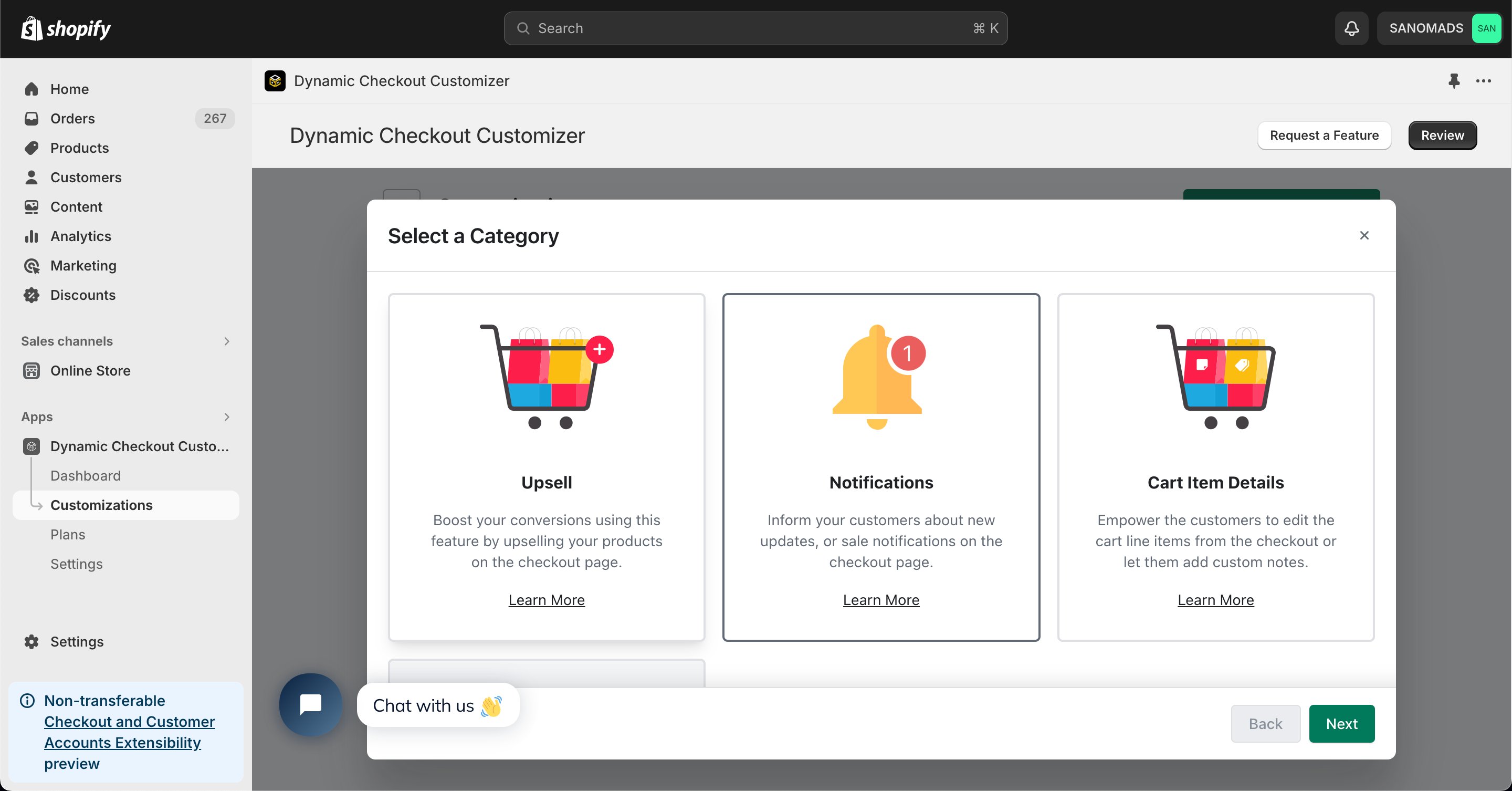
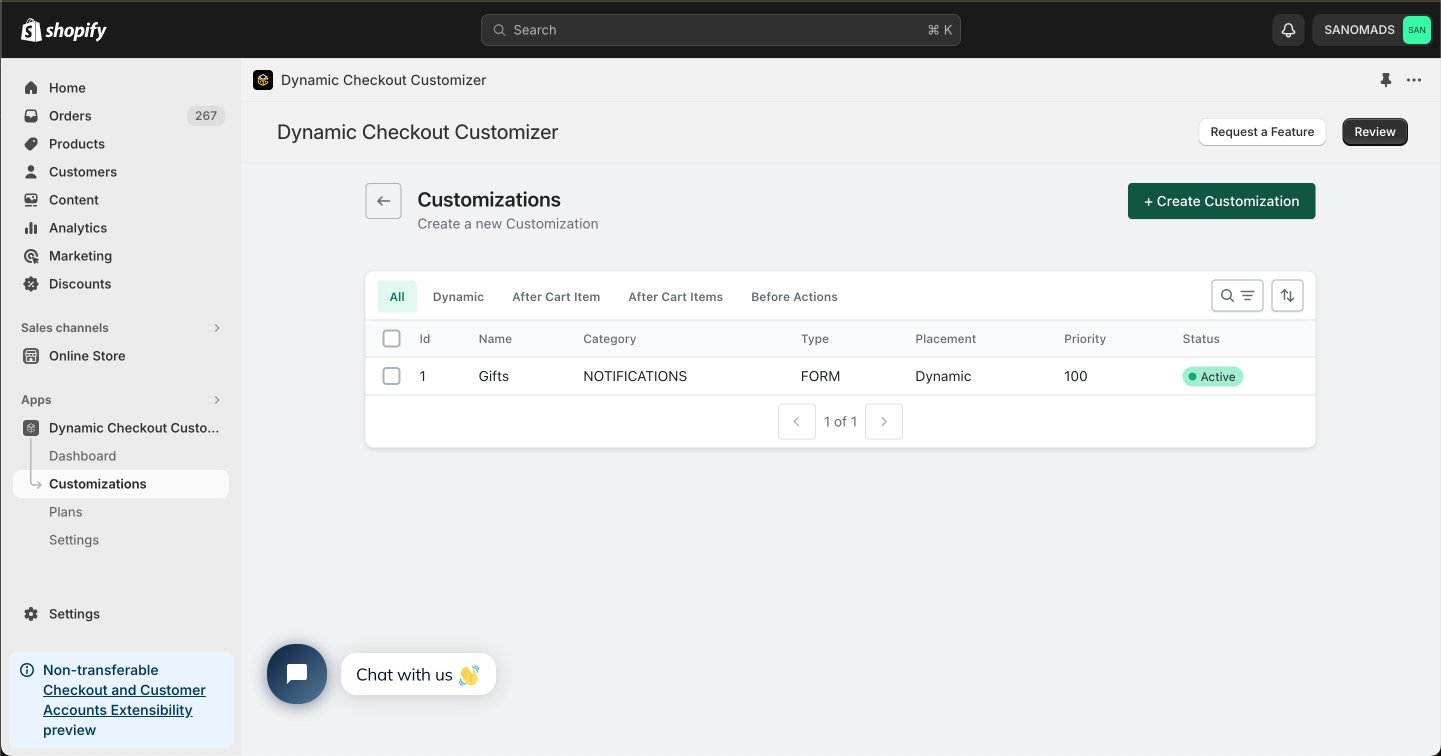 Choose **Notifications** as the customization category.
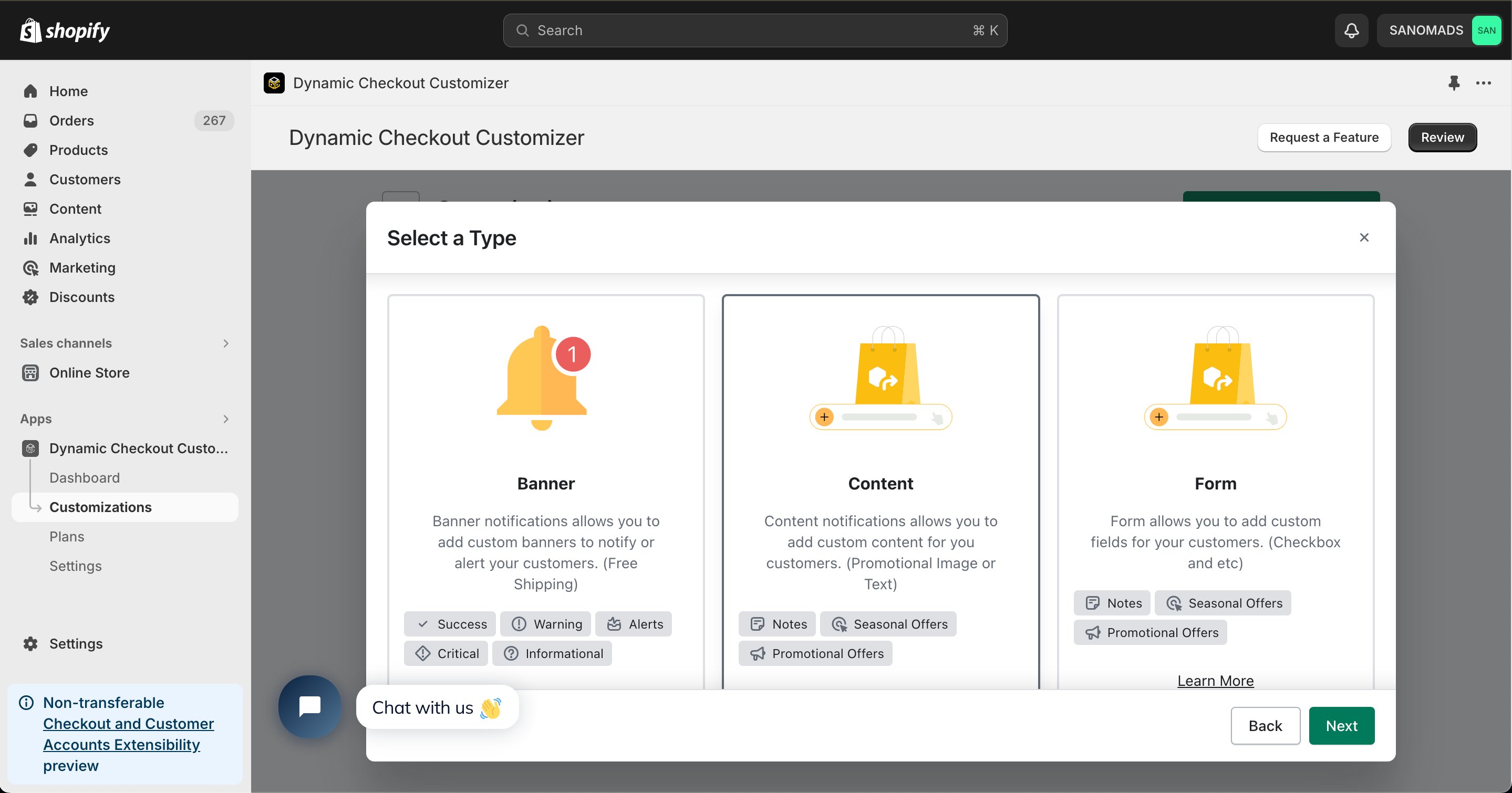
 Select **Content** from the available notification types to display custom images or text during checkout.
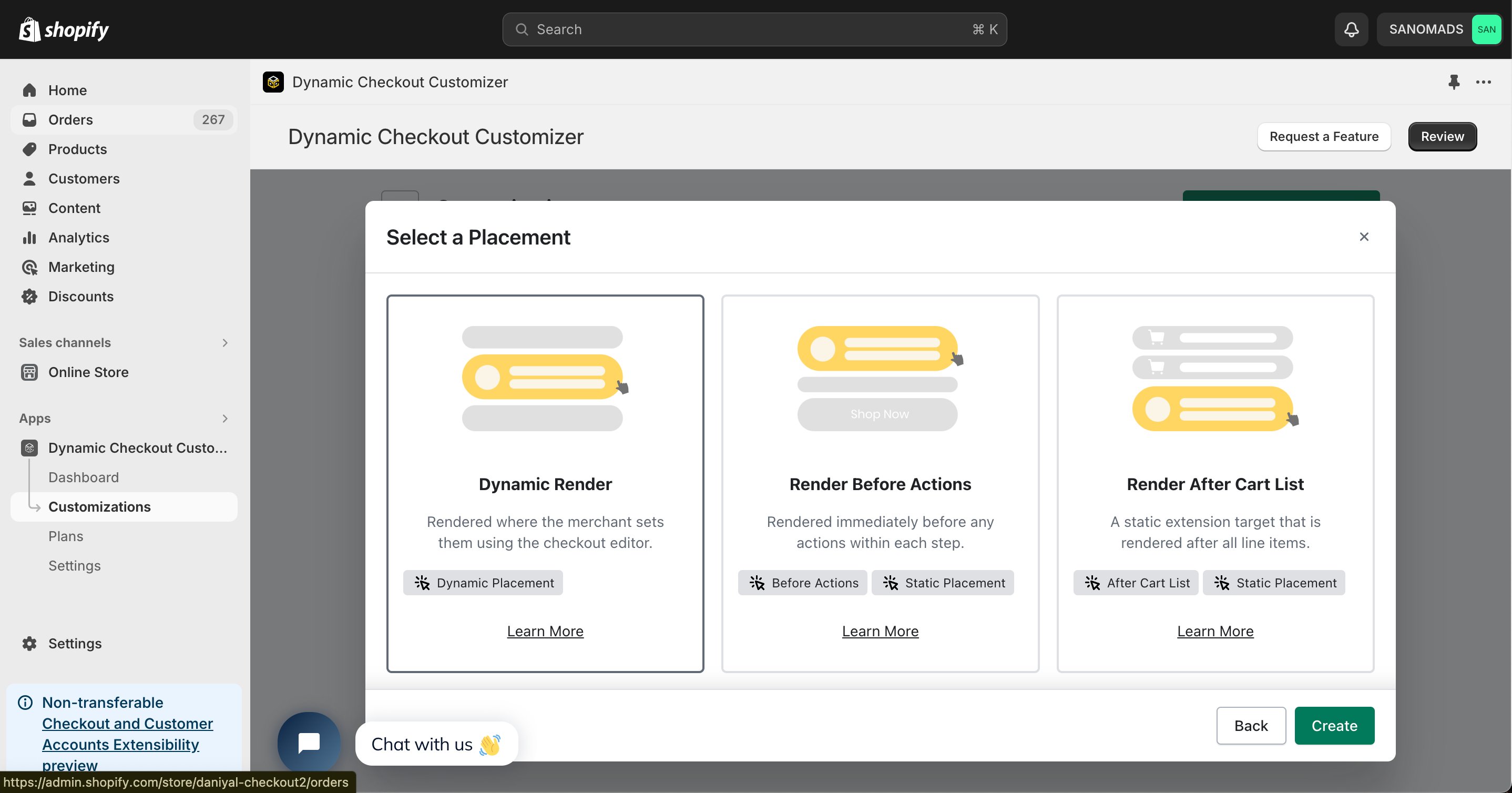
 Choose **Dynamic Render** from the available placement options.
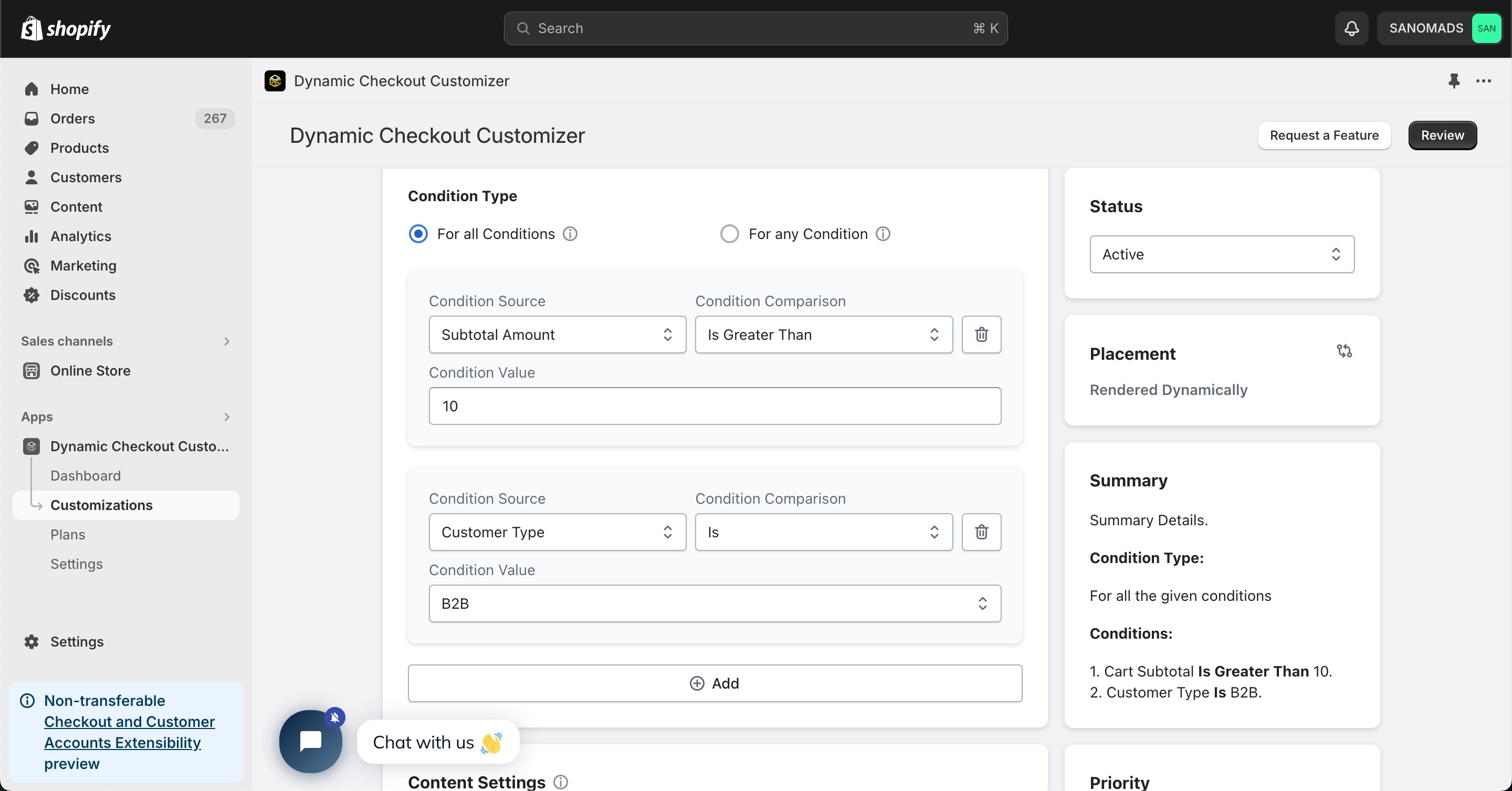
 Add one or more **conditions** to control when the content appears during checkout.
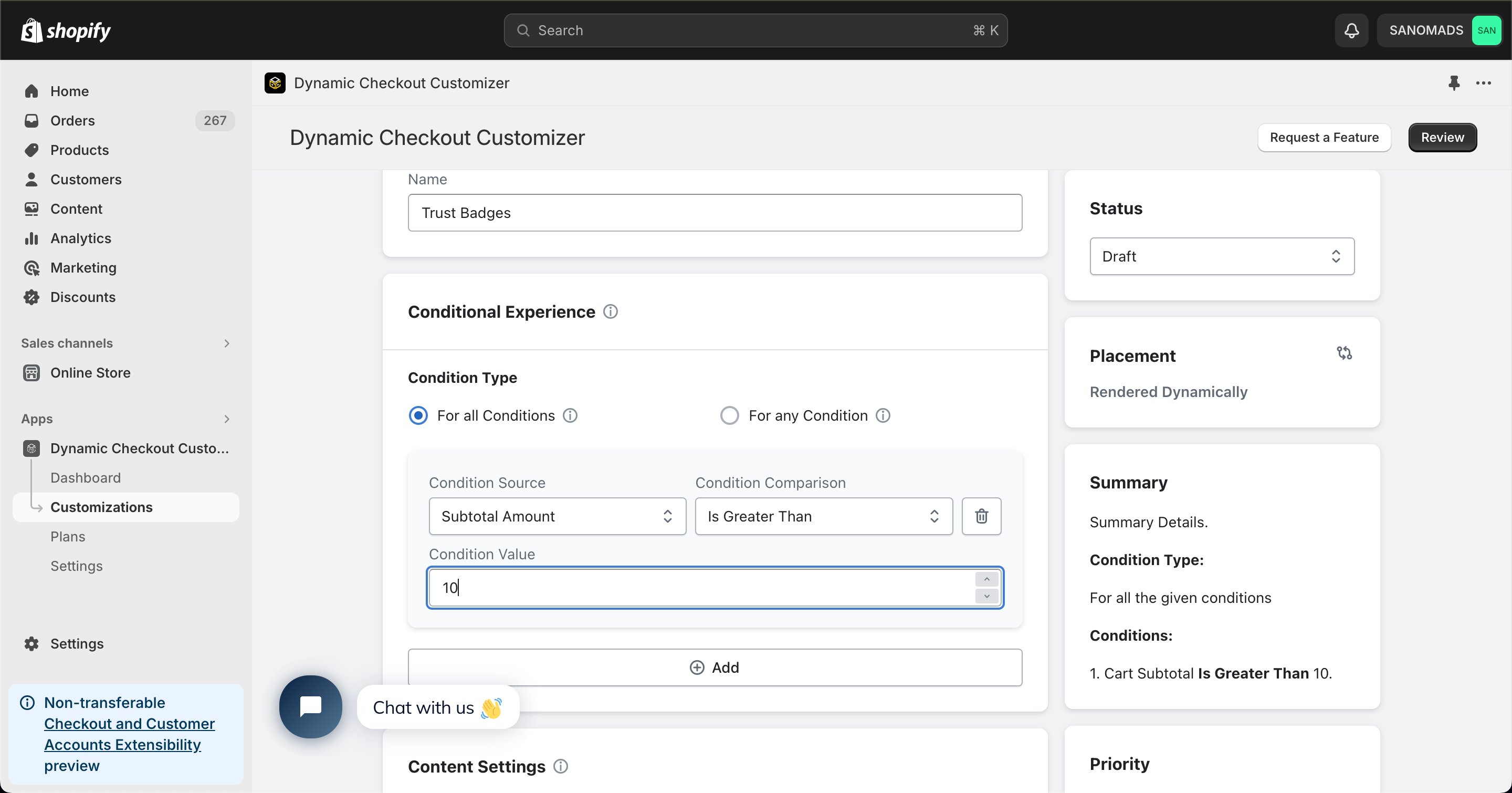 To display the content only for B2B customers, add a **Customer Type** condition and select **B2B** as the value.
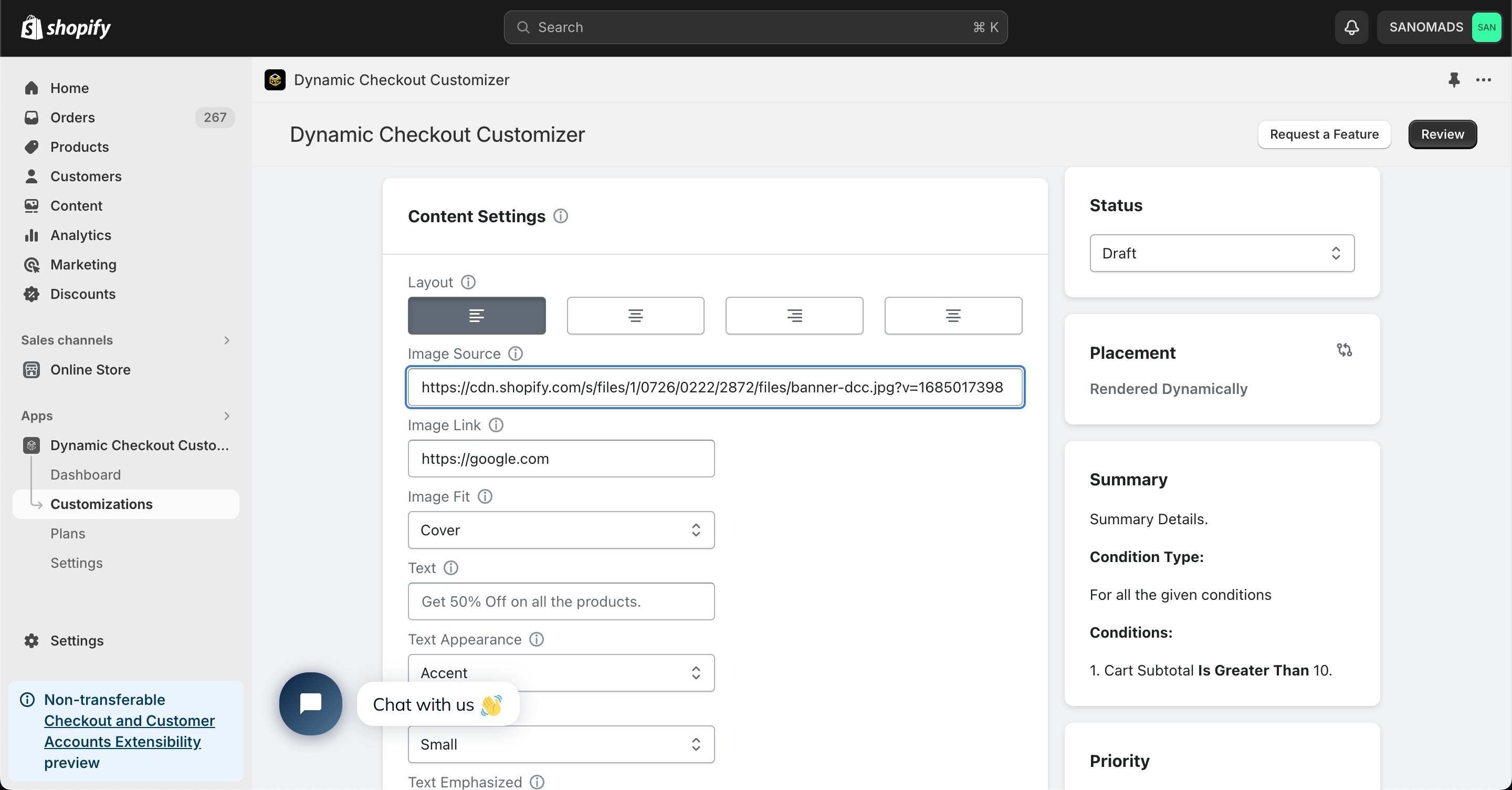
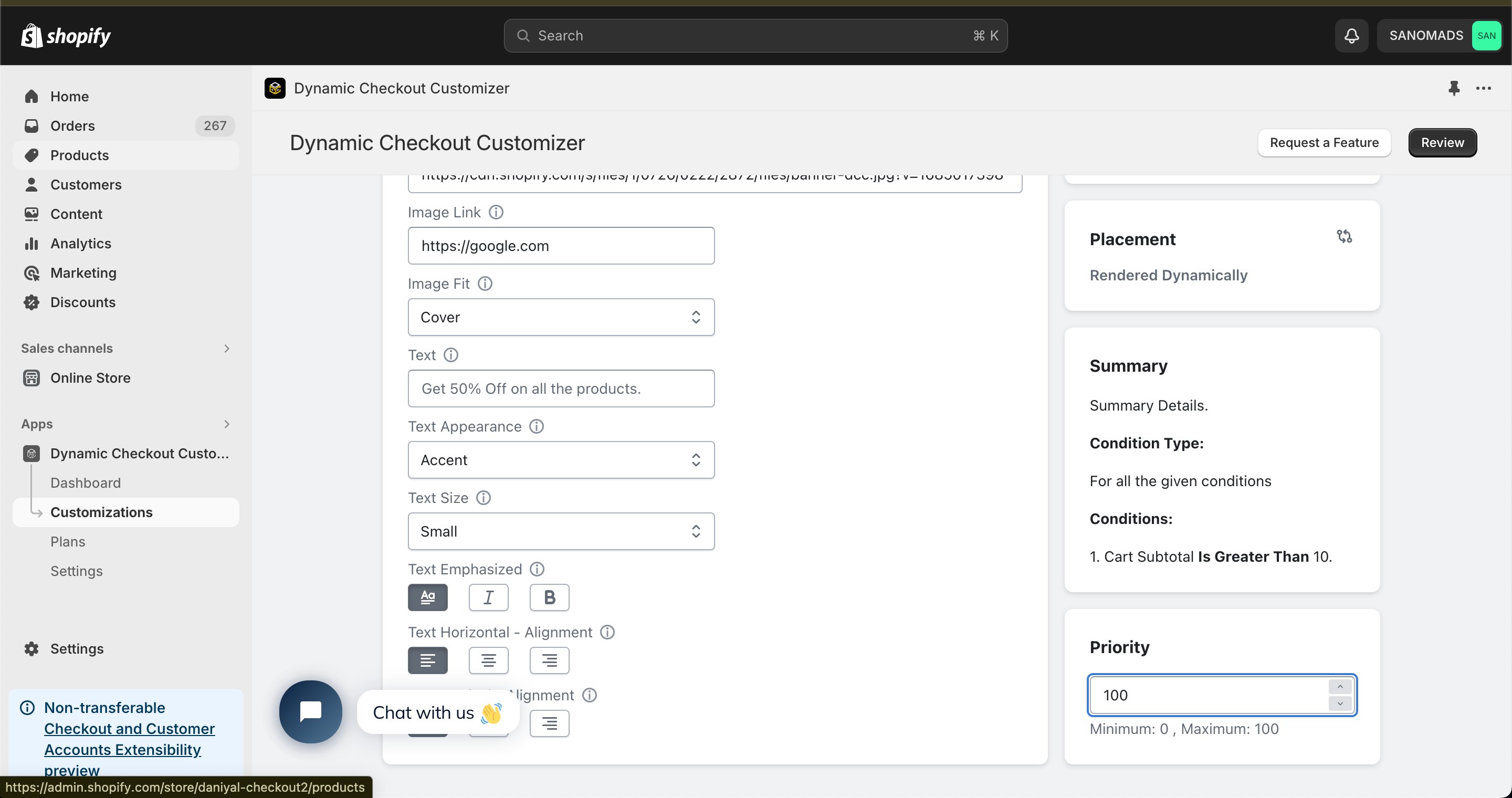
 Configure the **Content Settings**, including the **Image Source URL** and **Redirect URL** for the content you want to display.
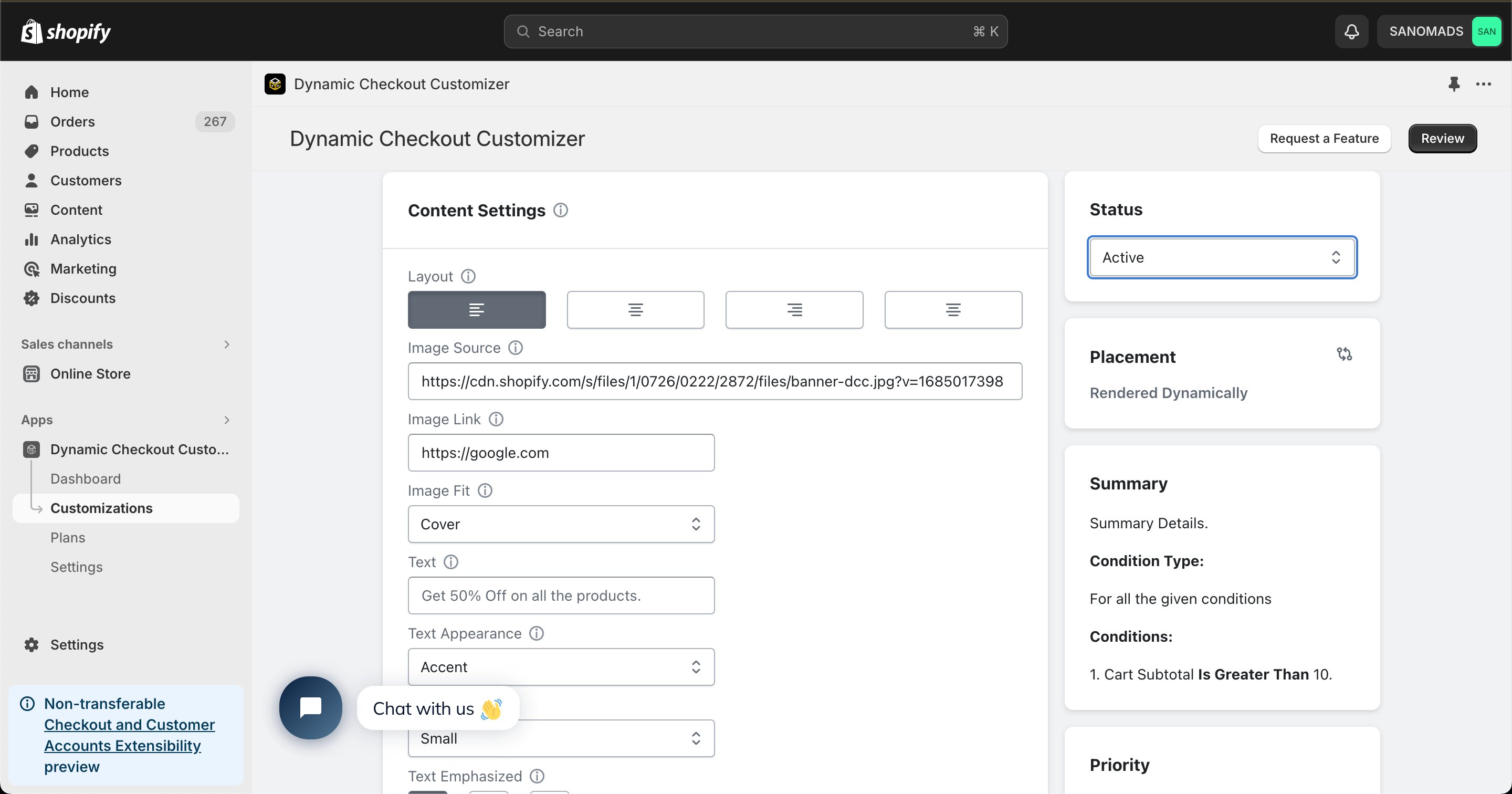
 Change the **Status** to **Active** to enable the customization.
 Configure the **Priority** (0–100) to control the execution order when multiple customizations are eligible.
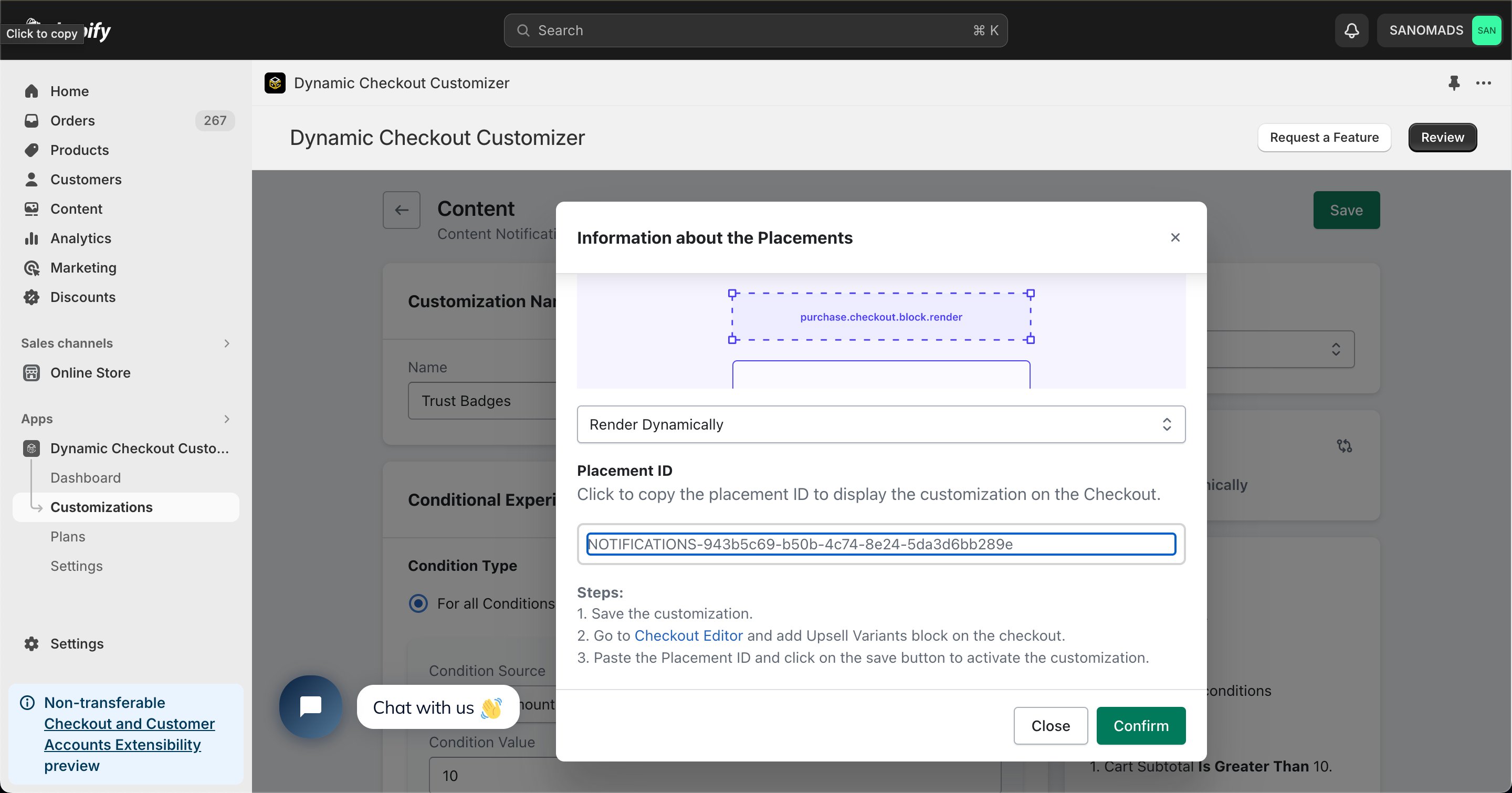
 Open the **Placement** tab and copy the generated **Placement ID**. You'll use this in the Shopify Checkout Editor.
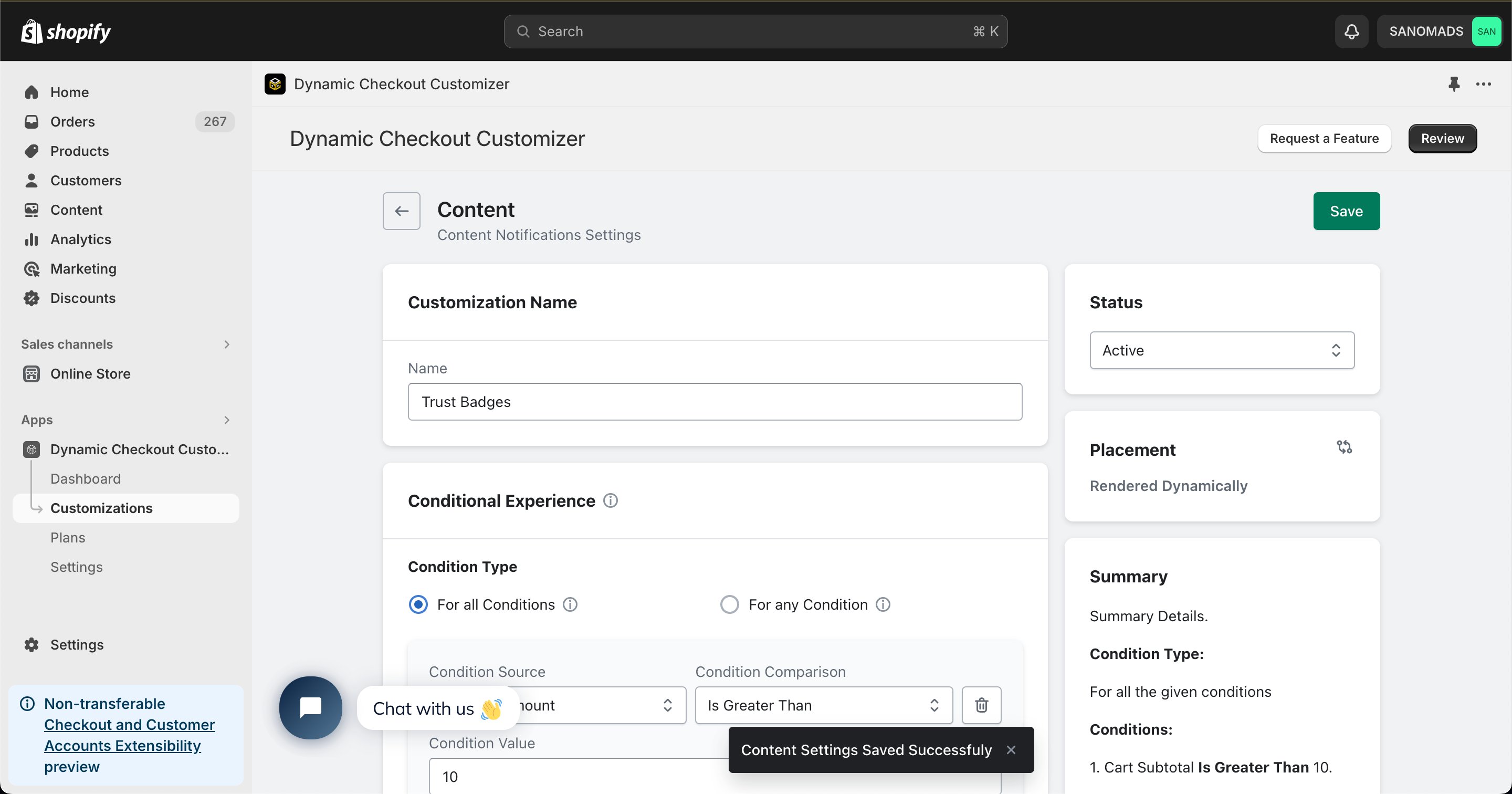
 Click **Save** to store your configuration.
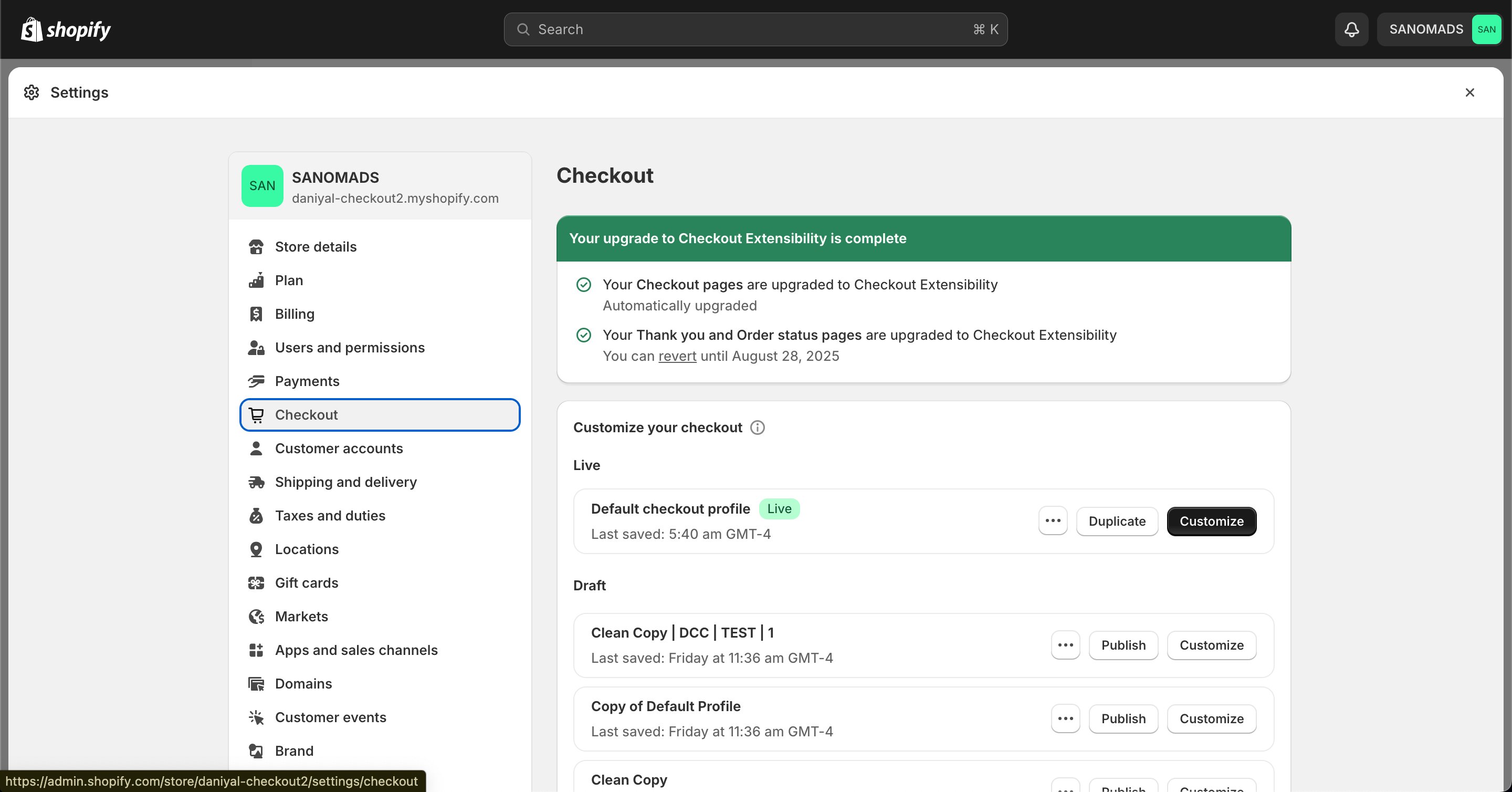
 Go to your Shopify **[Settings](https://admin.shopify.com/settings) → Checkout**, select your checkout profile, and click **Customize**.
 In the [Checkout Editor](https://admin.shopify.com/settings/checkout/editor), click **Add app block**.
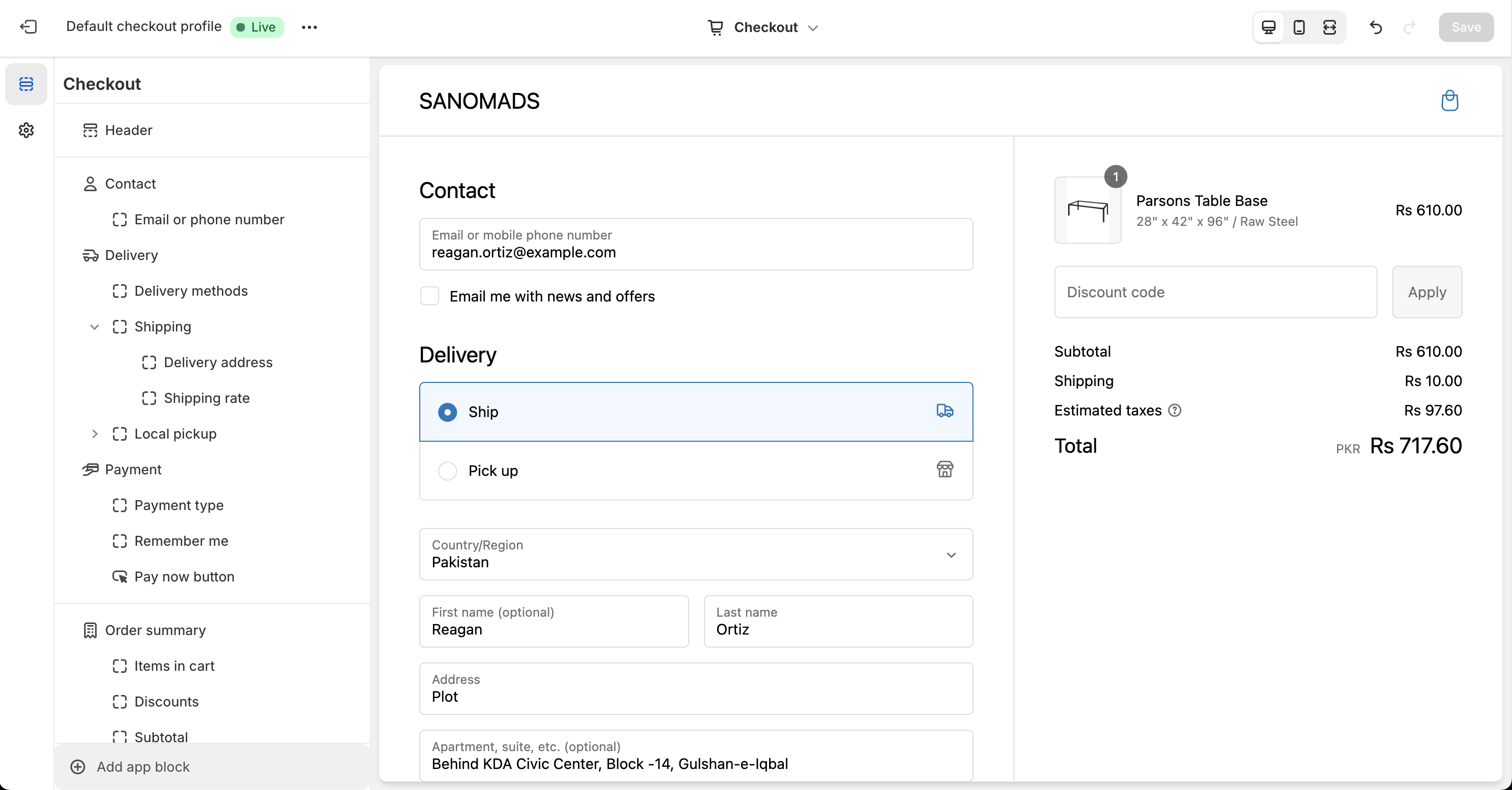 Make sure the app block is placed in the same checkout placement you selected in Dynamic Checkout Customizer.
Select the **Checkout – Image Content** app block, drag it to the desired location, and paste the copied **Placement ID**.
Make sure the app block is placed in the same checkout placement you selected in Dynamic Checkout Customizer.
Select the **Checkout – Image Content** app block, drag it to the desired location, and paste the copied **Placement ID**.
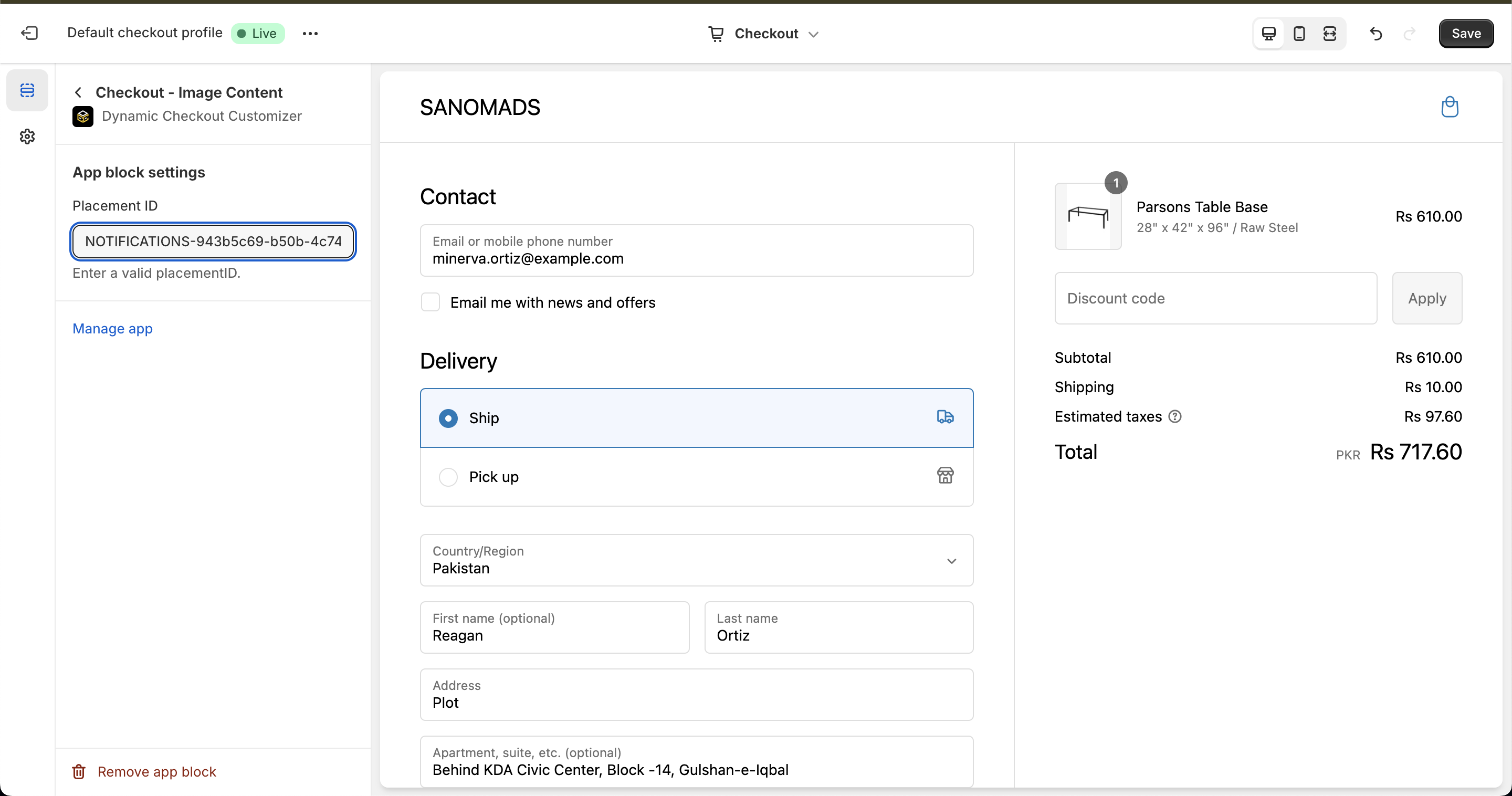 Click **Save** in the Checkout Editor to publish the customization.
 **Why does it matter?**
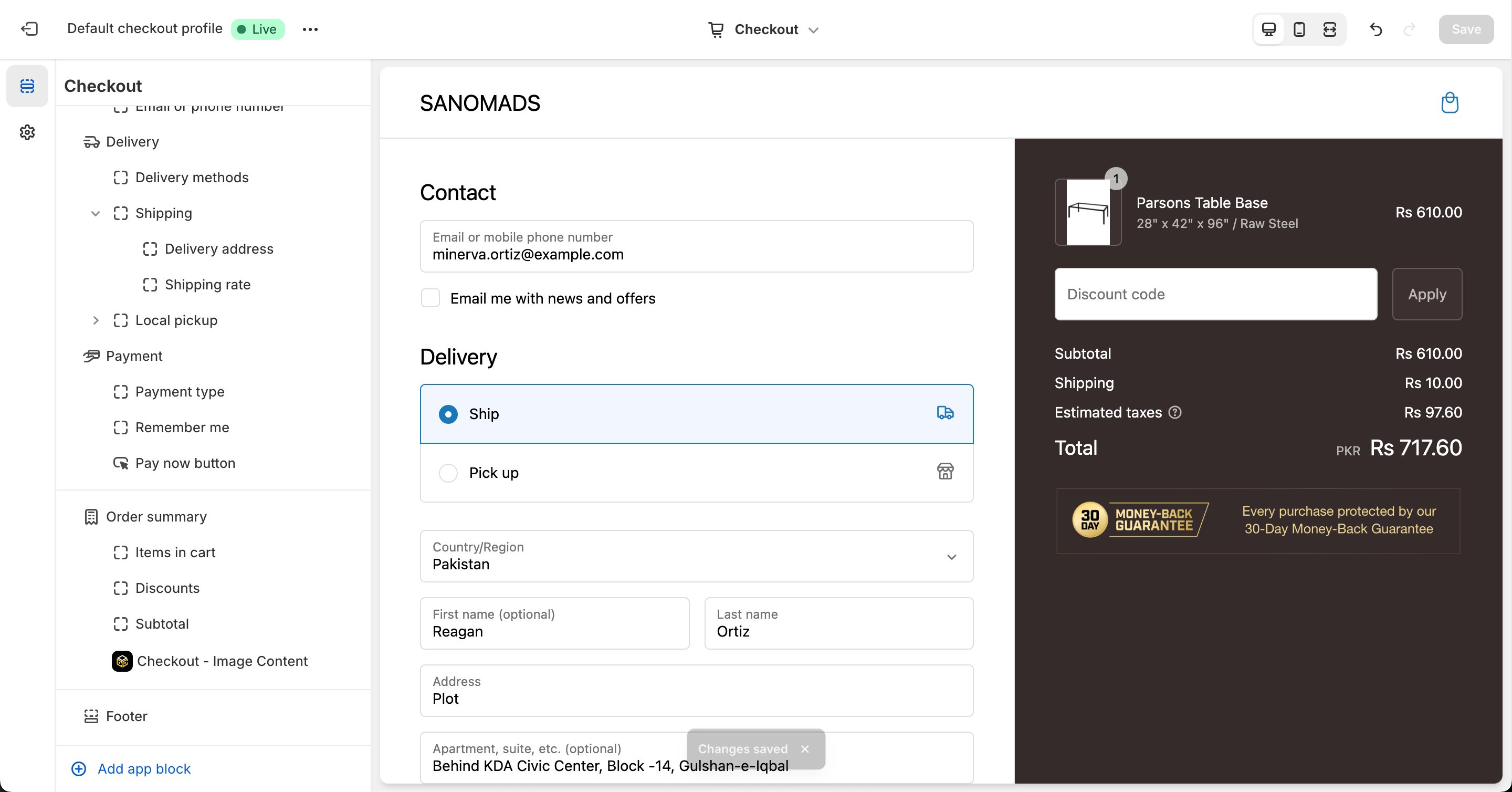
Gimaguas is using uses the **Notifications → Content** customization to display images during checkout, helping strengthen its content marketing strategy while creating a more engaging customer experience.
**Why does it matter?**
Gimaguas is using uses the **Notifications → Content** customization to display images during checkout, helping strengthen its content marketing strategy while creating a more engaging customer experience.