> ## Documentation Index
> Fetch the complete documentation index at: https://docs.nomadsarc.app/llms.txt
> Use this file to discover all available pages before exploring further.

# 🛍️ Cross-Sell

How to **Cross-Sell** Products on Checkout using the **Template ->** **Upsell -> Cross-sell** option? A simple walkthrough.

<video src="https://mintcdn.com/nomads-arc/CG_hEn4NJlaeeeAR/videos/Cross-sell.mp4?fit=max&auto=format&n=CG_hEn4NJlaeeeAR&q=85&s=48b463b63c7d47a852aad0d9feae5b66" controls data-path="videos/Cross-sell.mp4" />

## Guide

<Steps>
  <Step title="**Create a new customization**">
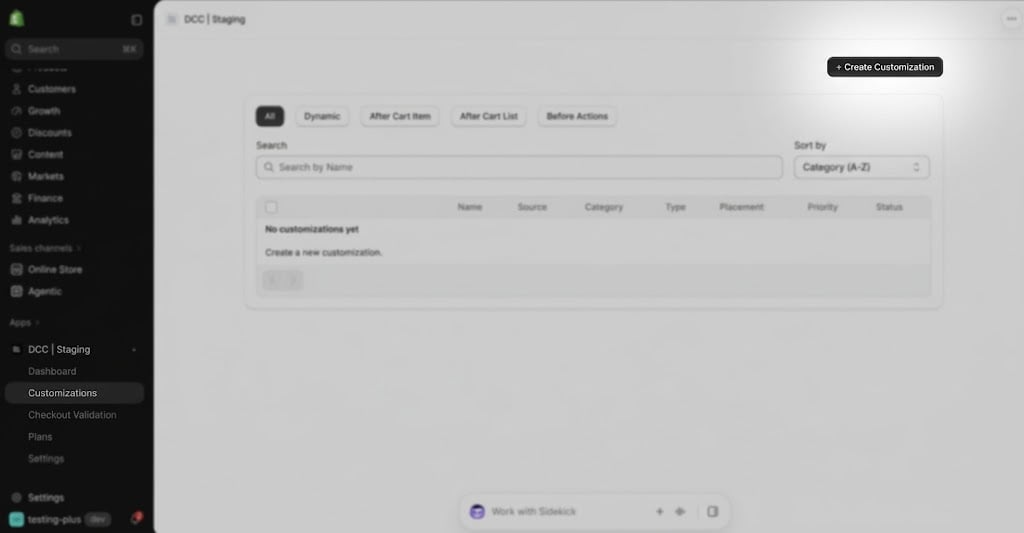
    Create a new [**customization**](https://admin.shopify.com/apps/dynamic-checkout-customizer/customizations).
    <img src="https://mintcdn.com/nomads-arc/UBOTWC7vmubbeGYg/images/image-47.png?fit=max&auto=format&n=UBOTWC7vmubbeGYg&q=85&s=1a758cebdeba21dd2d7d940e702de4dc" alt="Image" width="1024" height="533" data-path="images/image-47.png" />
  </Step>

  <Step title="**Choose the Cross Sell**">
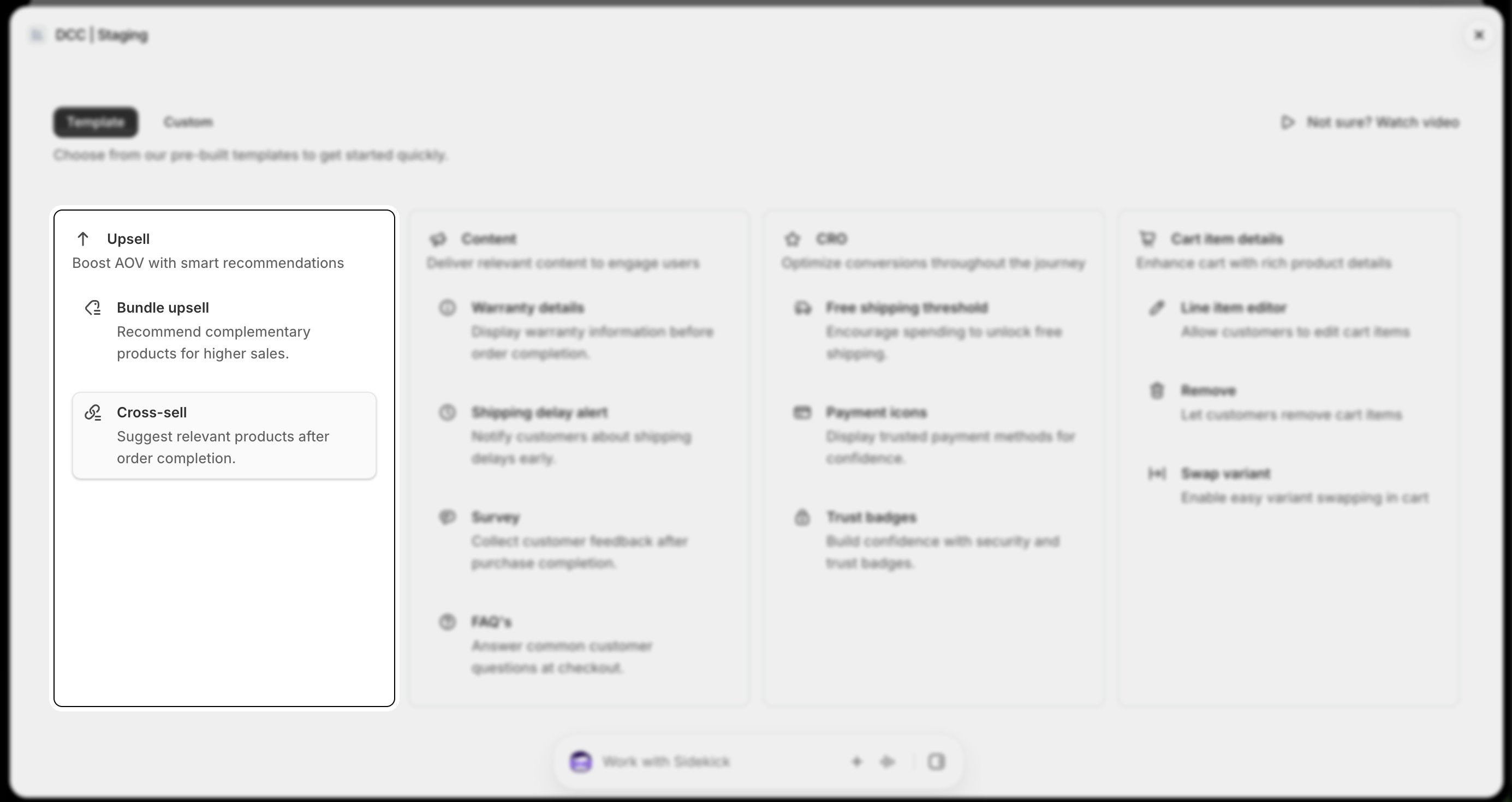
    Choose the **Cross-sell** option from Upsell section
    <img src="https://mintcdn.com/nomads-arc/UBOTWC7vmubbeGYg/images/crosssell_1_upsell_card.png?fit=max&auto=format&n=UBOTWC7vmubbeGYg&q=85&s=4cd0ca001028b877d112aced6563defb" alt="Crosssell 1 Upsell Card" width="2770" height="1470" data-path="images/crosssell_1_upsell_card.png" />
  </Step>

  <Step title="**Configure conditional experience**">
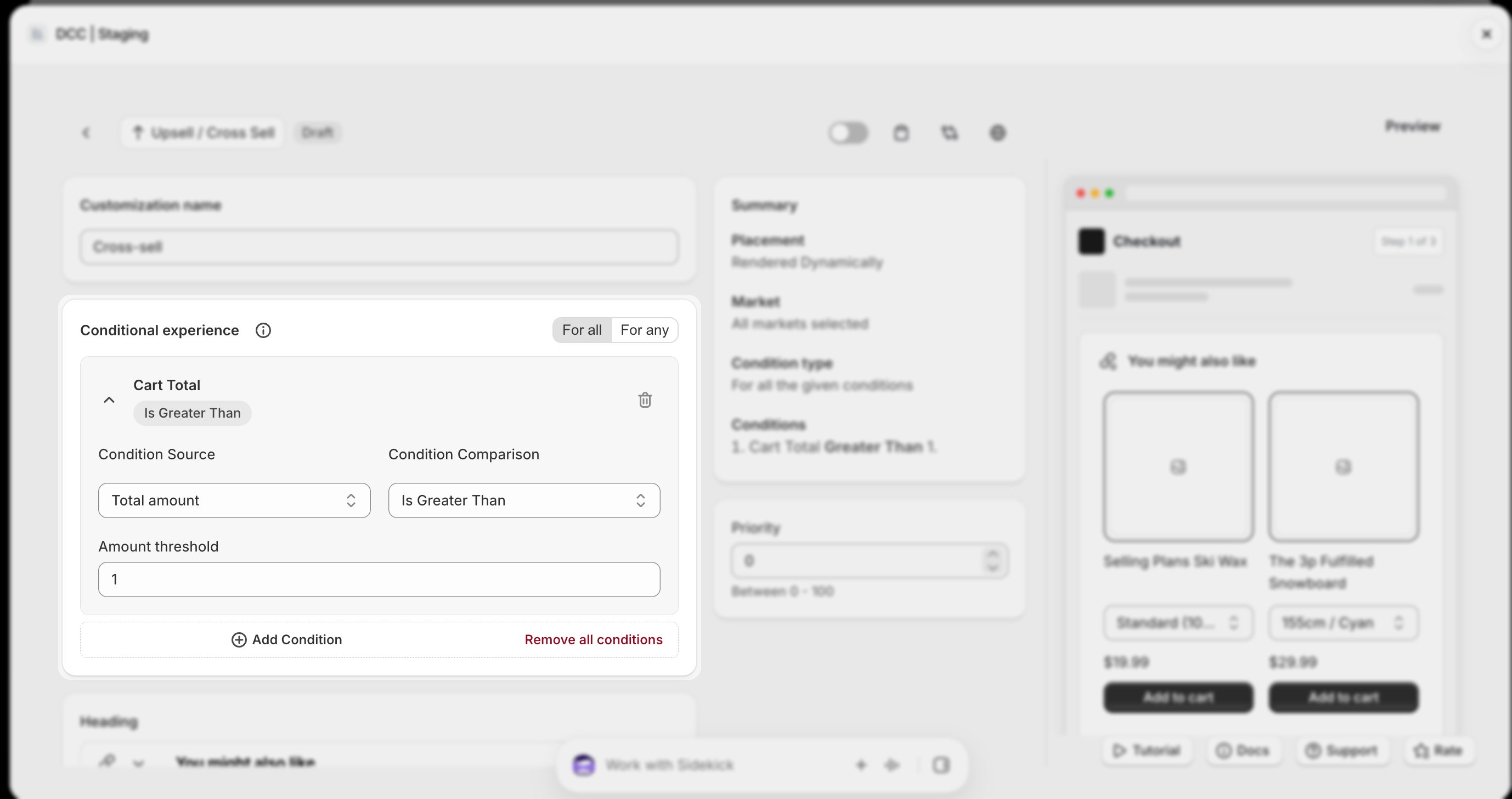
    Add one or more **conditions** to control when the customization is displayed during checkout.
    <img src="https://mintcdn.com/nomads-arc/UBOTWC7vmubbeGYg/images/crosssell_3_conditional_experience.png?fit=max&auto=format&n=UBOTWC7vmubbeGYg&q=85&s=f7fb5ea15a51512bbef575b357cea3ae" alt="Crosssell 3 Conditional Experience" width="2756" height="1456" data-path="images/crosssell_3_conditional_experience.png" />
  </Step>

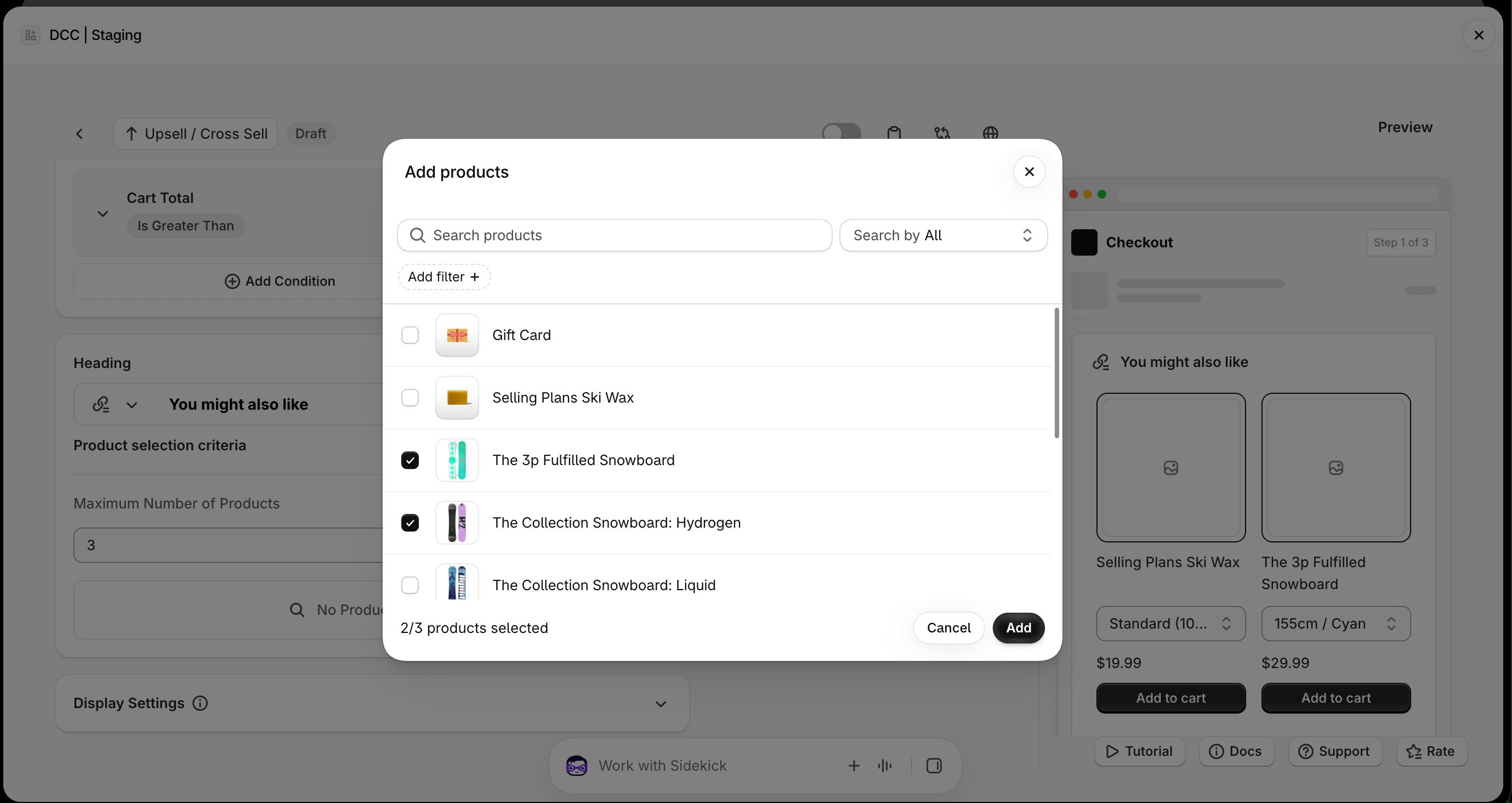
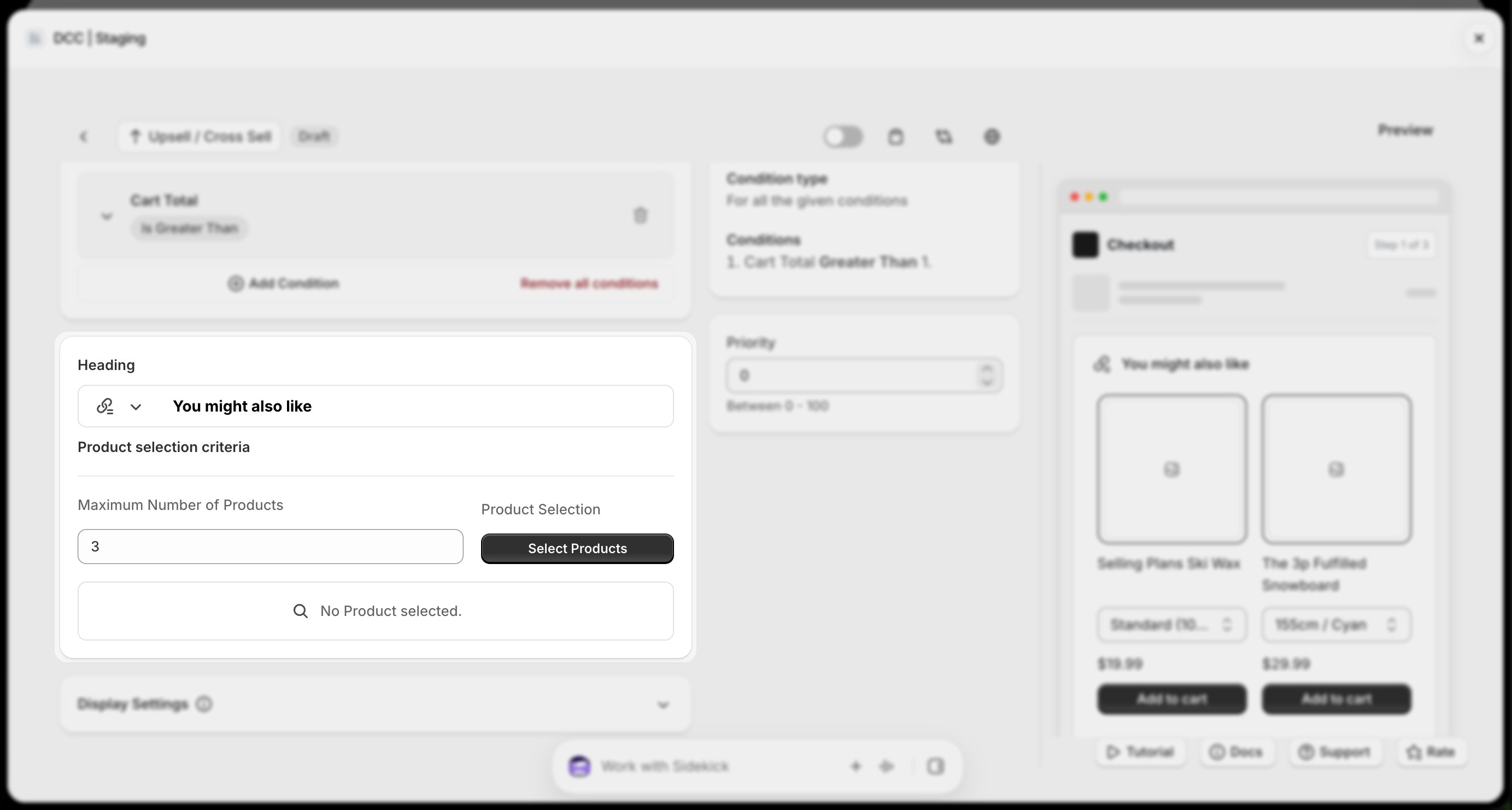
  <Step title="Products and Product count ">
    Choose Products and max number of products that will be shown on checkout
    <img src="https://mintcdn.com/nomads-arc/UBOTWC7vmubbeGYg/images/crosssell_4_heading_selection.png?fit=max&auto=format&n=UBOTWC7vmubbeGYg&q=85&s=fcb5627a9871cd17ed271fc4b72cf036" alt="Crosssell 4 Heading Selection" width="2766" height="1482" data-path="images/crosssell_4_heading_selection.png" />

    <img src="https://mintcdn.com/nomads-arc/ohKZqAOH9HUbIbxY/images/Screenshot-2026-10-08-at-18.29.55.png?fit=max&auto=format&n=ohKZqAOH9HUbIbxY&q=85&s=6edf521f579e116b028be778f6ed3bdc" alt="Screenshot 2026 10 08 At 18 29 55" width="2758" height="1464" data-path="images/Screenshot-2026-10-08-at-18.29.55.png" />
  </Step>

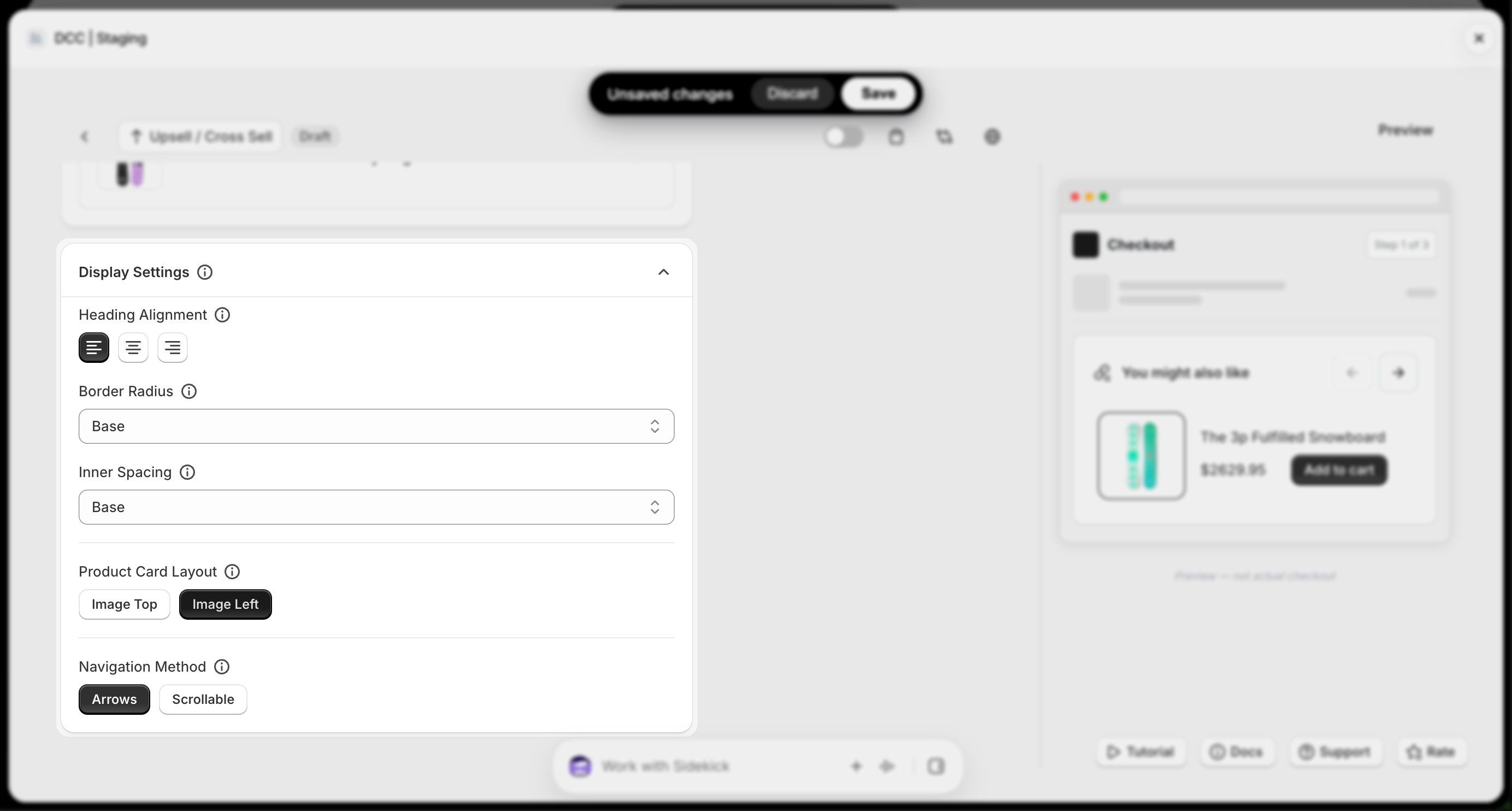
  <Step title="**Display Settings**">
    Select display settings like (**Alignment ,Border-radius, Inner spacing, Product card layout, Navigation Method** )
    <img src="https://mintcdn.com/nomads-arc/UBOTWC7vmubbeGYg/images/crosssell_5_display_settings.png?fit=max&auto=format&n=UBOTWC7vmubbeGYg&q=85&s=9ee47aa1349aae0619d856535e4075e3" alt="Crosssell 5 Display Settings" width="2768" height="1484" data-path="images/crosssell_5_display_settings.png" />
  </Step>

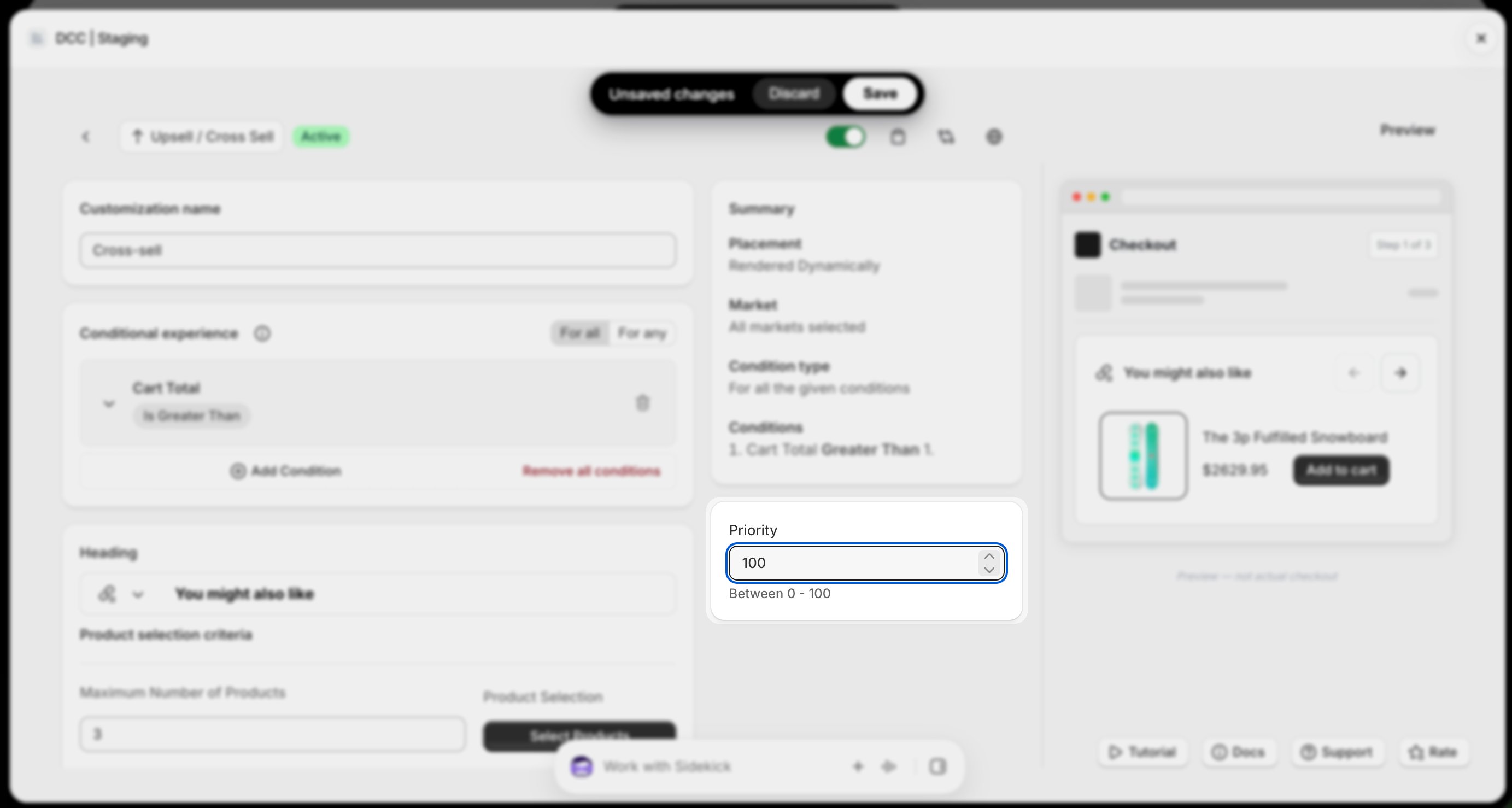
  <Step title="**Set the priority**">
    Configure the Priority (0–100) to determine the execution order when multiple customizations are eligible.
    <img src="https://mintcdn.com/nomads-arc/UBOTWC7vmubbeGYg/images/crosssell_2_priority.png?fit=max&auto=format&n=UBOTWC7vmubbeGYg&q=85&s=c21349707ebe71c4b6e3e18a53596df6" alt="Crosssell 2 Priority" width="2766" height="1478" data-path="images/crosssell_2_priority.png" />
  </Step>

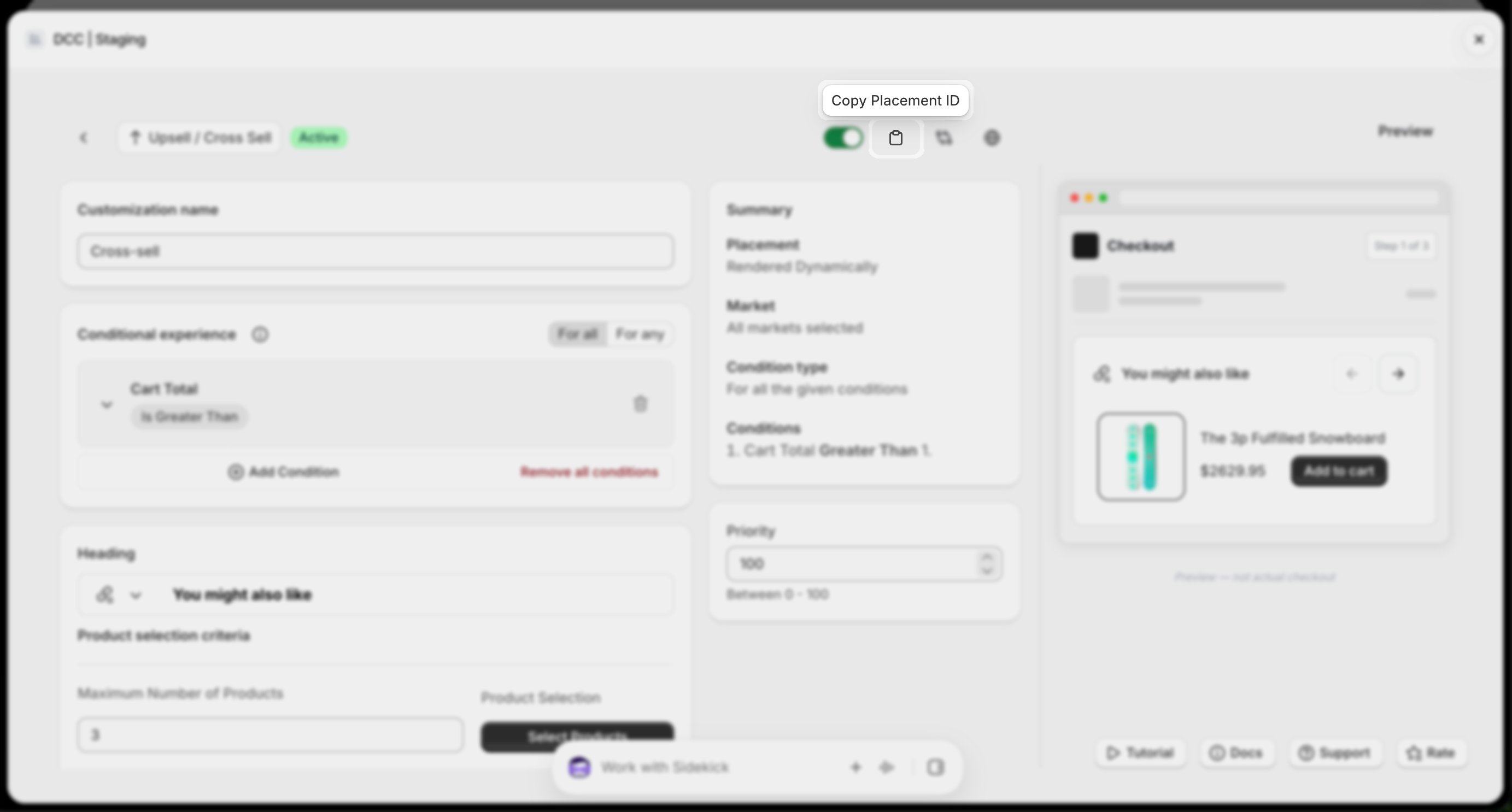
  <Step title="**Copy the Placement ID**">
    Copy the generated **Placement ID** from clipboard icon. You'll use this in the Shopify Checkout Editor.
    <img src="https://mintcdn.com/nomads-arc/UBOTWC7vmubbeGYg/images/crosssell_7_placement_id.png?fit=max&auto=format&n=UBOTWC7vmubbeGYg&q=85&s=47746e93af4a11c8458e837d130e3dc9" alt="Crosssell 7 Placement Id" width="2766" height="1486" data-path="images/crosssell_7_placement_id.png" />
  </Step>

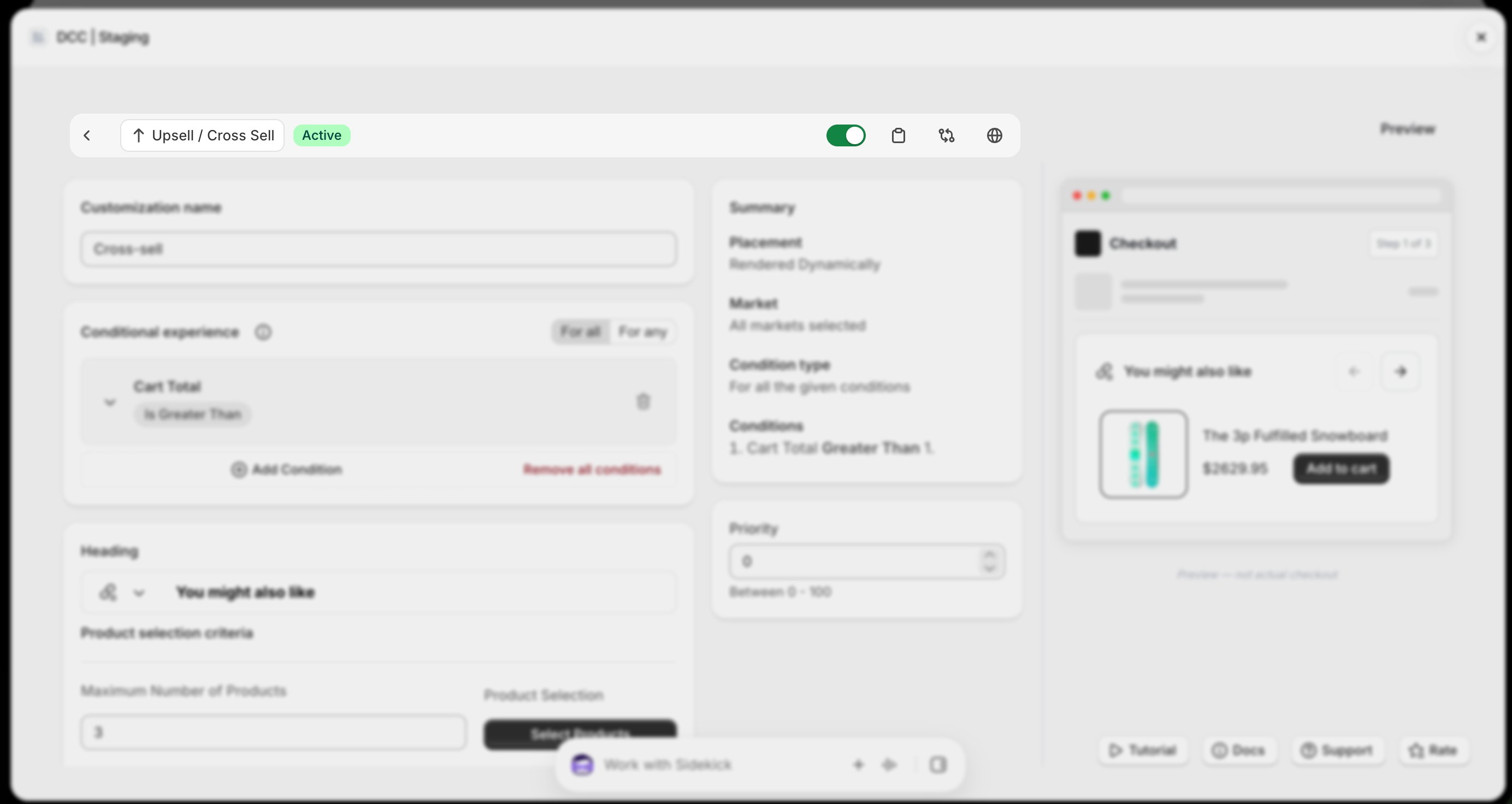
  <Step title="**Activate the customization**">
    Change the **Status** to **Active** using toggle button to enable the customization.
    <img src="https://mintcdn.com/nomads-arc/UBOTWC7vmubbeGYg/images/crosssell_6_active_bar.png?fit=max&auto=format&n=UBOTWC7vmubbeGYg&q=85&s=126a0ddcc1f1b01bd6e970c57c7828db" alt="Crosssell 6 Active Bar" width="2768" height="1472" data-path="images/crosssell_6_active_bar.png" />
  </Step>

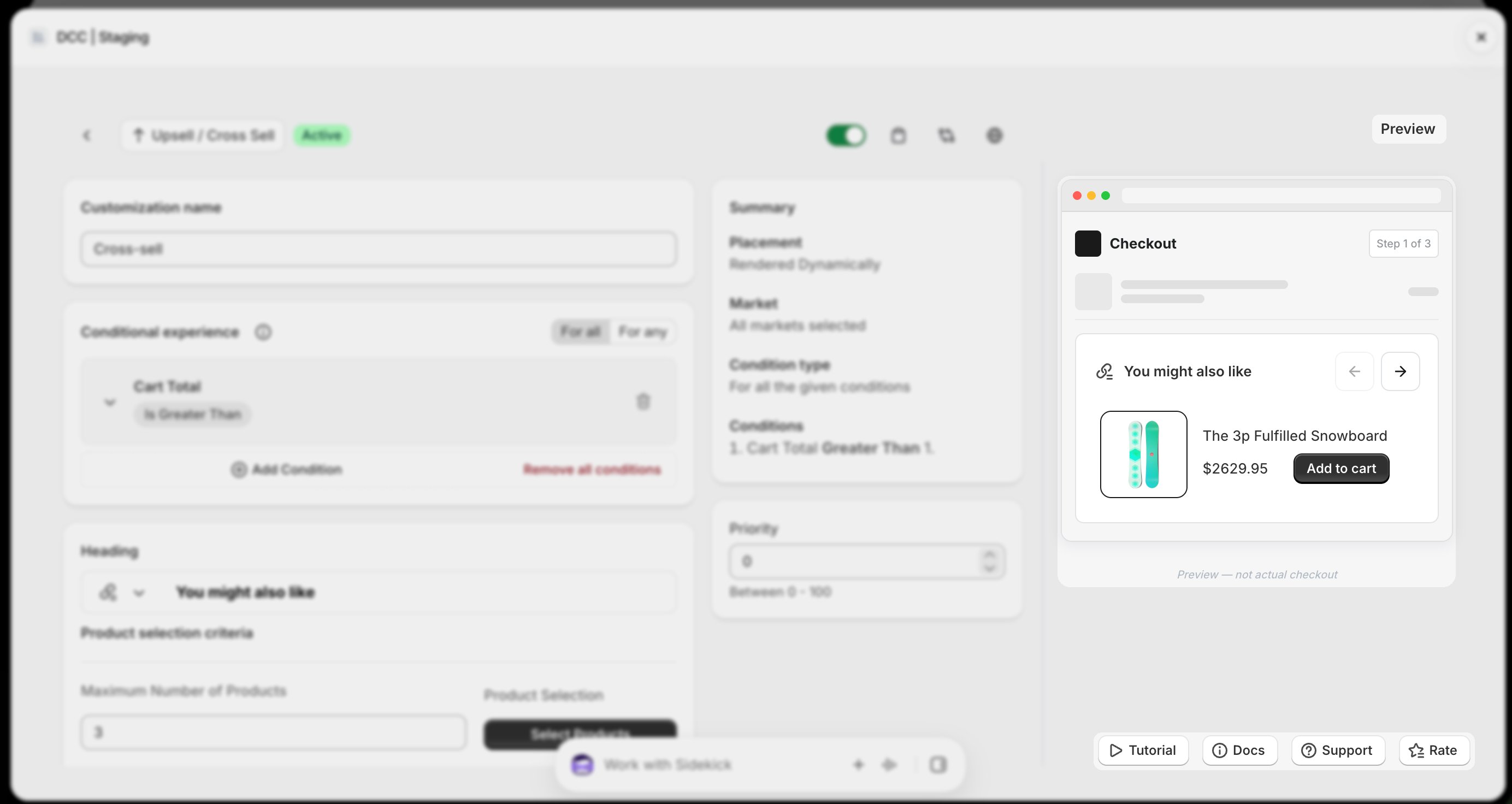
  <Step title="**Preview**">
    Preview shows , How this block looks like at **CheckOut.**
    <img src="https://mintcdn.com/nomads-arc/9Qv3bHMEBT_l5ot0/images/crosssell_preview_focus-1.png?fit=max&auto=format&n=9Qv3bHMEBT_l5ot0&q=85&s=92bf92c2d16c79455a364f42997df707" alt="Crosssell Preview Focus" width="2768" height="1472" data-path="images/crosssell_preview_focus-1.png" />
  </Step>

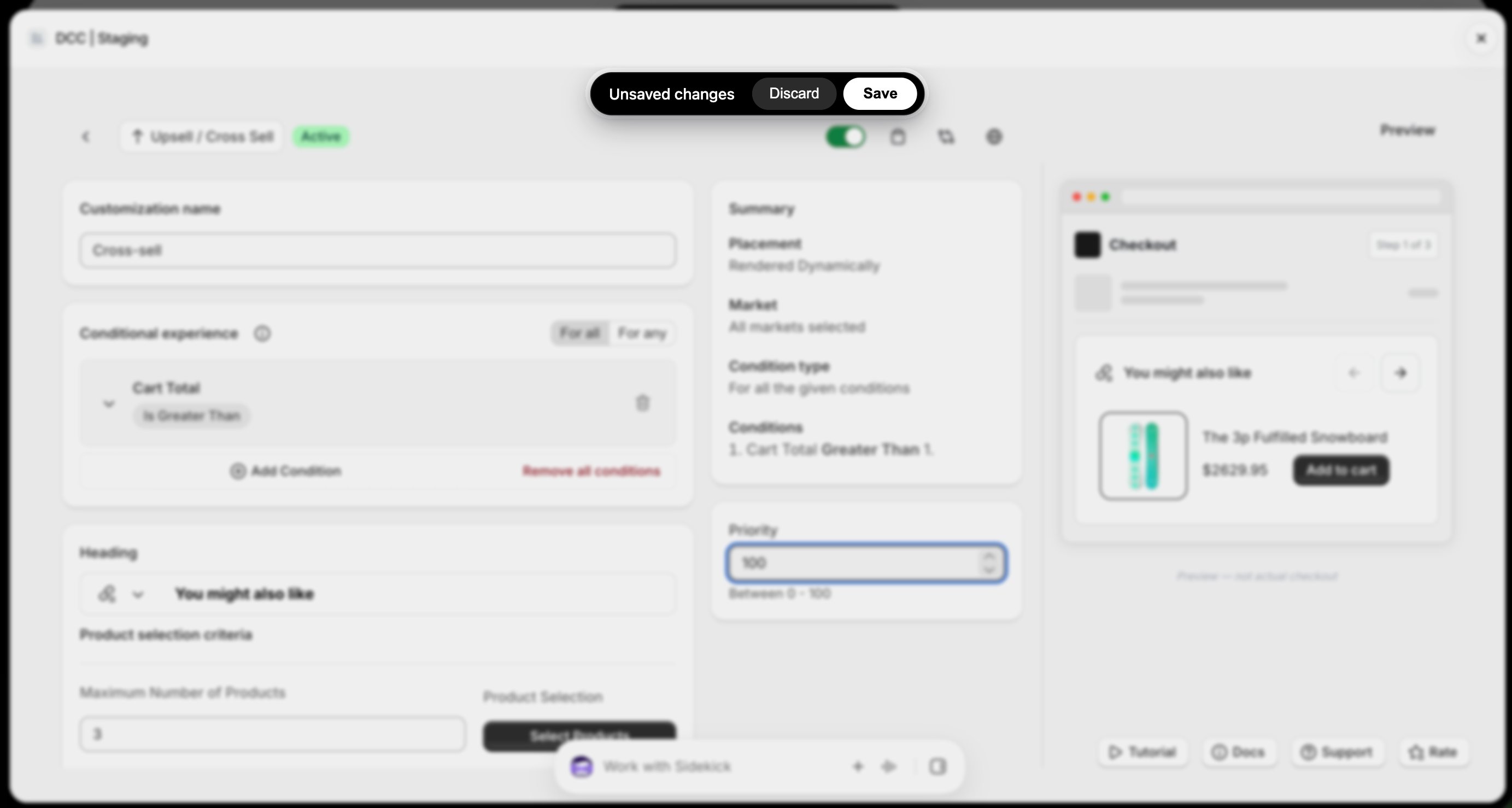
  <Step title="**Save the customization**">
    Click Save to store your configuration.
    <img src="https://mintcdn.com/nomads-arc/UBOTWC7vmubbeGYg/images/crosssell_8_unsaved_changes.png?fit=max&auto=format&n=UBOTWC7vmubbeGYg&q=85&s=dcfb243f2a366486d87c7c2493b6d9f0" alt="Crosssell 8 Unsaved Changes" width="2766" height="1478" data-path="images/crosssell_8_unsaved_changes.png" />
  </Step>

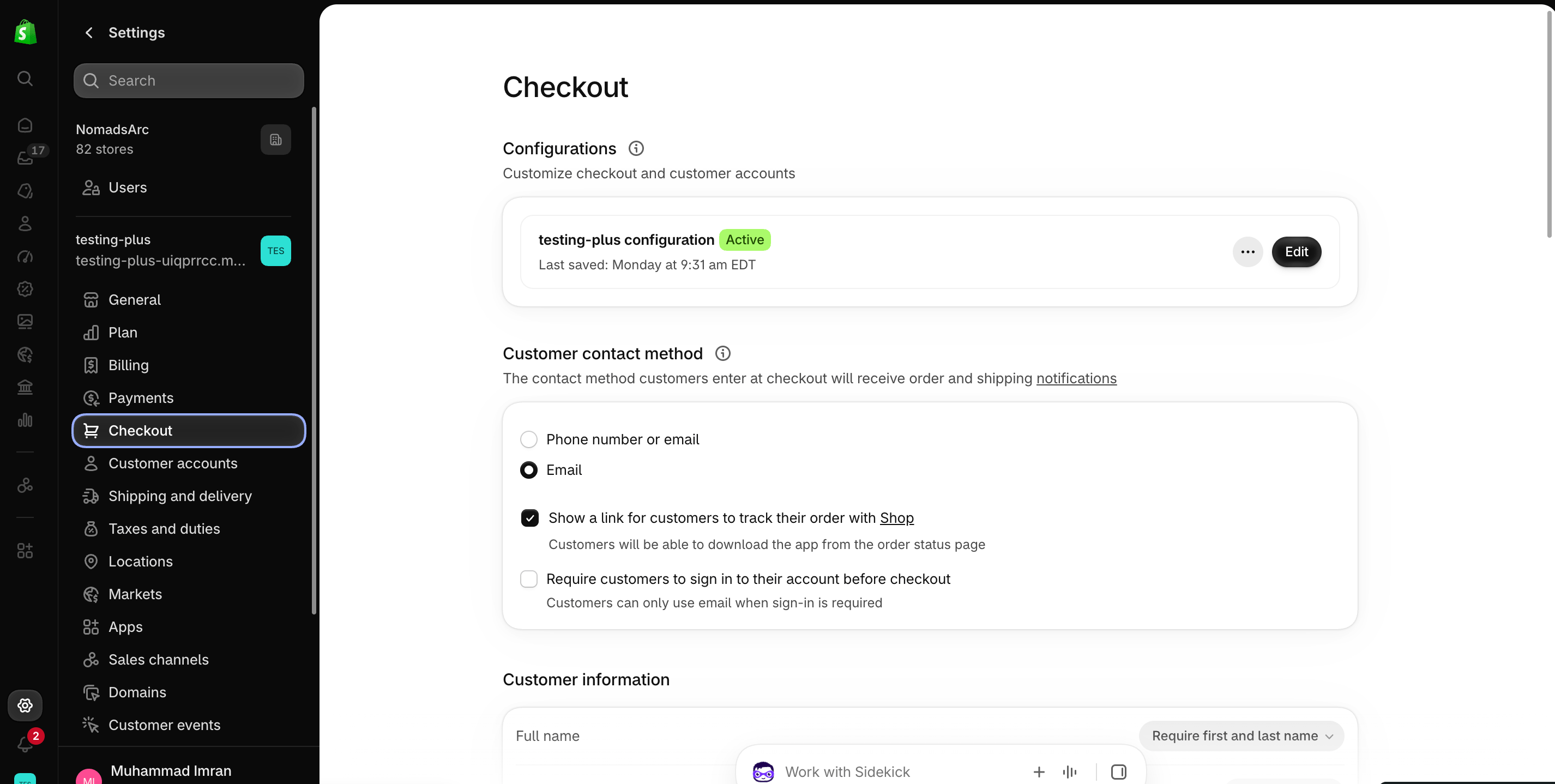
  <Step title="**Open the Checkout Editor**">
    Go to your Shopify [Settings](https://admin.shopify.com/settings)**→ Checkout**, select your checkout profile, and click **Edit**.
    <img src="https://mintcdn.com/nomads-arc/iXpFGcSFUJL7FNKL/images/screenshot_08.png?fit=max&auto=format&n=iXpFGcSFUJL7FNKL&q=85&s=16ba7d2015cd3c1cb9962b0f9665bac0" alt="Screenshot 08" width="2852" height="1438" data-path="images/screenshot_08.png" />
  </Step>

  <Step title="**Add the app block**">
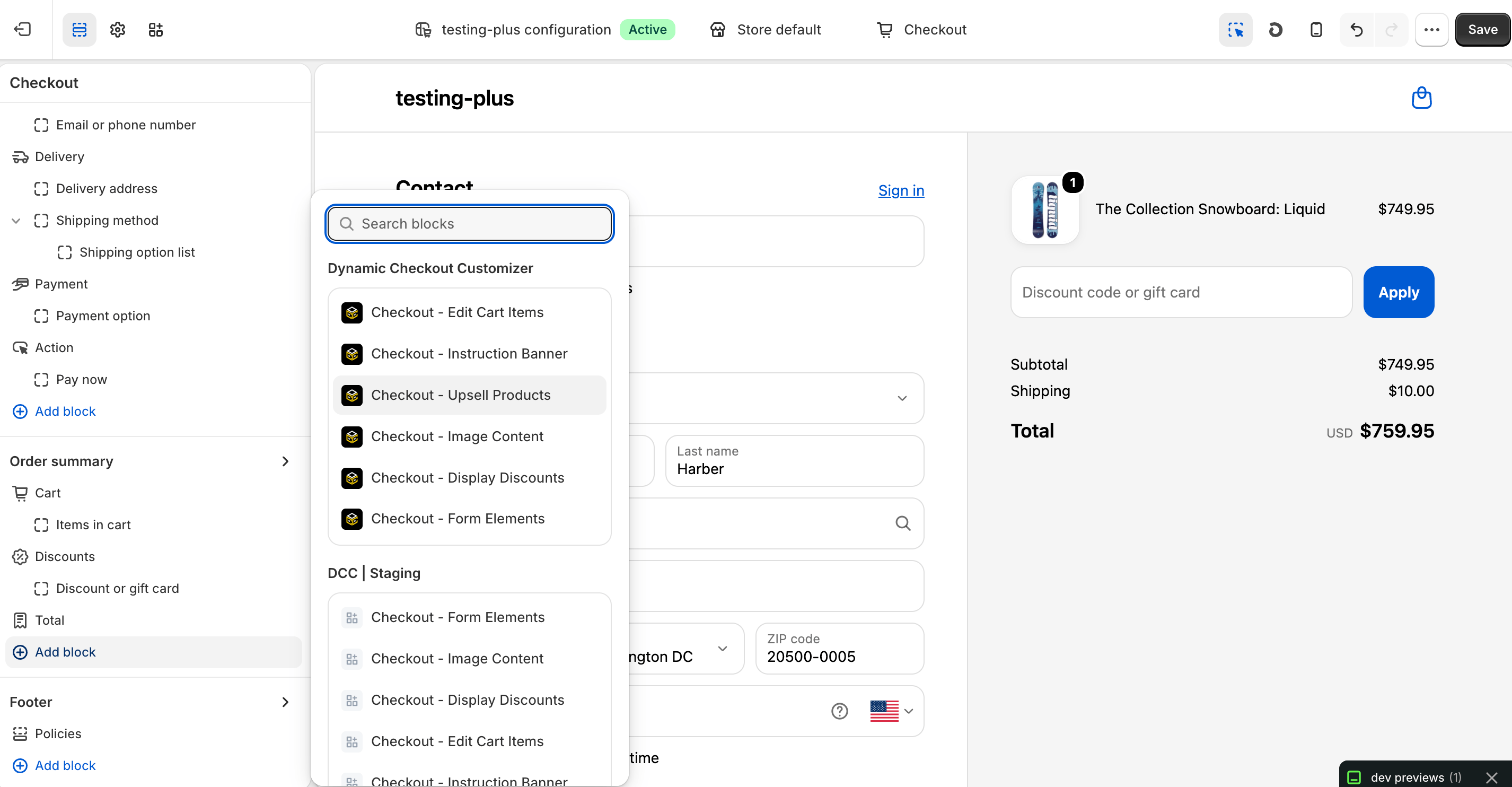
    In the Checkout Editor, click **Add app block**.
    <img src="https://mintcdn.com/nomads-arc/iXpFGcSFUJL7FNKL/images/screenshot_12.png?fit=max&auto=format&n=iXpFGcSFUJL7FNKL&q=85&s=6dc75ca325e64b98dd08ed2913f3aed4" alt="Screenshot 12" width="2852" height="1484" data-path="images/screenshot_12.png" />

    <Note>
      Make sure the app block is placed in the same checkout placement you selected in Dynamic Checkout Customizer.
    </Note>
  </Step>

  <Step title="**Configure the app block**">
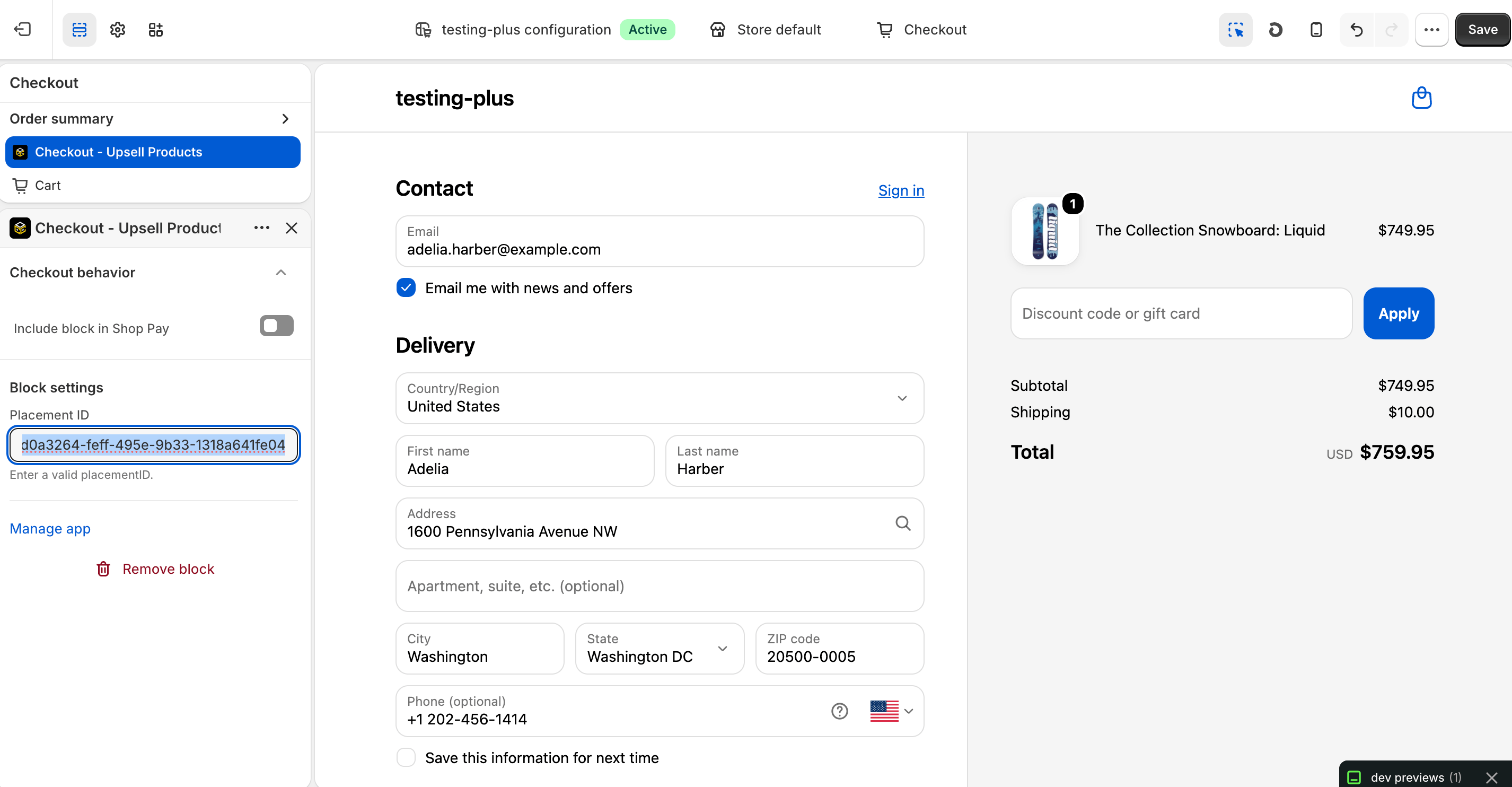
    Select the **Checkout – Upsell Products** app block, drag it to the desired location, and paste the copied **Placement ID**.
    <img src="https://mintcdn.com/nomads-arc/iXpFGcSFUJL7FNKL/images/screenshot_02.png?fit=max&auto=format&n=iXpFGcSFUJL7FNKL&q=85&s=ef78c0cd2a5385923ea09a48eec4d8ed" alt="Screenshot 02" width="2852" height="1484" data-path="images/screenshot_02.png" />
  </Step>

  <Step title="**Publish your changes**">
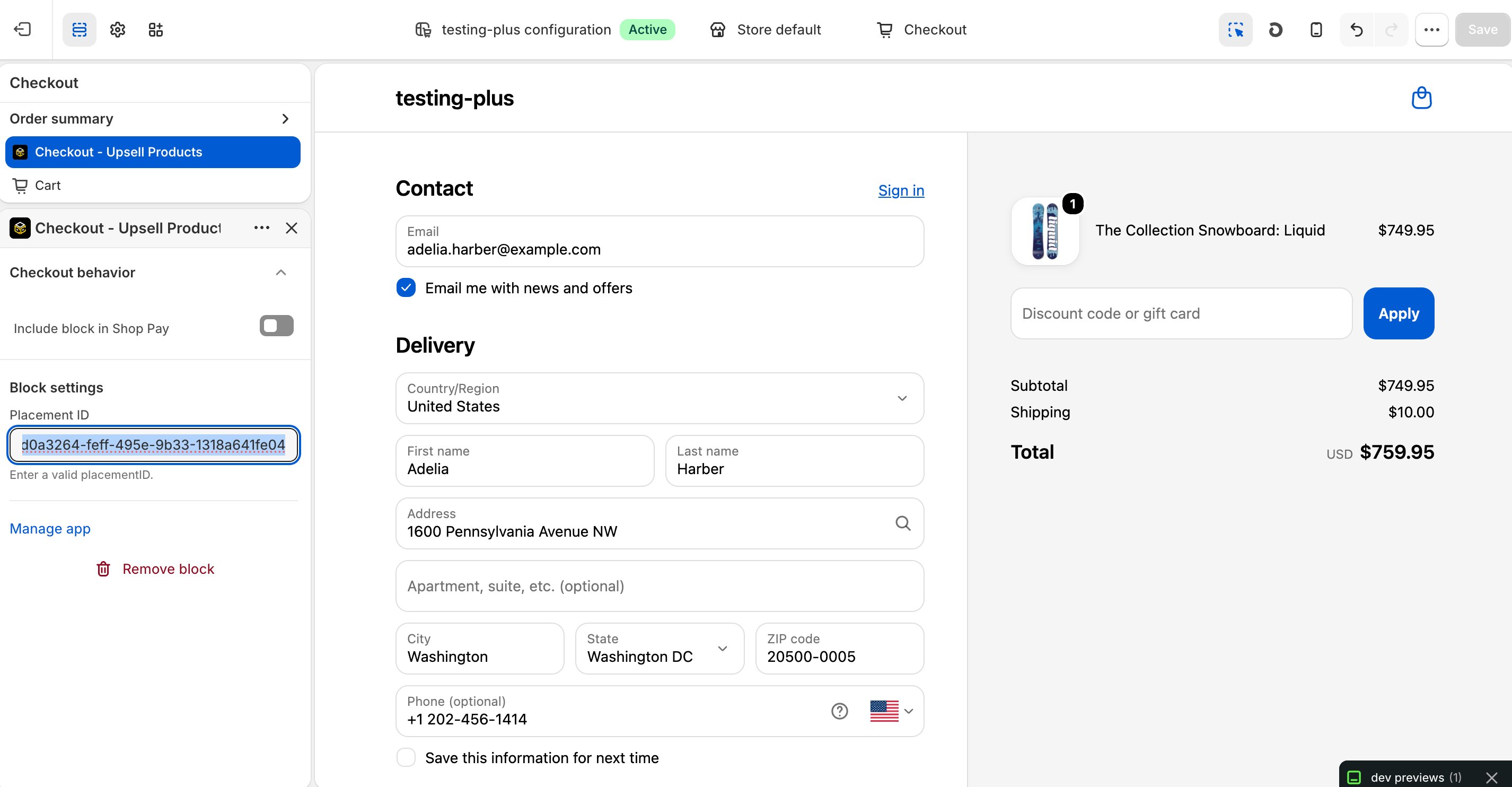
    Click **Save** in the Checkout Editor to publish the customization.
    <img src="https://mintcdn.com/nomads-arc/E2xhVgrurNt1u2Wx/images/screenshot_02_save_clicked.png?fit=max&auto=format&n=E2xhVgrurNt1u2Wx&q=85&s=6517b16aaba033478392d9185777647c" alt="Screenshot 02 Save Clicked" width="2852" height="1484" data-path="images/screenshot_02_save_clicked.png" />
  </Step>
</Steps>

<Note>
  **Why does it matter?**

  **Cross-sell** customization to recommend relevant products during checkout, helping increase average order value (AOV) by presenting personalized cross-sell opportunities at the right moment.
</Note>


This documentation is built and hosted on [Mintlify](https://mintlify.com), a developer documentation platform.