> ## Documentation Index
> Fetch the complete documentation index at: https://docs.nomadsarc.app/llms.txt
> Use this file to discover all available pages before exploring further.

# 💳 Payment Icons

How to display **Payment Icons** image on the Checkout using the **Template -> CRO -> Payment Icons** option.

<video src="https://mintcdn.com/nomads-arc/474JDwCjvejIYVVp/videos/payment-icons.mp4?fit=max&auto=format&n=474JDwCjvejIYVVp&q=85&s=6b1c2b8e1f5cce04e6f63bb70b7088a8" controls data-path="videos/payment-icons.mp4" />

## Guide

<Steps>
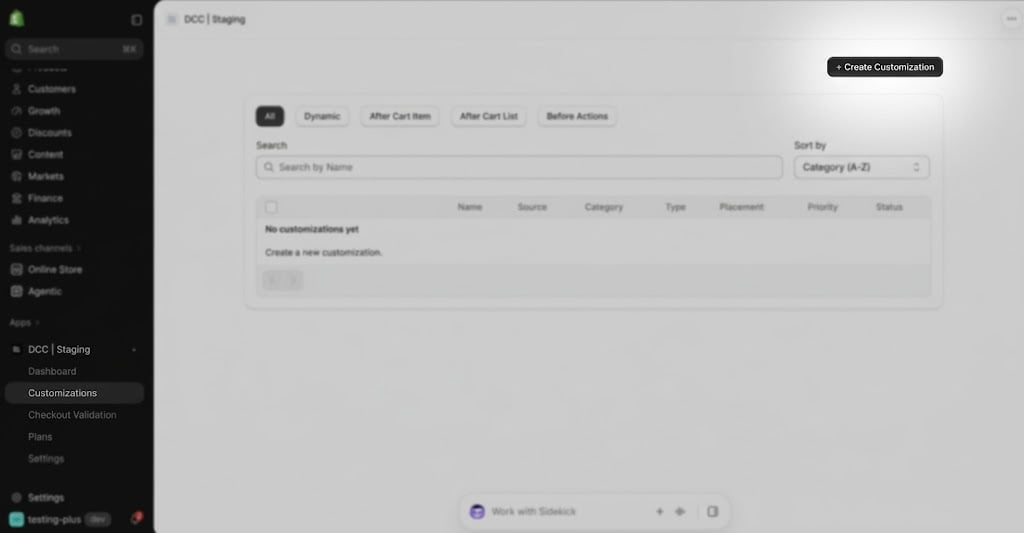
  <Step title="**Create a new customization**">
    Create a new [customization](https://admin.shopify.com/apps/dynamic-checkout-customizer/customizations).
    <img src="https://mintcdn.com/nomads-arc/1BGCxx9quDc6OrCW/images/image-34.png?fit=max&auto=format&n=1BGCxx9quDc6OrCW&q=85&s=2c9777733ef470e3c15eda4eb7a27e3f" alt="Image" width="1024" height="533" data-path="images/image-34.png" />
  </Step>

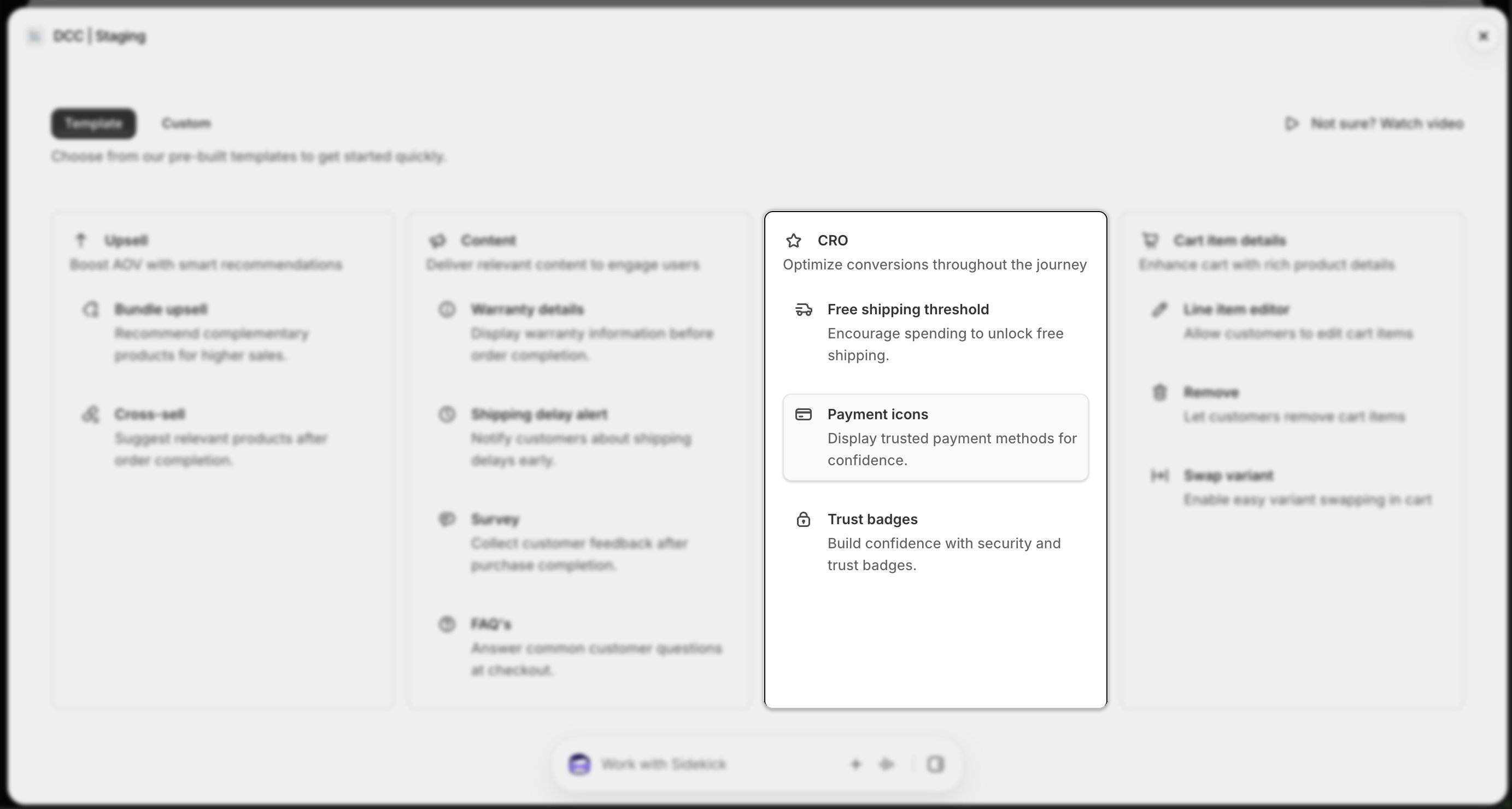
  <Step title="**Choose the Content type**">
    Select  **Payment icons** from the available **CRO** types to display custom images during checkout.
    <img src="https://mintcdn.com/nomads-arc/1BGCxx9quDc6OrCW/images/template_cro_card_focus.png?fit=max&auto=format&n=1BGCxx9quDc6OrCW&q=85&s=e35036bab3a8750e129132b8b7cbc470" alt="Template Cro Card Focus" width="2766" height="1480" data-path="images/template_cro_card_focus.png" />
  </Step>

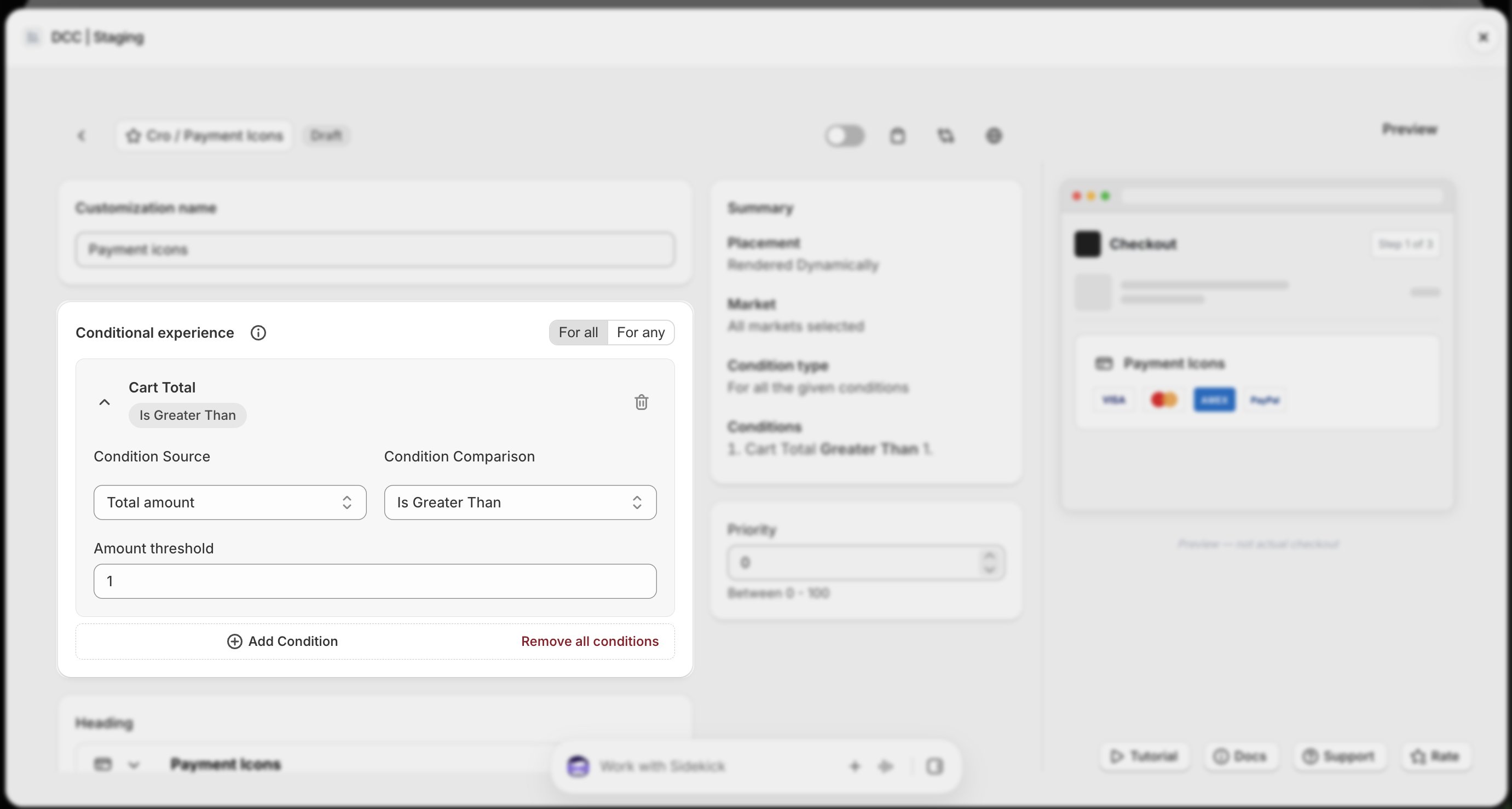
  <Step title="**Configure display conditions**">
    Add one or more **conditions** to control when the content appears during checkout.
    <img src="https://mintcdn.com/nomads-arc/1BGCxx9quDc6OrCW/images/payment_icons_conditional_experience_focus-1.png?fit=max&auto=format&n=1BGCxx9quDc6OrCW&q=85&s=2bb30e0414acc136350dc2f2ffed811b" alt="Payment Icons Conditional Experience Focus" width="2762" height="1478" data-path="images/payment_icons_conditional_experience_focus-1.png" />
  </Step>

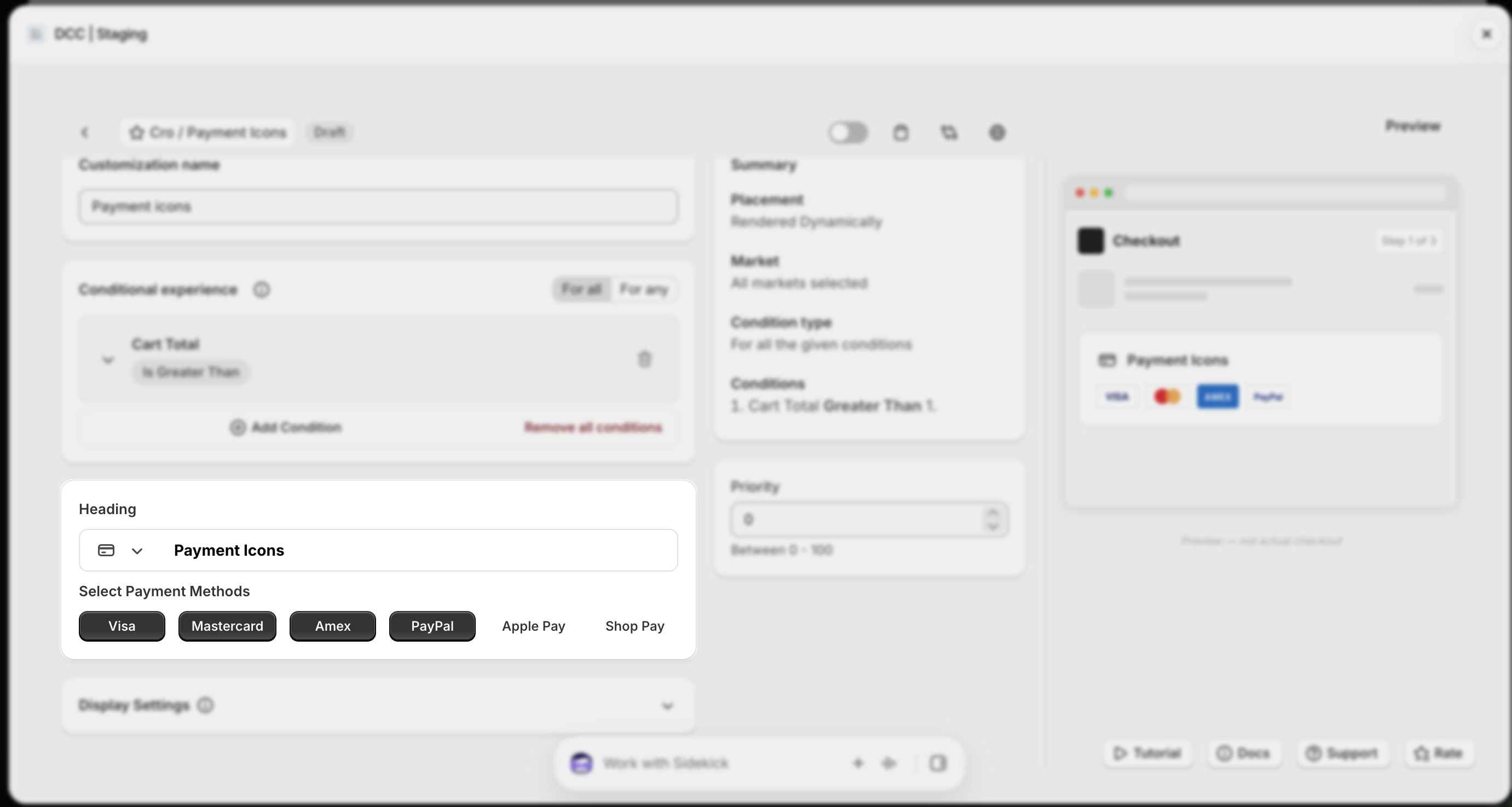
  <Step title="**Configure the payment method icons**">
    Select the supported payment methods from given options.
    <img src="https://mintcdn.com/nomads-arc/1BGCxx9quDc6OrCW/images/payment_icons_heading_methods_focus.png?fit=max&auto=format&n=1BGCxx9quDc6OrCW&q=85&s=ea2732b584a4b8dc28fb3f07de588e5f" alt="Payment Icons Heading Methods Focus" width="2762" height="1474" data-path="images/payment_icons_heading_methods_focus.png" />
  </Step>

  <Step title="**Activate the customization**">
    Change the **Status** to **Active** using toggle button to enable the customization.
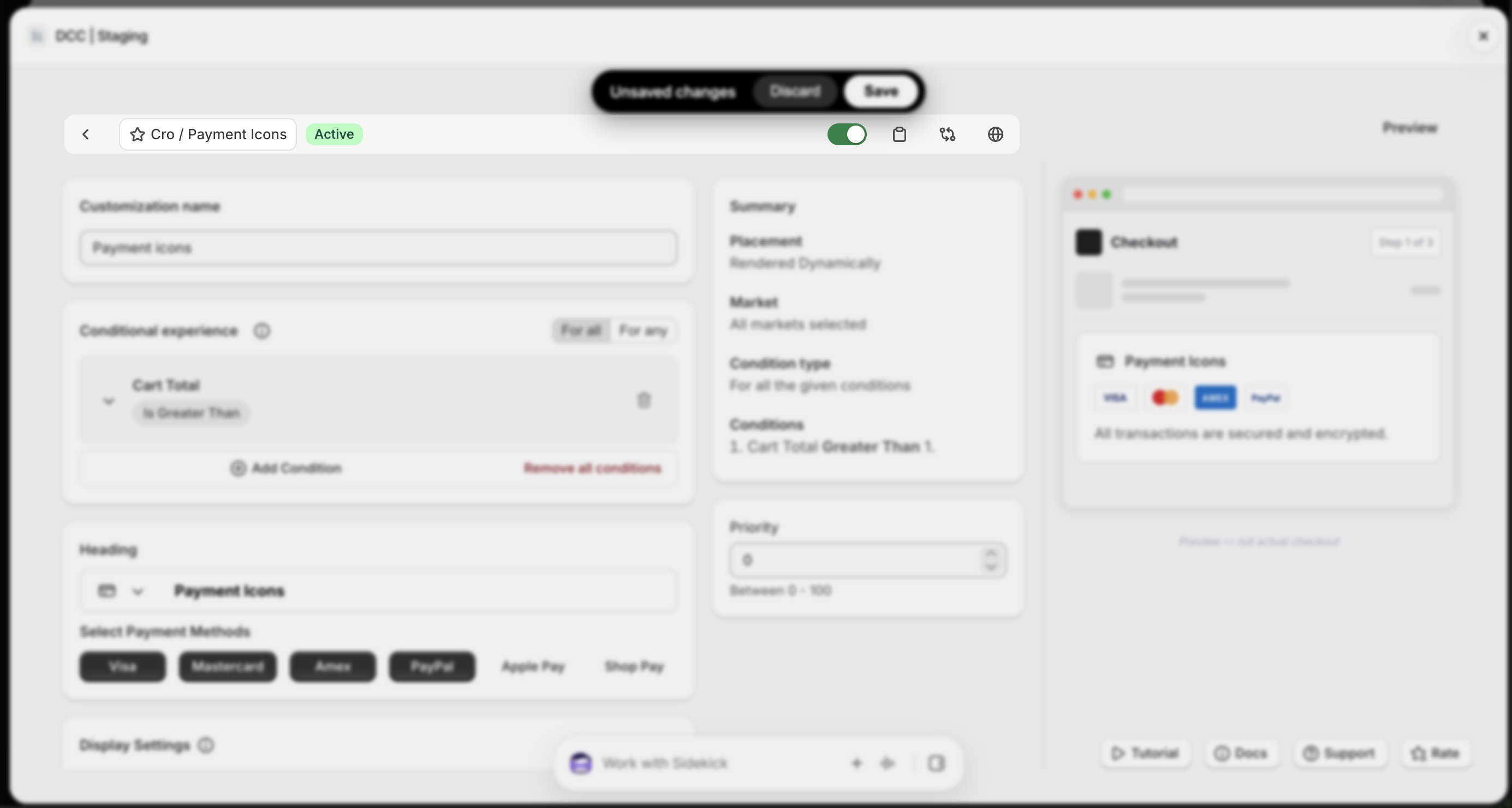
    <img src="https://mintcdn.com/nomads-arc/1BGCxx9quDc6OrCW/images/payment_icons_toolbar_focus.png?fit=max&auto=format&n=1BGCxx9quDc6OrCW&q=85&s=17f1c4149ac35748d3cc3e45b4772879" alt="Payment Icons Toolbar Focus" width="2770" height="1480" data-path="images/payment_icons_toolbar_focus.png" />
  </Step>

  <Step title="**Customize the display**">
    Configure the **Display Settings** to control how **payment icons** will appear during checkout.
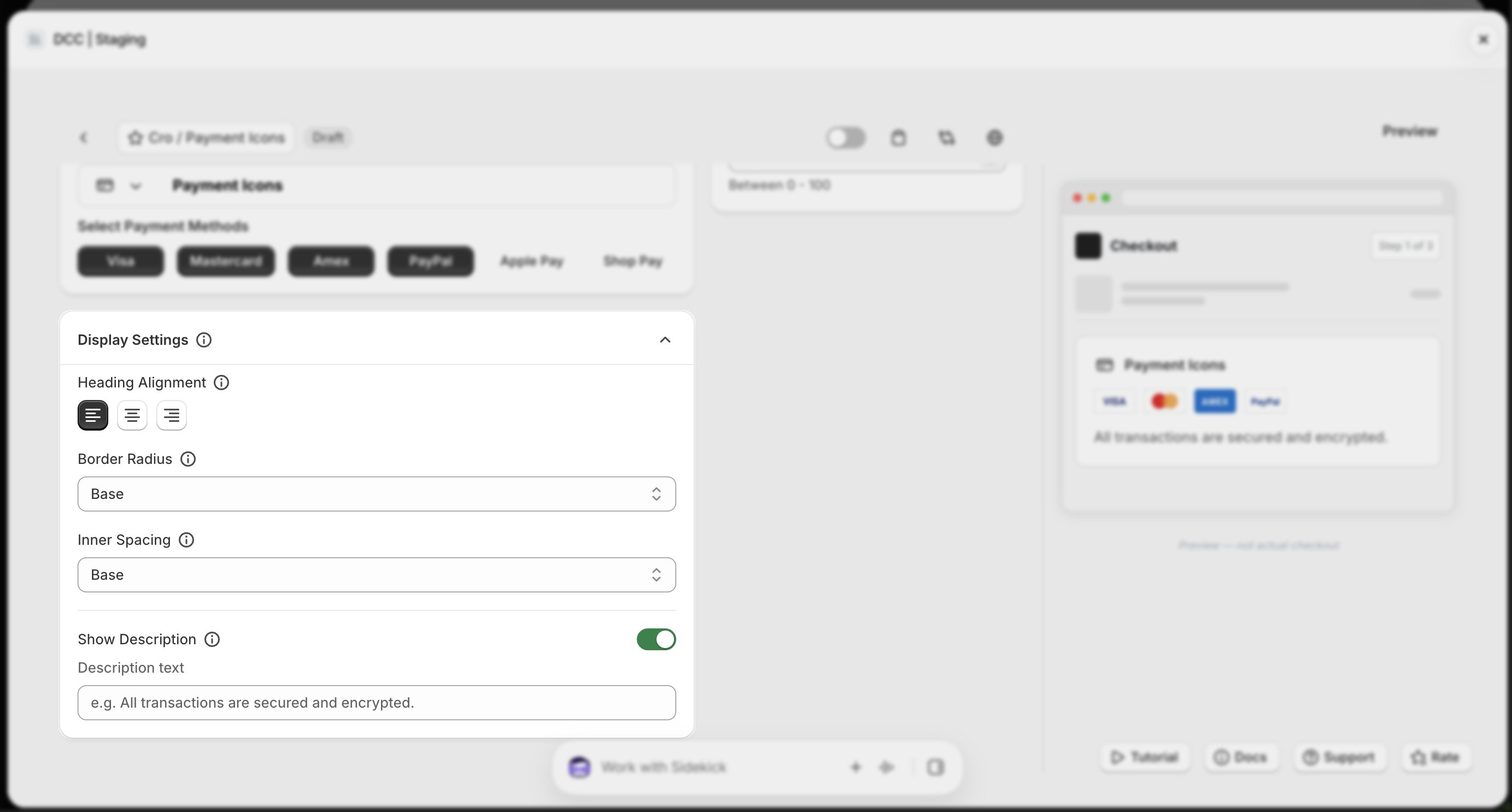
    <img src="https://mintcdn.com/nomads-arc/1BGCxx9quDc6OrCW/images/payment_icons_display_settings_focus.png?fit=max&auto=format&n=1BGCxx9quDc6OrCW&q=85&s=f4e7b0c43cf566e6524c54d161a158fc" alt="Payment Icons Display Settings Focus" width="2766" height="1486" data-path="images/payment_icons_display_settings_focus.png" />
  </Step>

  <Step title="**Set the priority**">
    Configure the **Priority** (0–100) to determine the execution order when multiple customizations are eligible.
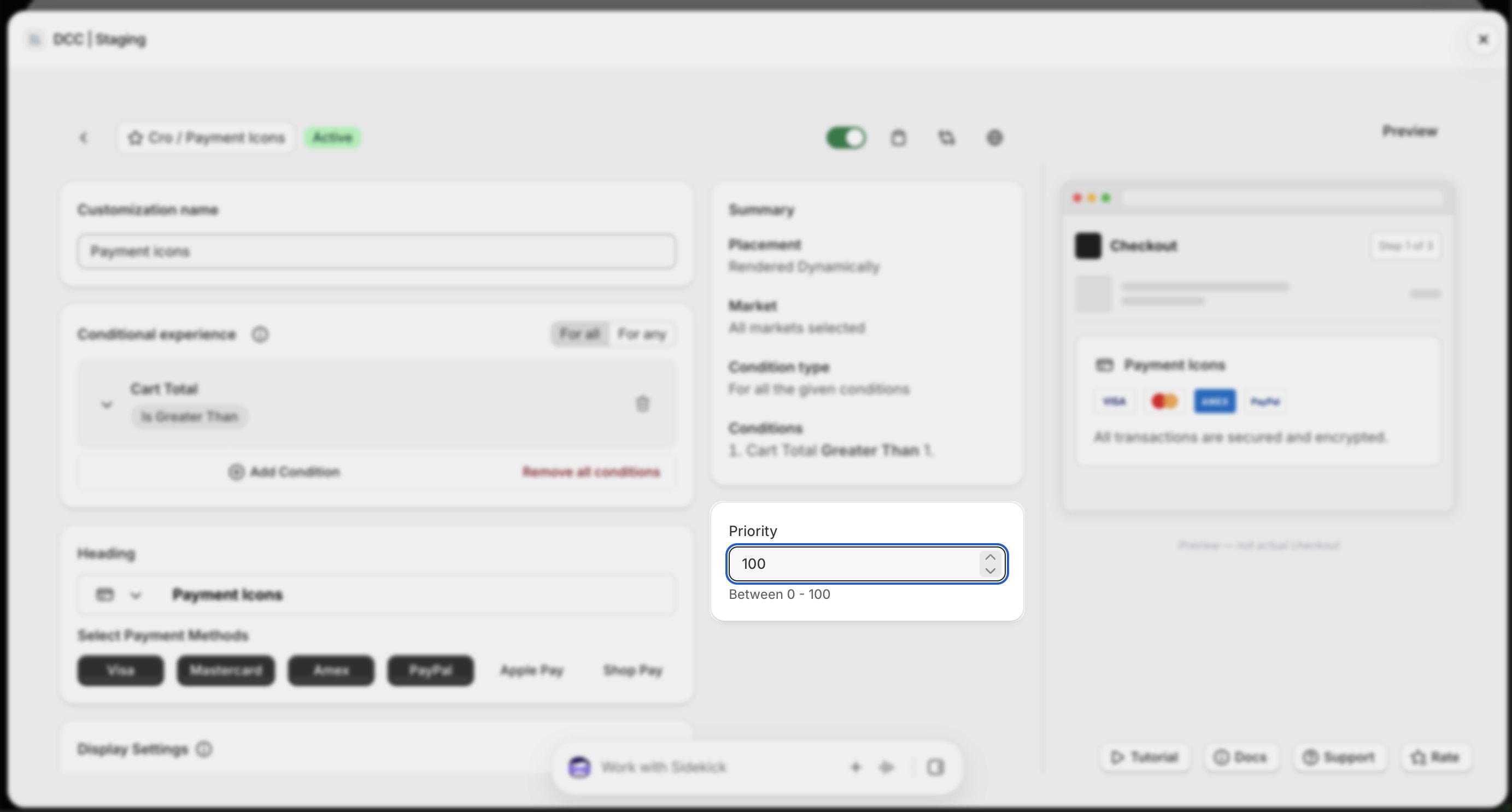
    <img src="https://mintcdn.com/nomads-arc/1BGCxx9quDc6OrCW/images/payment_icons_priority_focus.png?fit=max&auto=format&n=1BGCxx9quDc6OrCW&q=85&s=649e8eff8bc00e45c1f7b25cc6c259f1" alt="Payment Icons Priority Focus" width="2766" height="1486" data-path="images/payment_icons_priority_focus.png" />
  </Step>

  <Step title="**Copy the Placement ID**">
    Copy the generated **Placement ID** from clipboard icon. You'll use this in the Shopify Checkout Editor.
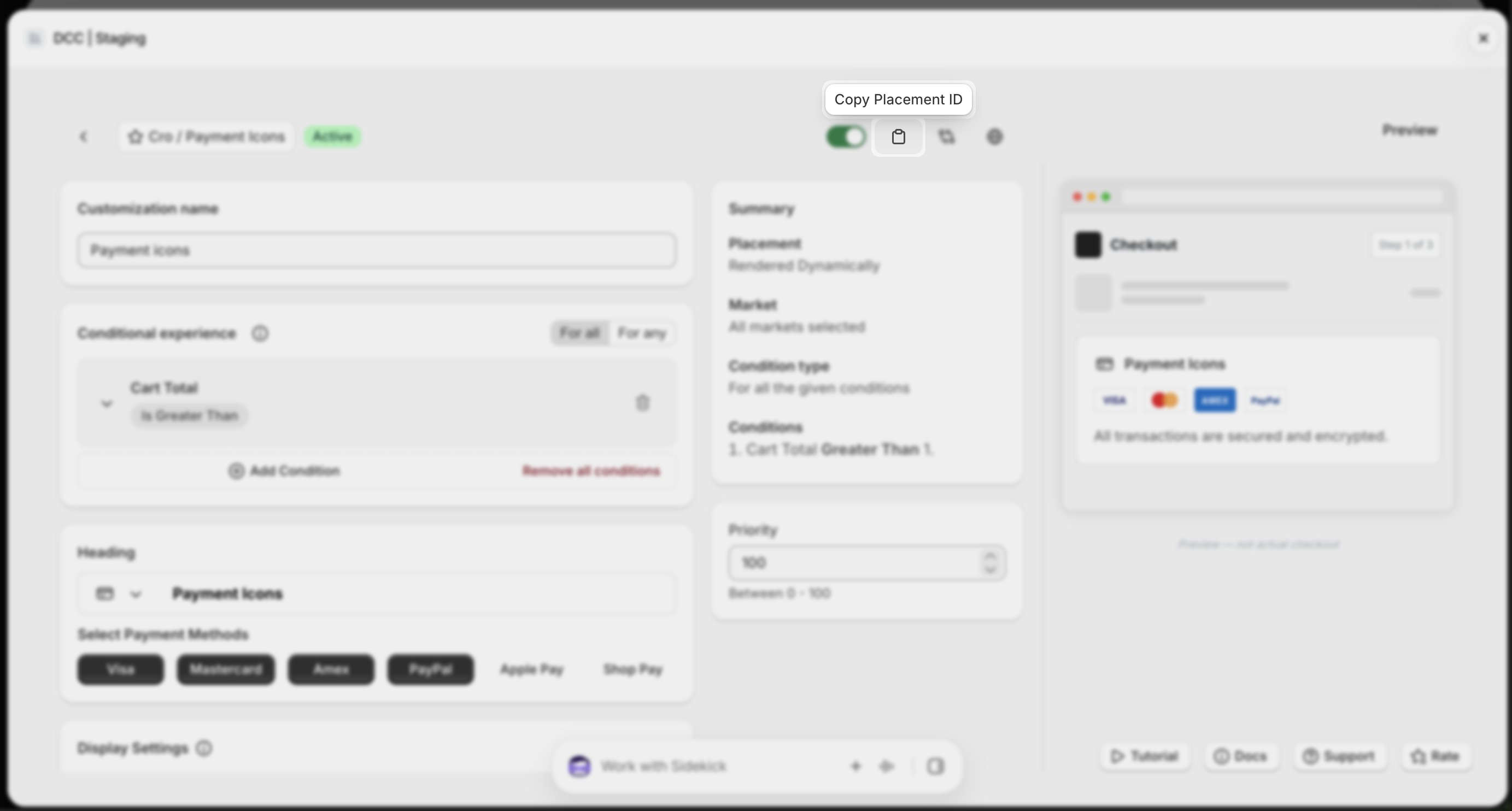
    <img src="https://mintcdn.com/nomads-arc/1BGCxx9quDc6OrCW/images/payment_icons_copy_placement_id_focus.png?fit=max&auto=format&n=1BGCxx9quDc6OrCW&q=85&s=3878e9fd63610380e4a0890f473ca6d6" alt="Payment Icons Copy Placement Id Focus" width="2766" height="1484" data-path="images/payment_icons_copy_placement_id_focus.png" />
  </Step>

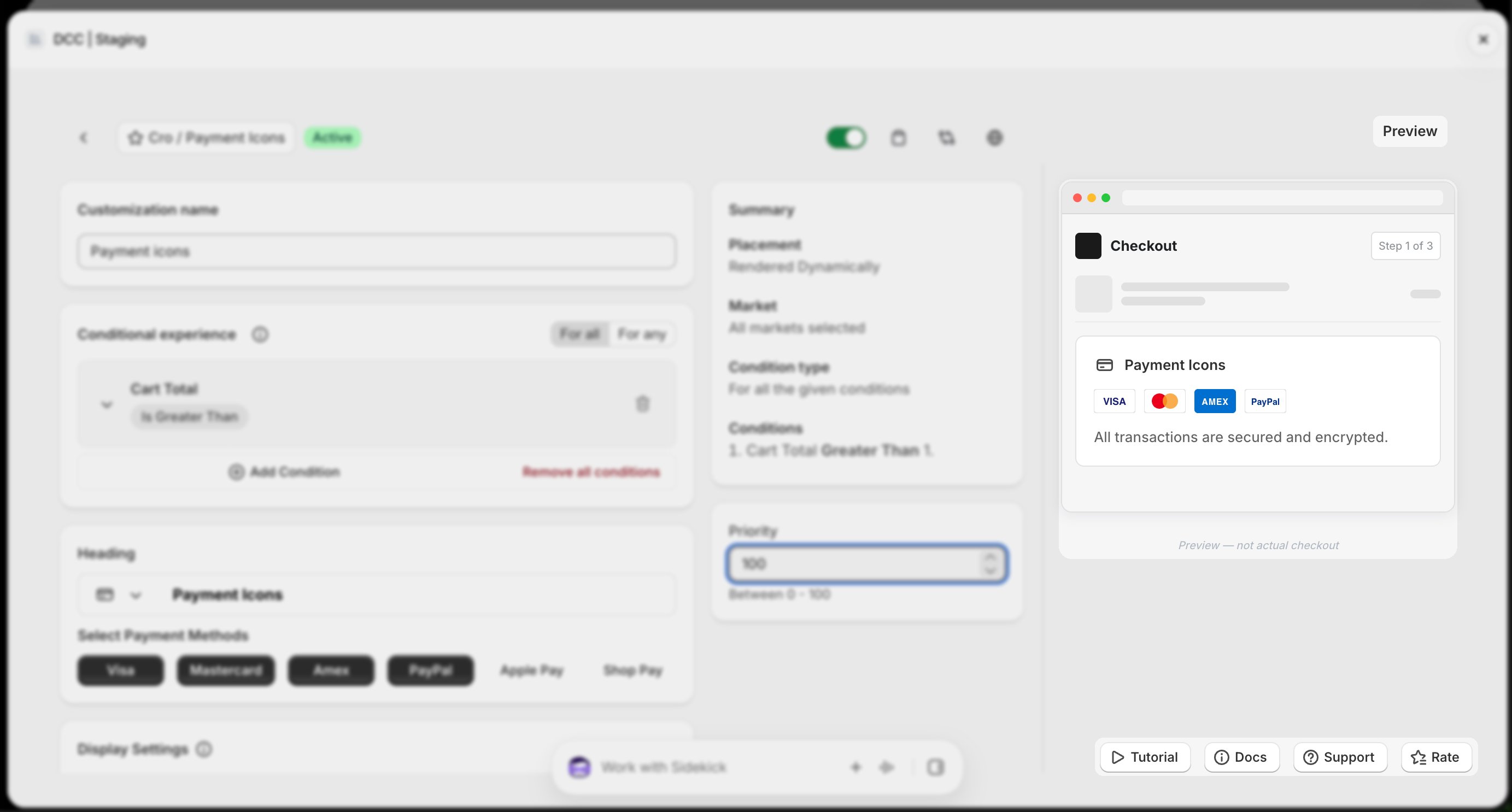
  <Step title="**Preview**">
    Preview shows , How this block looks like at **CheckOut.**
    <img src="https://mintcdn.com/nomads-arc/9Qv3bHMEBT_l5ot0/images/payment_icons_preview_focus.png?fit=max&auto=format&n=9Qv3bHMEBT_l5ot0&q=85&s=f520f350b828ed57b2fd32ab3ad3a7d5" alt="Payment Icons Preview Focus" width="2766" height="1486" data-path="images/payment_icons_preview_focus.png" />
  </Step>

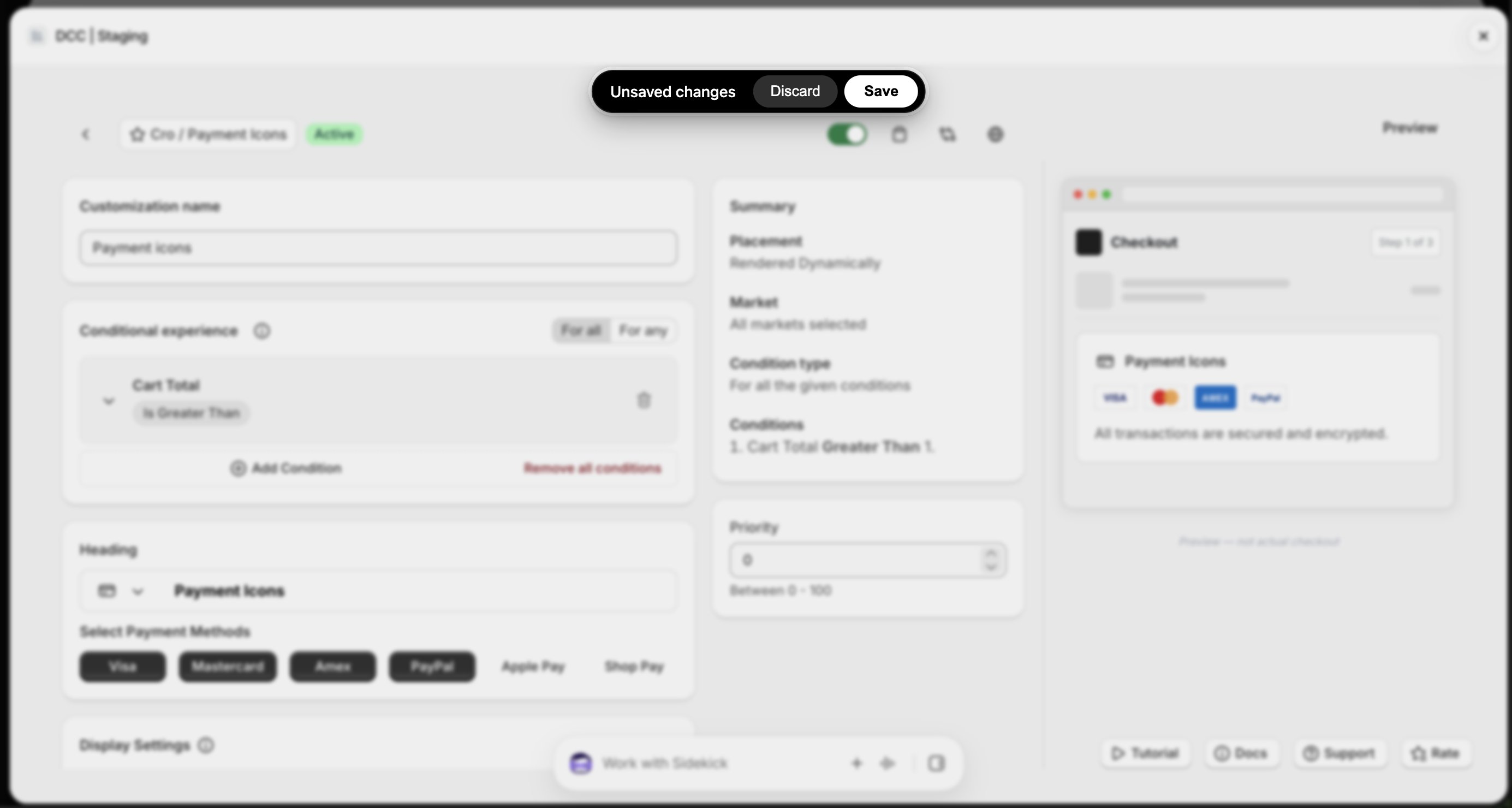
  <Step title="**Save the customization**">
    Click **Save** to store your configuration.
    <img src="https://mintcdn.com/nomads-arc/1BGCxx9quDc6OrCW/images/payment_icons_unsaved_changes_focus.png?fit=max&auto=format&n=1BGCxx9quDc6OrCW&q=85&s=05f8872cc352ac89fb6ee1e0ad29c271" alt="Payment Icons Unsaved Changes Focus" width="2770" height="1480" data-path="images/payment_icons_unsaved_changes_focus.png" />
  </Step>

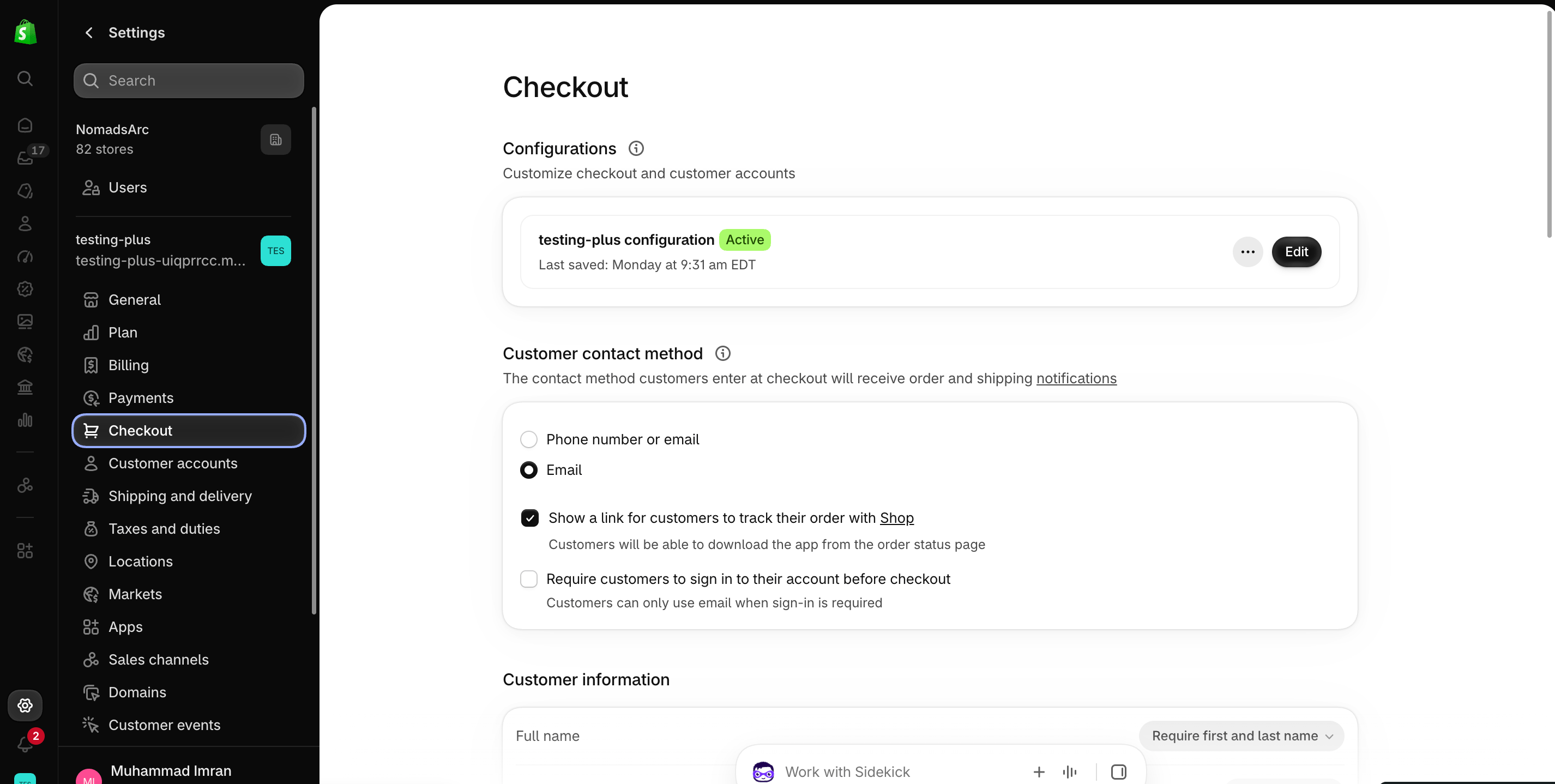
  <Step title="**Open the Checkout Editor**">
    Go to your Shopify [Settings](https://admin.shopify.com/settings) **→ Checkout**, select your checkout profile, and click **Edit**.
    <img src="https://mintcdn.com/nomads-arc/iXpFGcSFUJL7FNKL/images/screenshot_08.png?fit=max&auto=format&n=iXpFGcSFUJL7FNKL&q=85&s=16ba7d2015cd3c1cb9962b0f9665bac0" alt="" width="2852" height="1438" data-path="images/screenshot_08.png" />
  </Step>

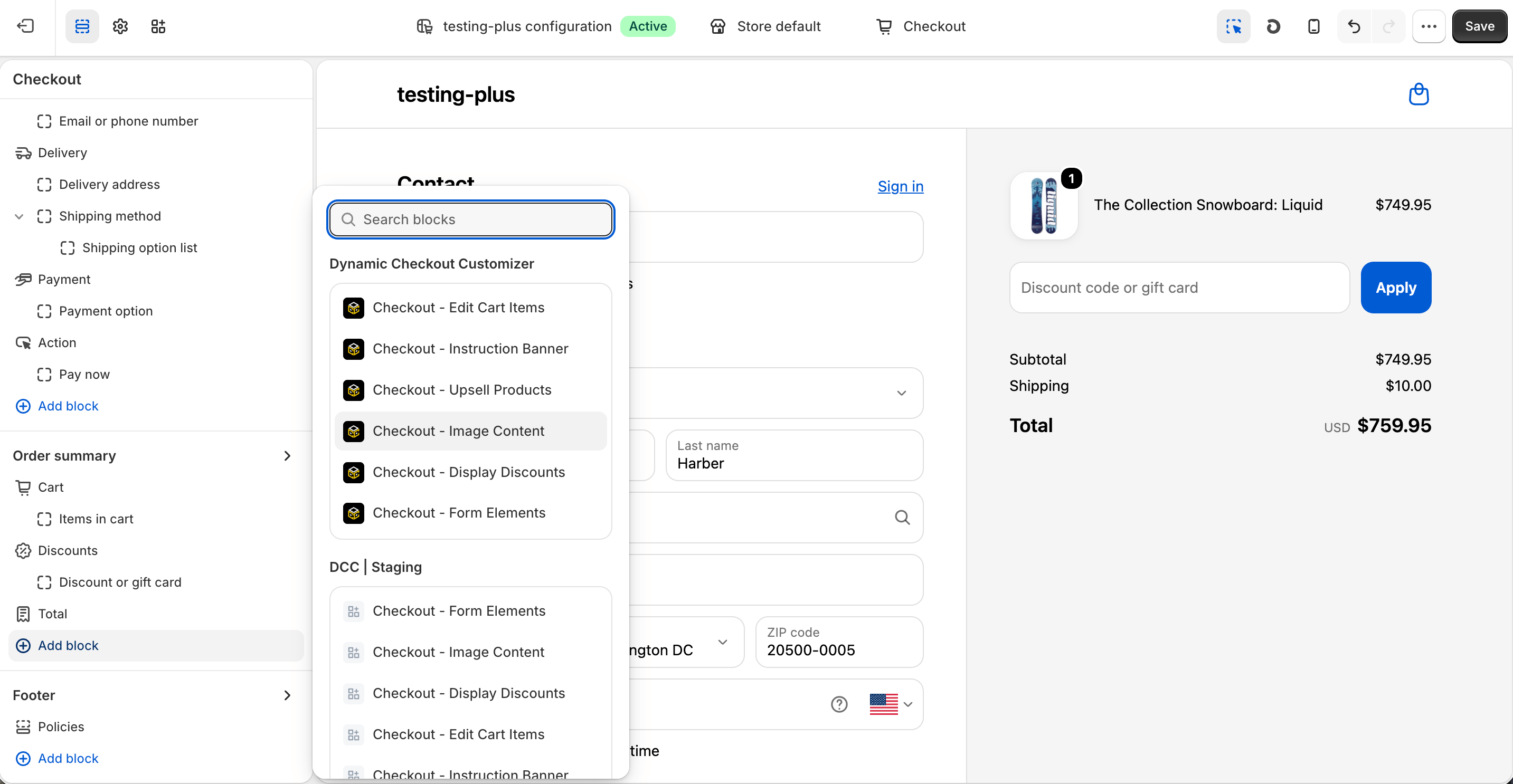
  <Step title="**Add the app block**">
    In the [Checkout Editor](https://admin.shopify.com/settings/checkout/editor), click **Add app block**.
    <img src="https://mintcdn.com/nomads-arc/u9pYvztLRnrKdKD0/images/Screenshot-2026-10-08-at-16.25.08.png?fit=max&auto=format&n=u9pYvztLRnrKdKD0&q=85&s=9863aaeb303bee52b6ed0f1192f1a675" alt="Screenshot 2026 10 08 At 16 25 08" width="2866" height="1486" data-path="images/Screenshot-2026-10-08-at-16.25.08.png" />

    <Note>
      Make sure the app block is placed in the same checkout placement you selected in Dynamic Checkout Customizer.
    </Note>
  </Step>

  <Step title="**Configure the app block**">
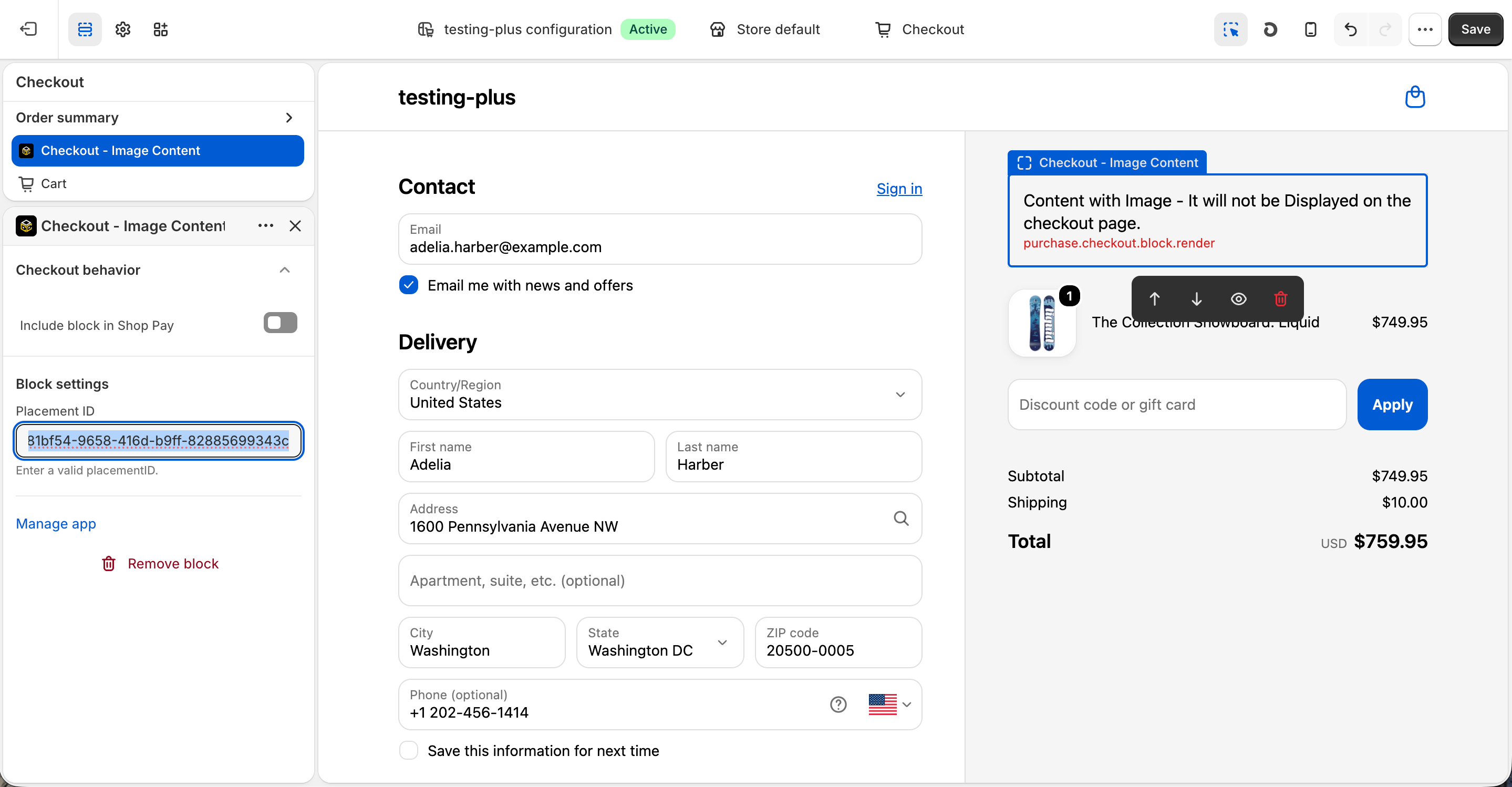
    Select the **Checkout – Image Content** app block, and paste the copied **Placement ID**.
    <img src="https://mintcdn.com/nomads-arc/u9pYvztLRnrKdKD0/images/Screenshot-2026-10-08-at-16.25.29.png?fit=max&auto=format&n=u9pYvztLRnrKdKD0&q=85&s=30ea02b8f6993917a4c2797d12bcef0c" alt="Screenshot 2026 10 08 At 16 25 29" width="2878" height="1498" data-path="images/Screenshot-2026-10-08-at-16.25.29.png" />
  </Step>

  <Step title="**Publish your changes**">
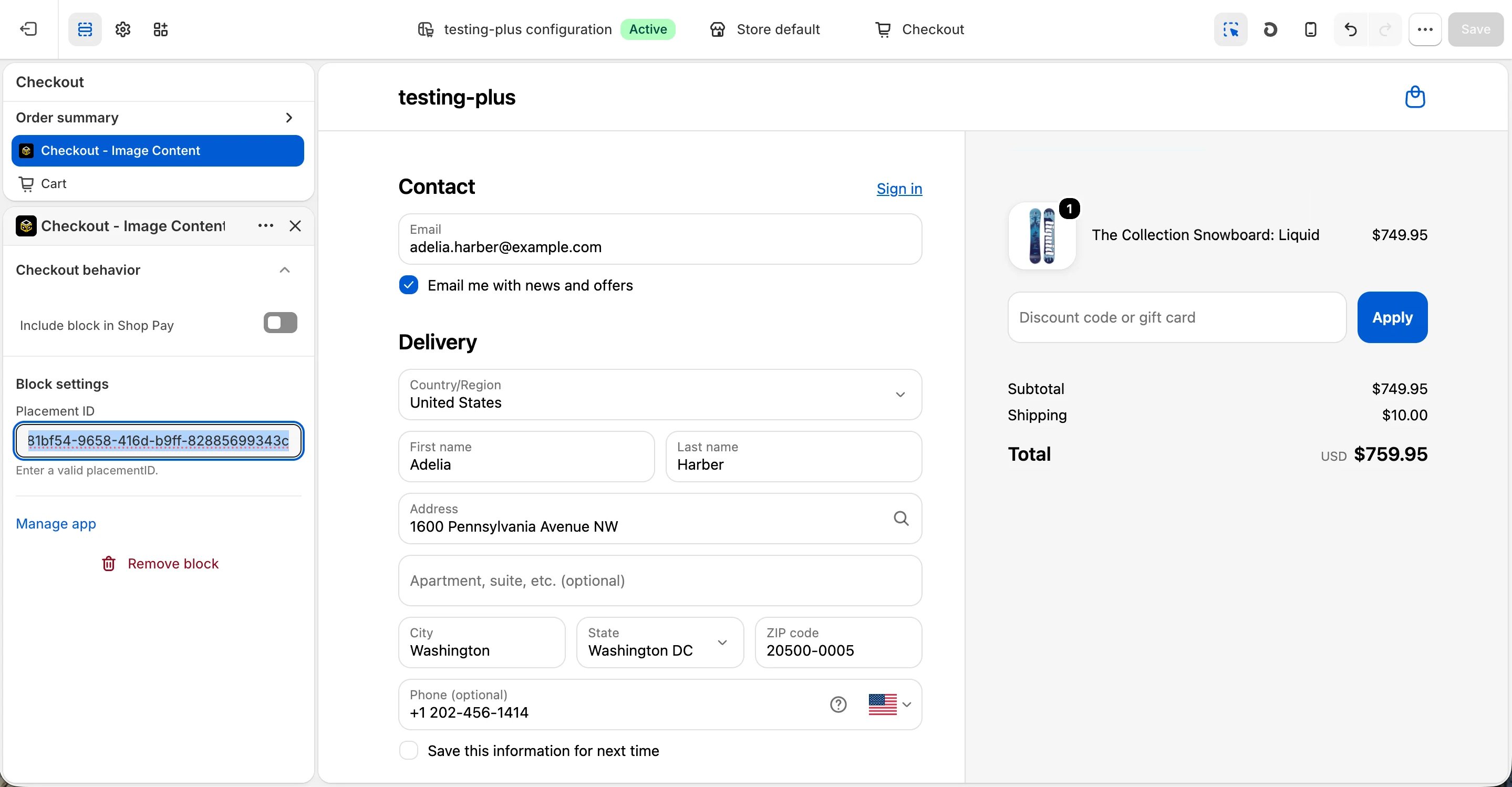
    Click **Save** in the Checkout Editor to publish the customization.
    <img src="https://mintcdn.com/nomads-arc/RzpK3cAhme6CksMw/images/image_content_clean-1.png?fit=max&auto=format&n=RzpK3cAhme6CksMw&q=85&s=894deaf7649d95c7533f0dbb5da23868" alt="Image Content Clean" width="2878" height="1498" data-path="images/image_content_clean-1.png" />
  </Step>
</Steps>


This documentation is built and hosted on [Mintlify](https://mintlify.com), a developer documentation platform.