
Guide
1
Open Address Validation settings
Go to the Settings page and open the Address Validation tab.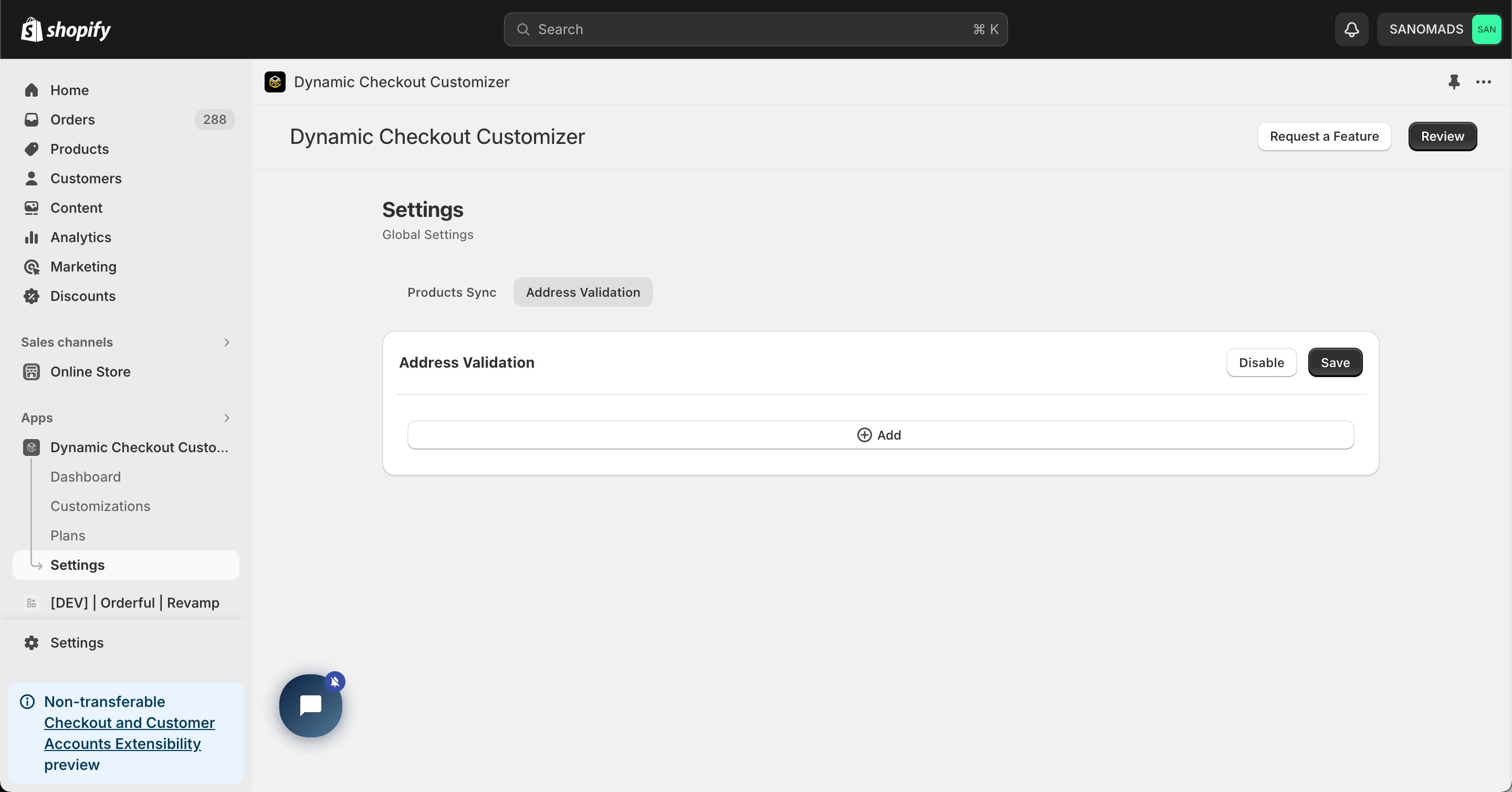
2
Configure a validation rule
Add a new validation condition for Address Line 1 using the Character Limit option.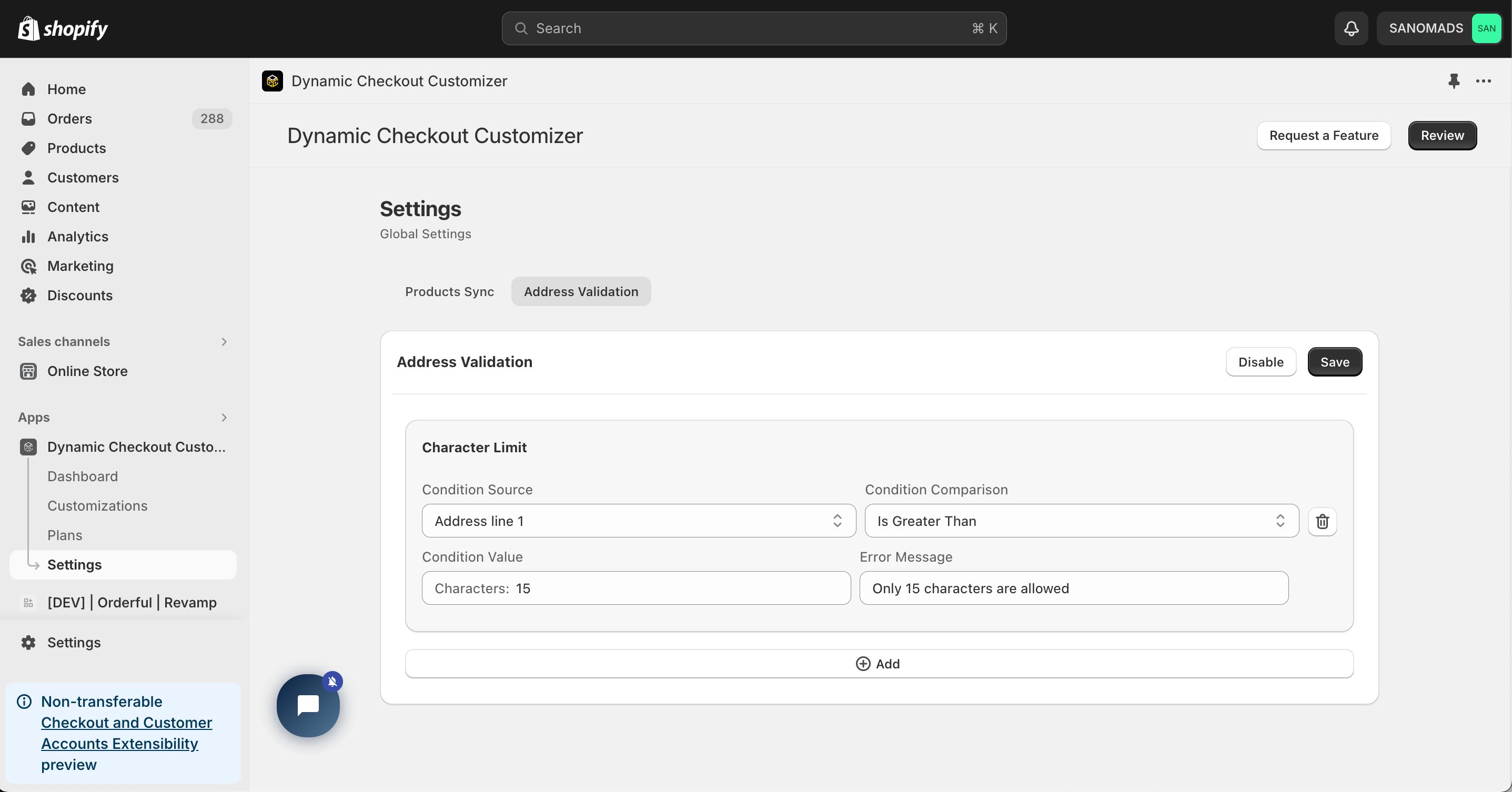
3
Save and enable the validation
Click Save and Enable to activate the Address Validation settings.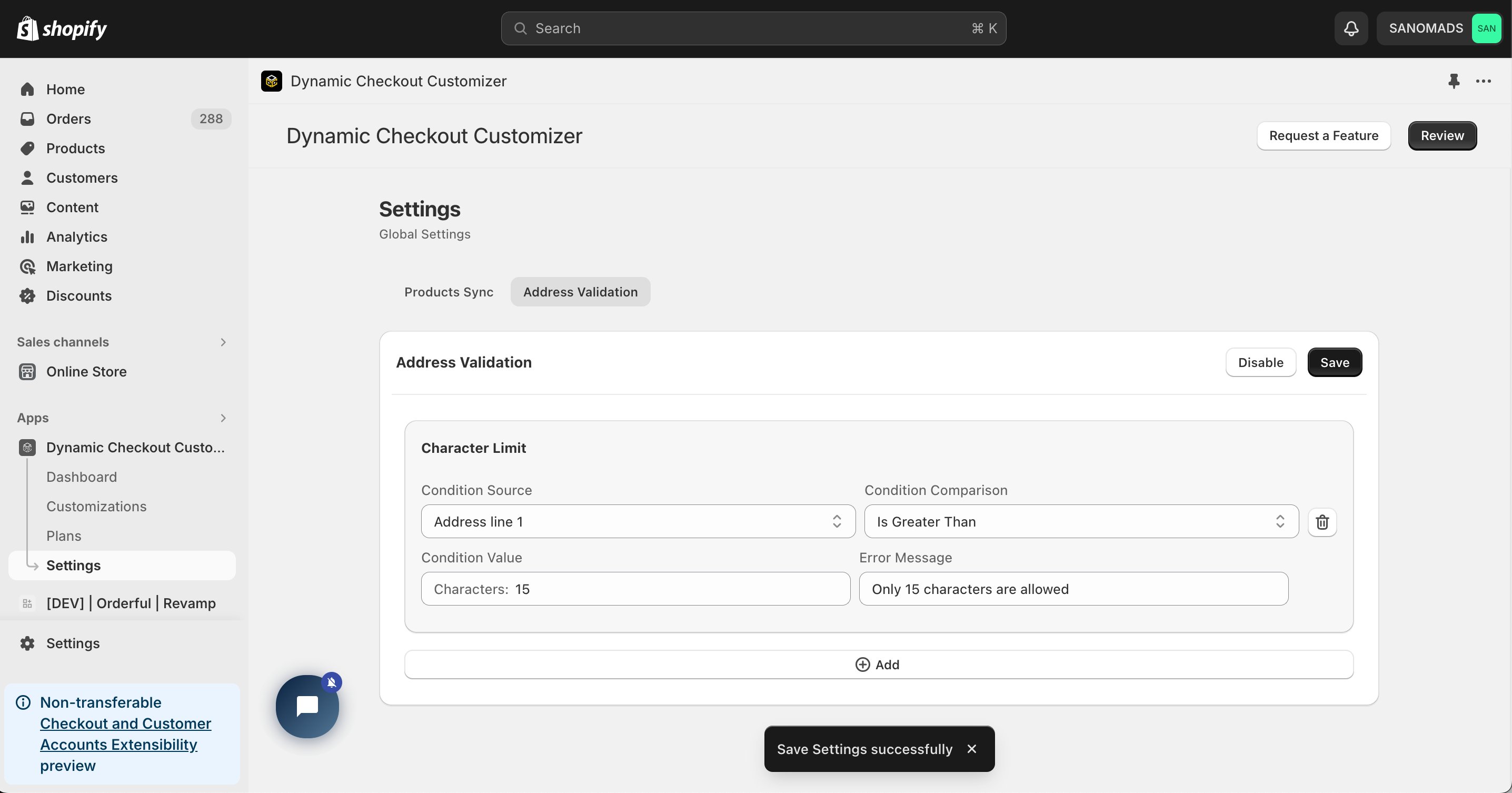
If you need a custom Regular Expression (Regex) for advanced validation, please contact our support team.
4
Open the Checkout Editor
Go to your Shopify Settings → Checkout, select your checkout profile, and click Customize.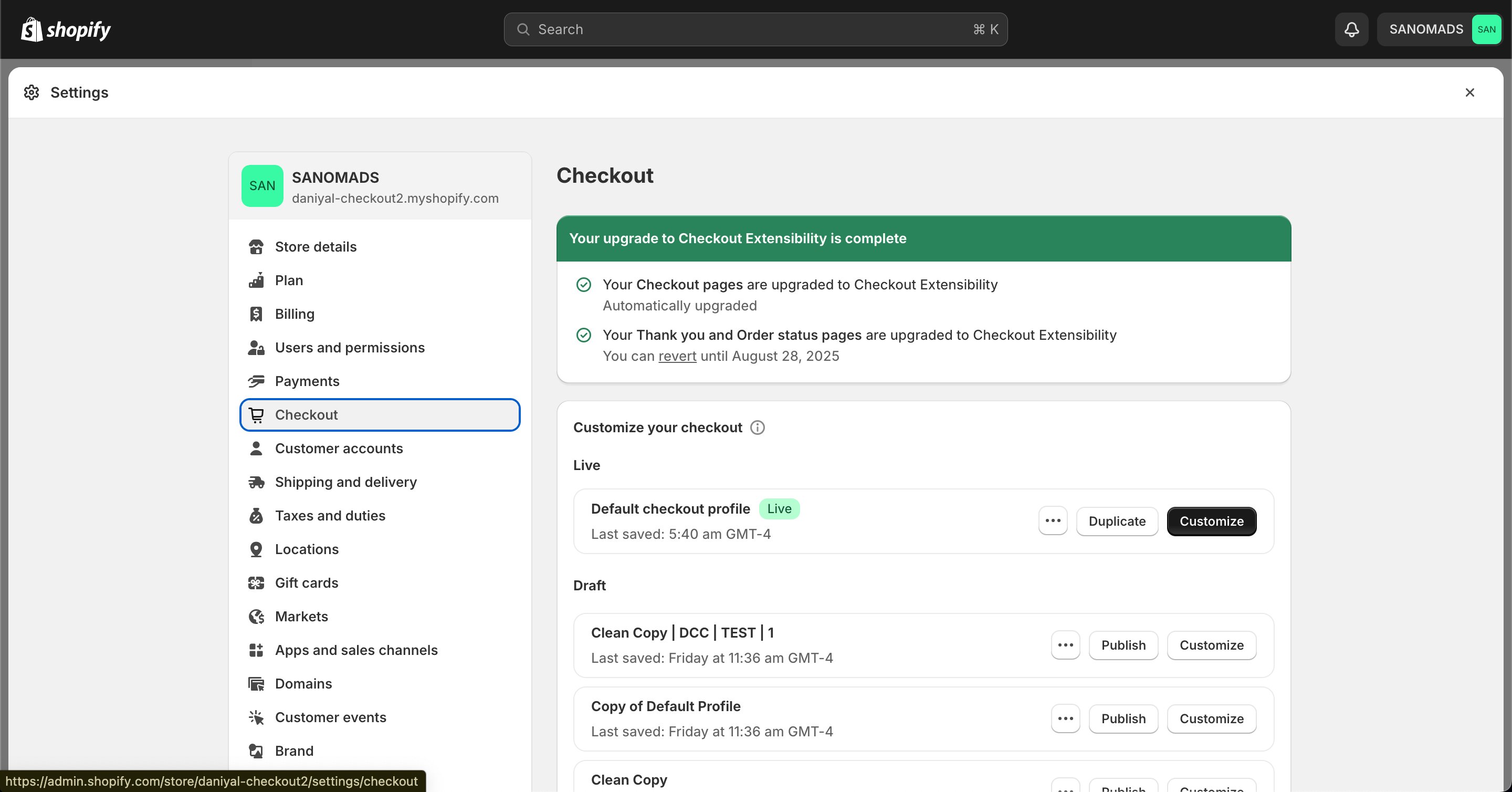
5
Add the app block
In the Checkout Editor, click Add app block.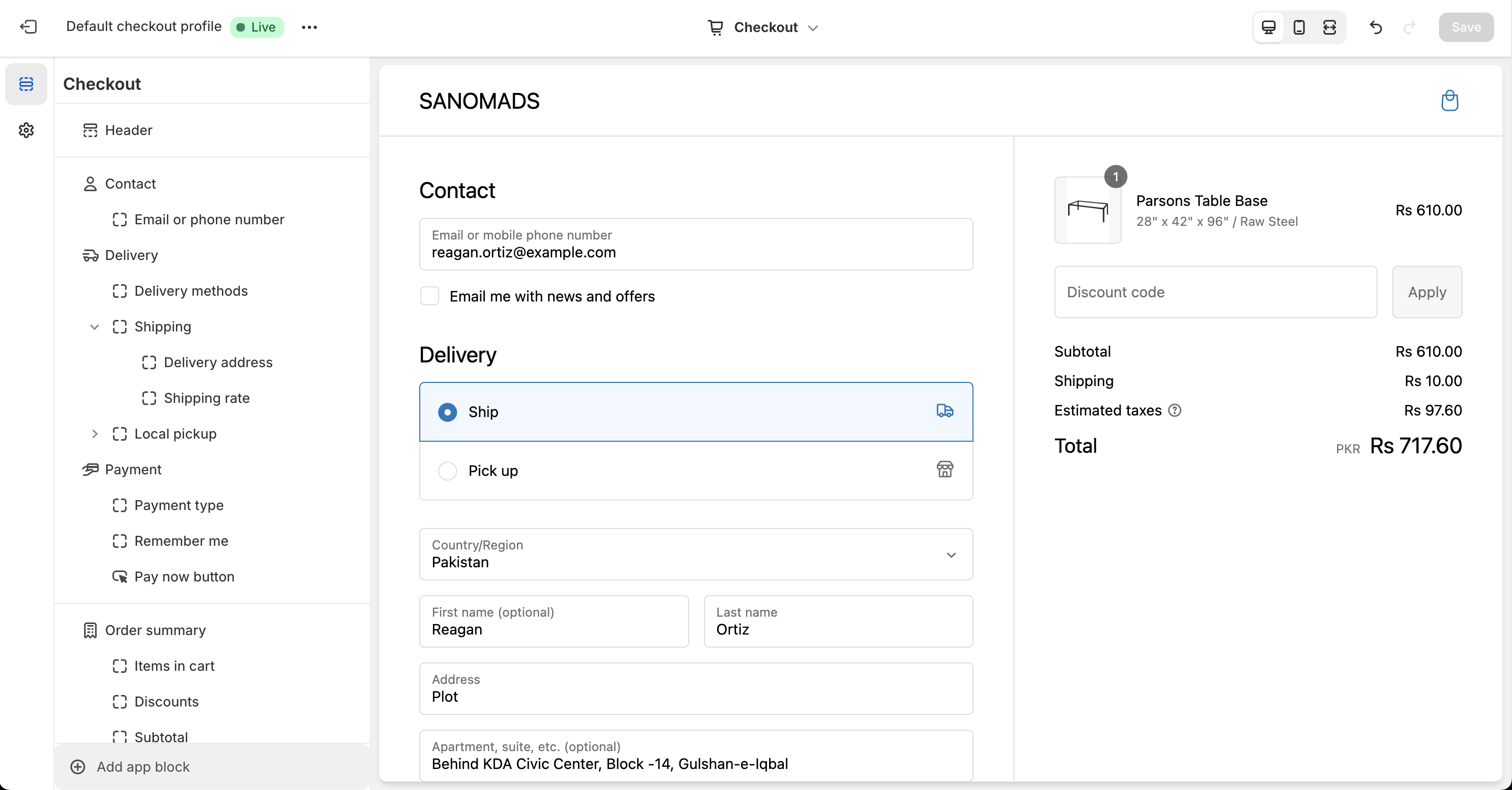
6
Select Address Validation
Choose the Checkout – Address Validation app block and place it in your checkout.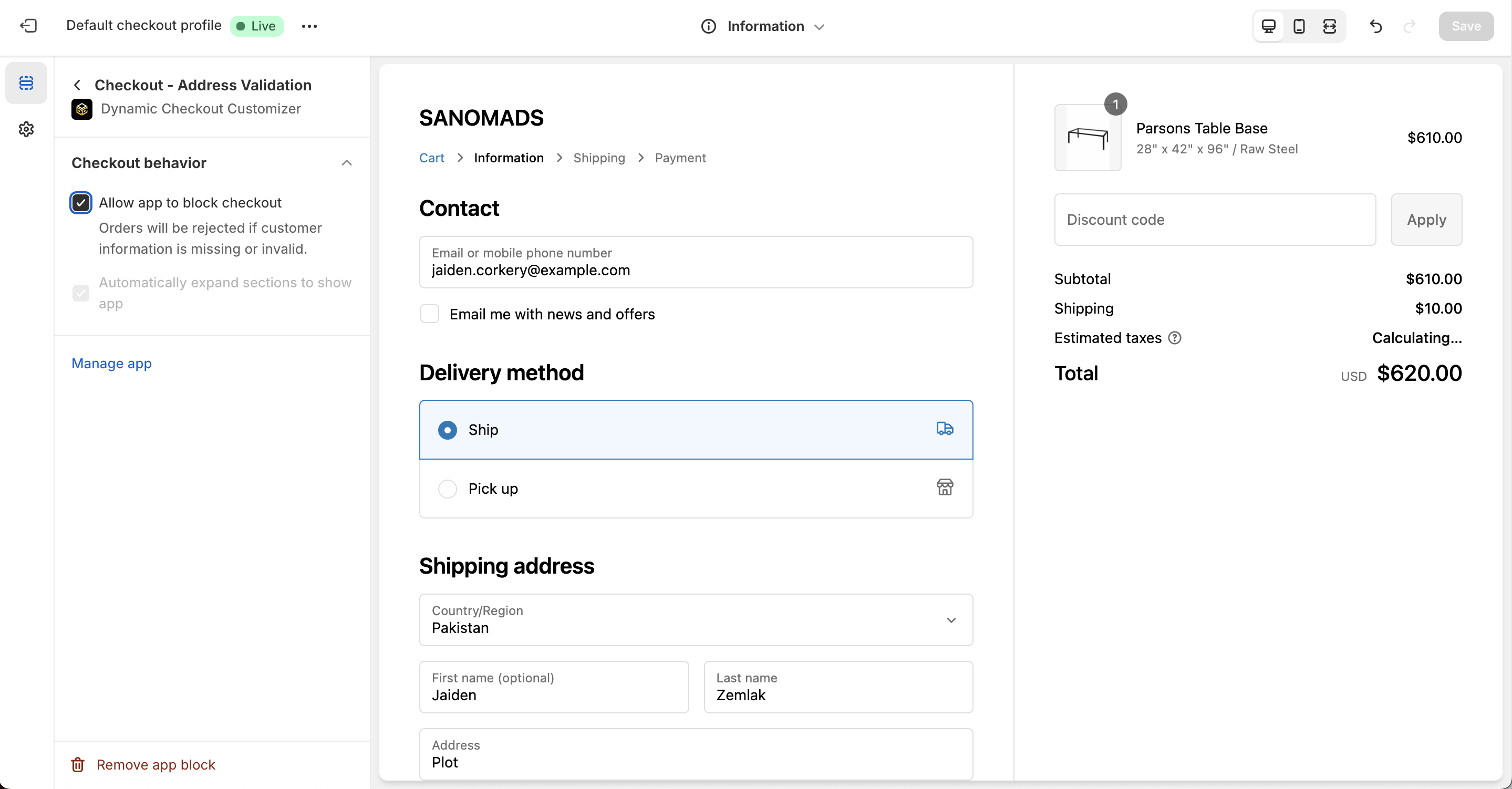
7
Publish your changes
Click Save in the Checkout Editor to publish the customization. Refresh your checkout page to verify that Address Validation is active.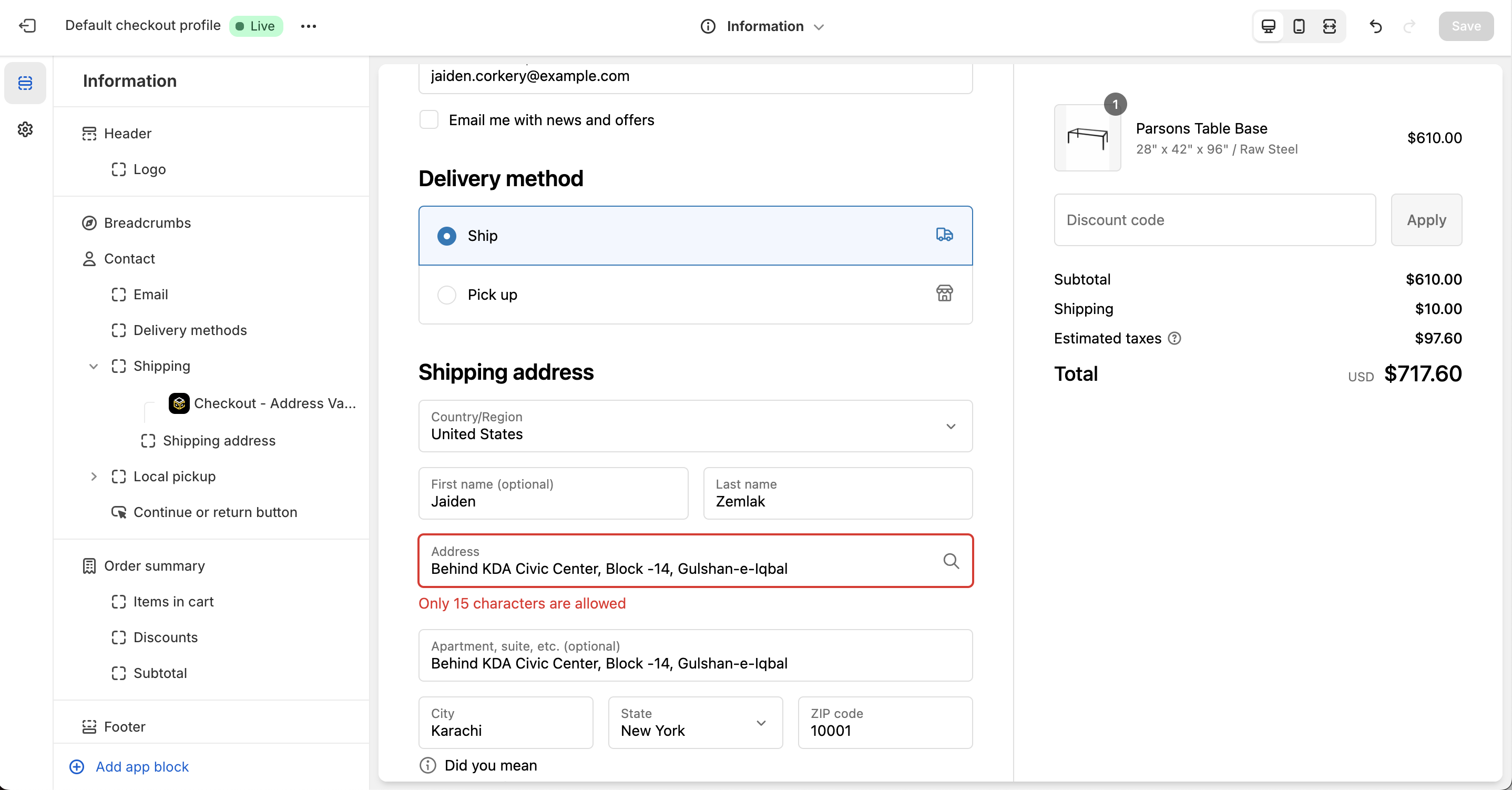
Why does it matter?Address Validation helps reduce shipping errors by validating customer address input during checkout. This can reduce shipping and logistics costs by up to 10% while improving delivery accuracy and customer satisfaction.