
Guide
1
Create a new customization
Create a new customization.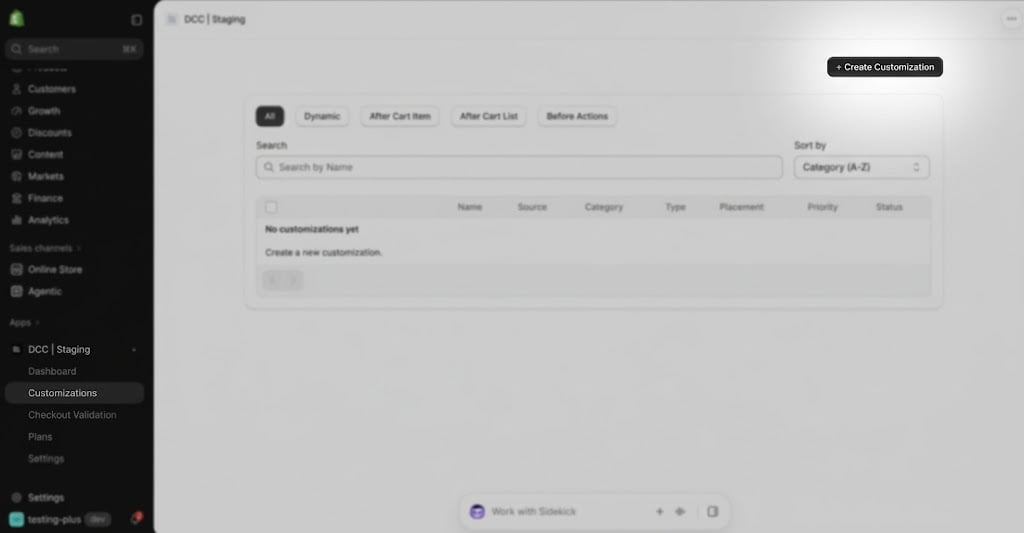
2
Choose the Static Upsell type
Select Static Source to manually choose the products you want to recommend during checkout.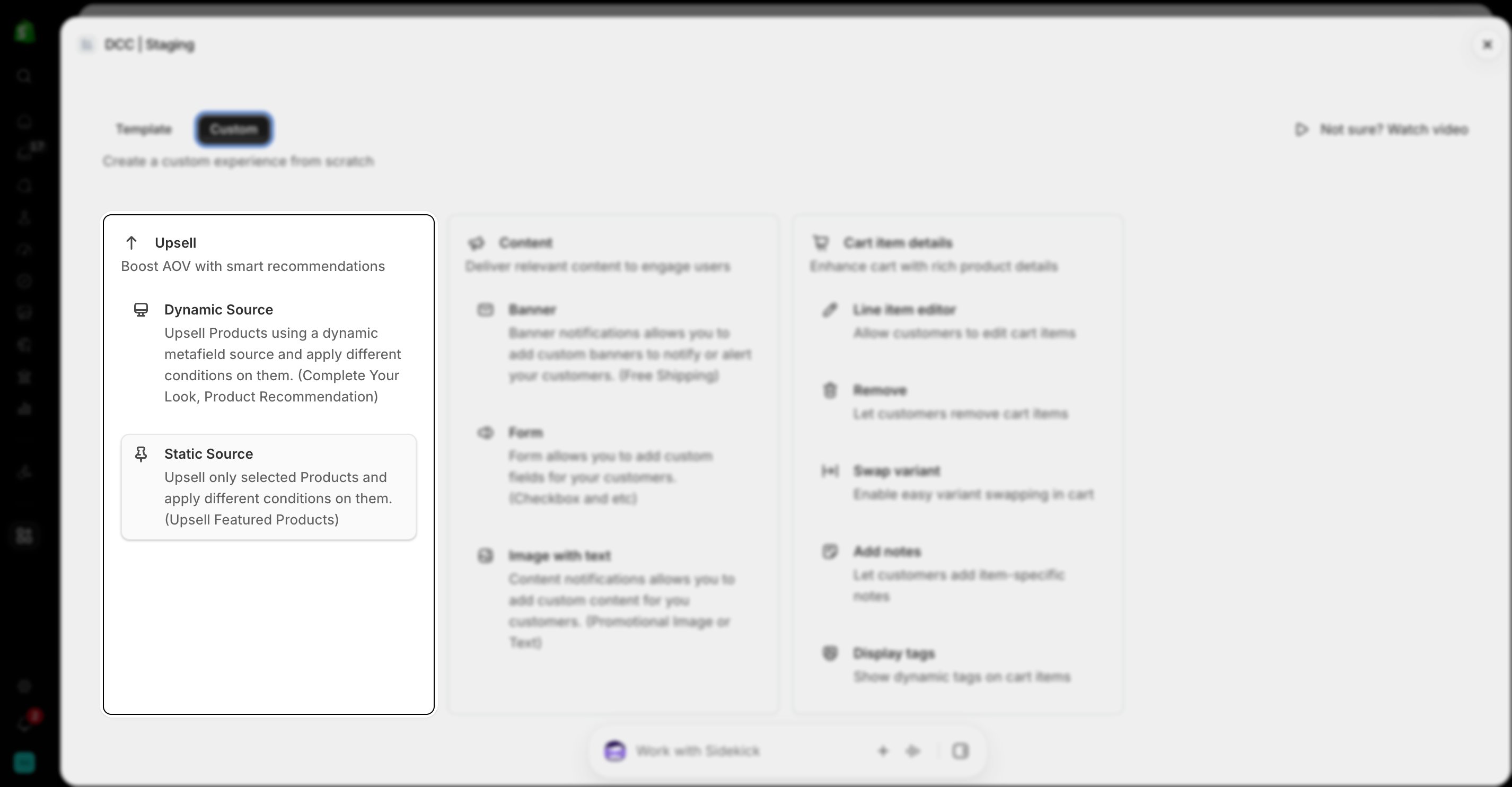
3
Configure display conditions
Add one or more conditions to control when the upsell is displayed during checkout.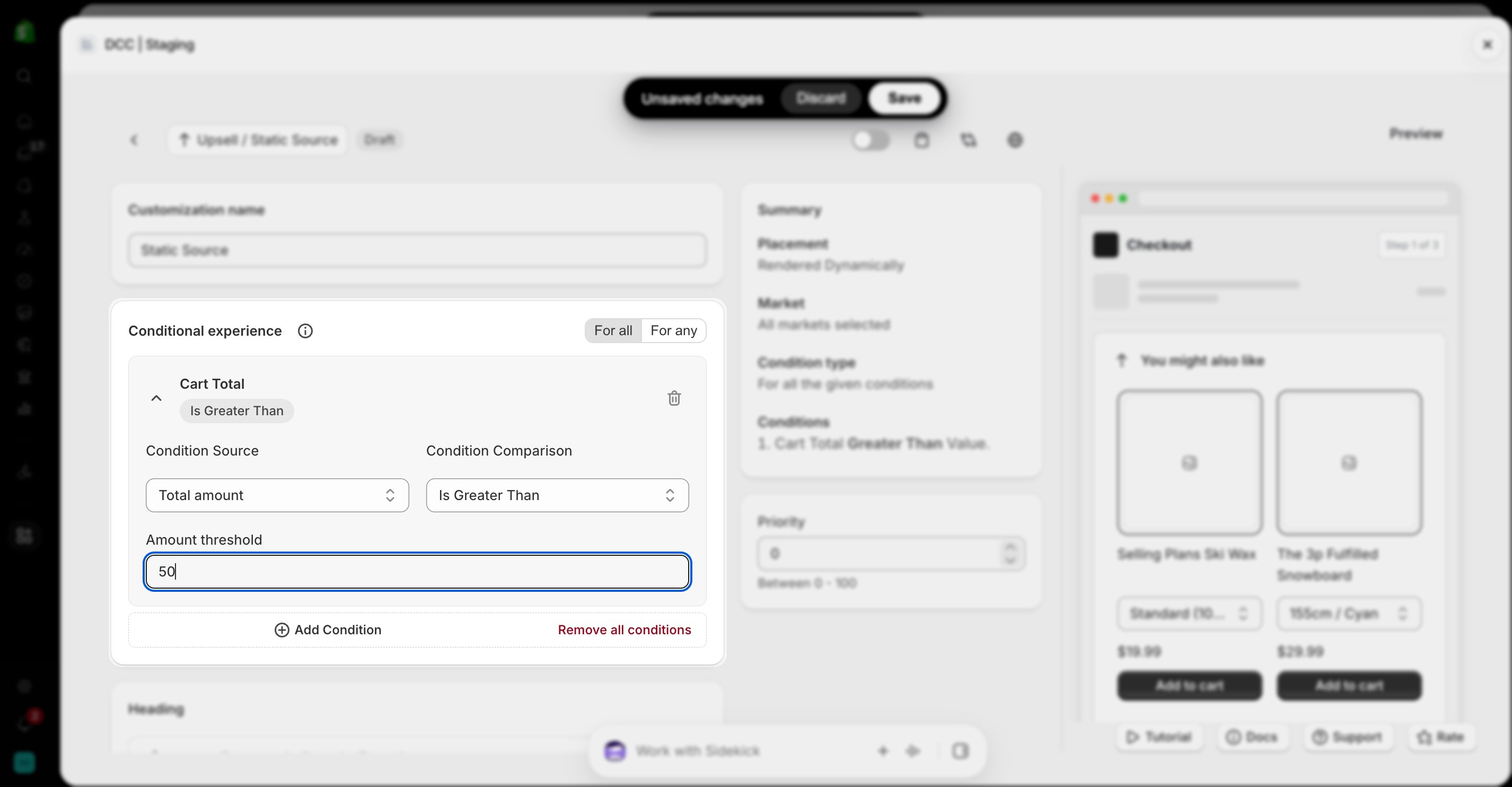
4
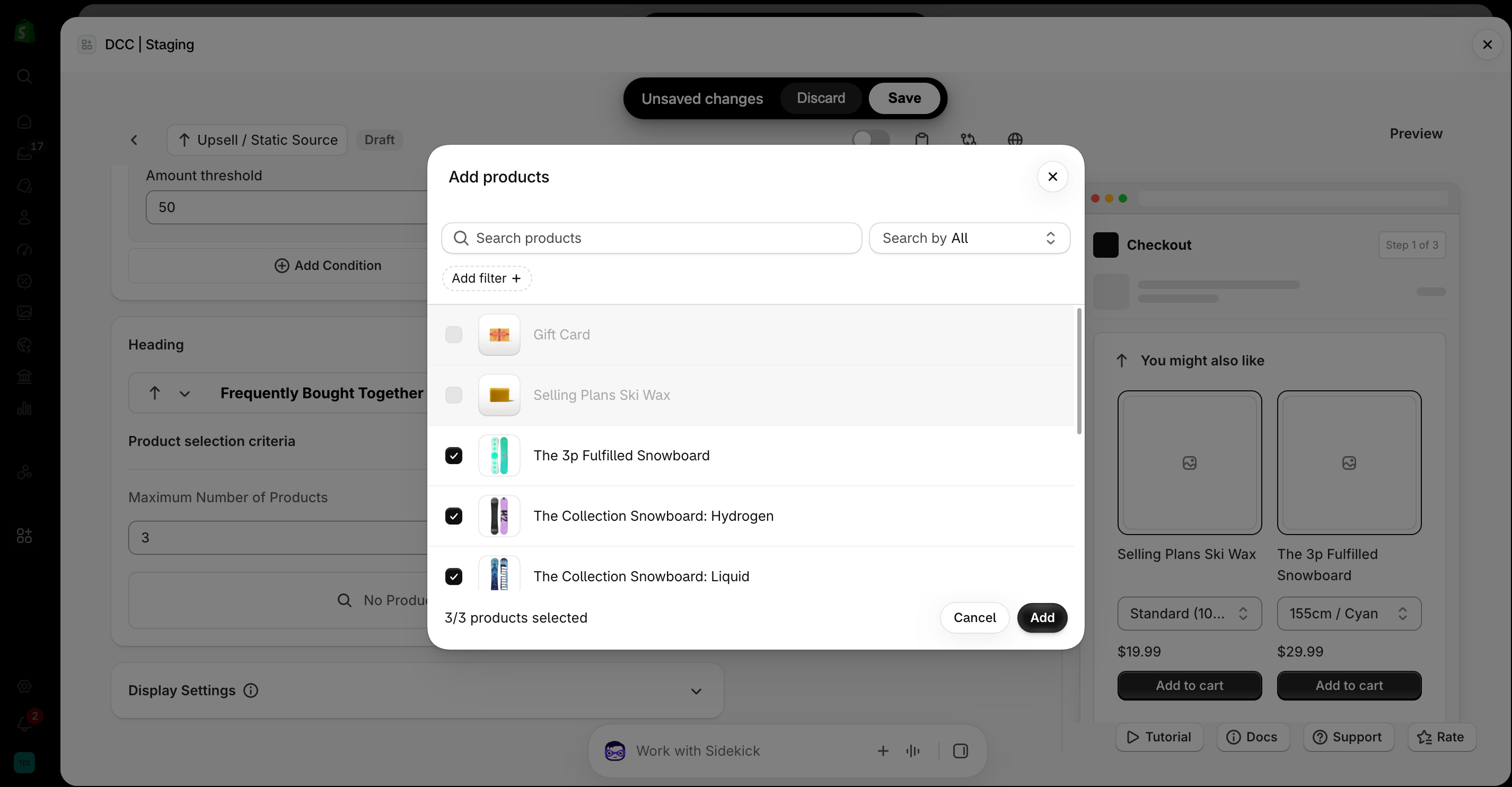
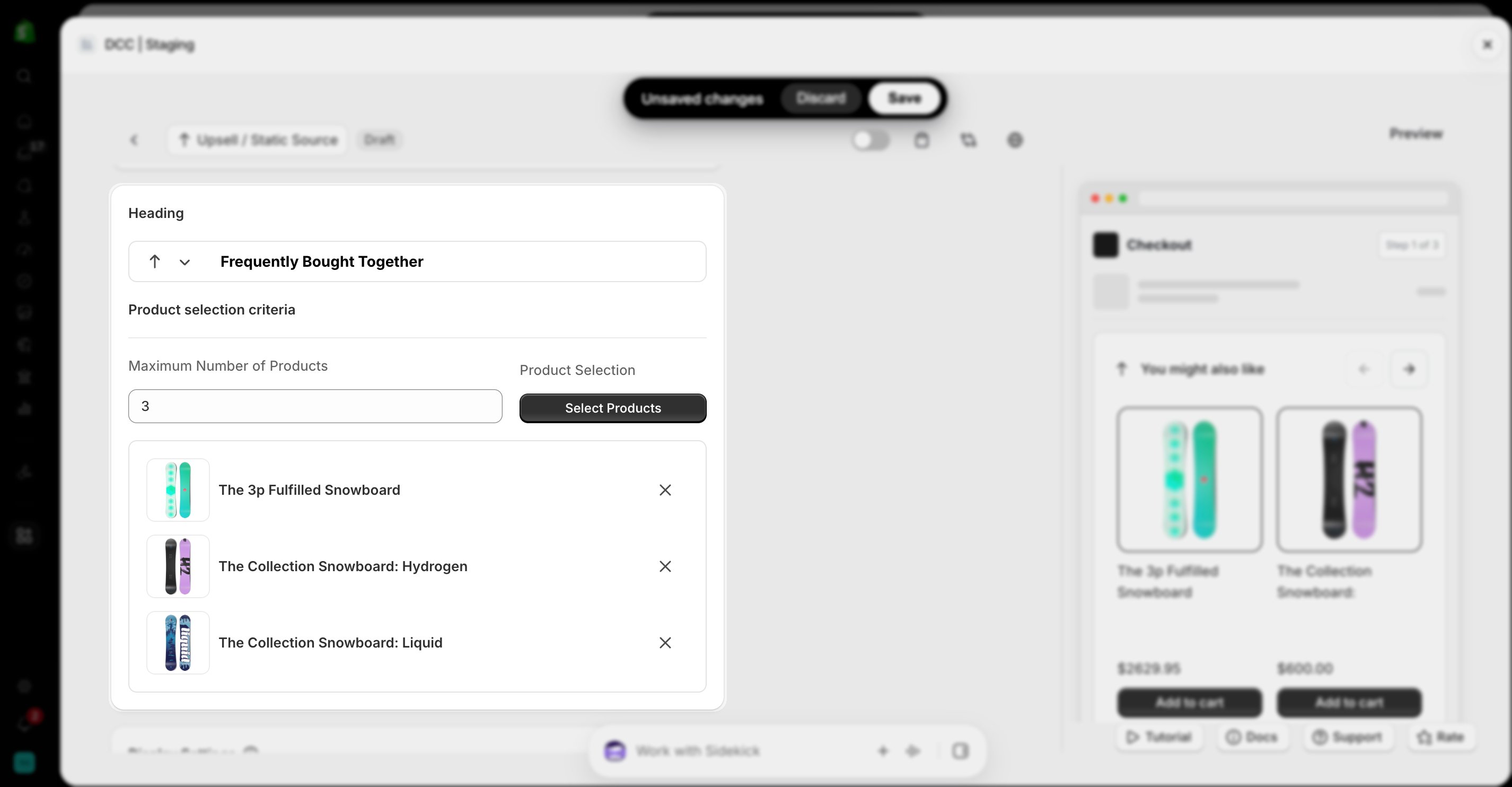
Select upsell products
Manually choose the products you want to display and configure the Maximum Product Count shown during checkout.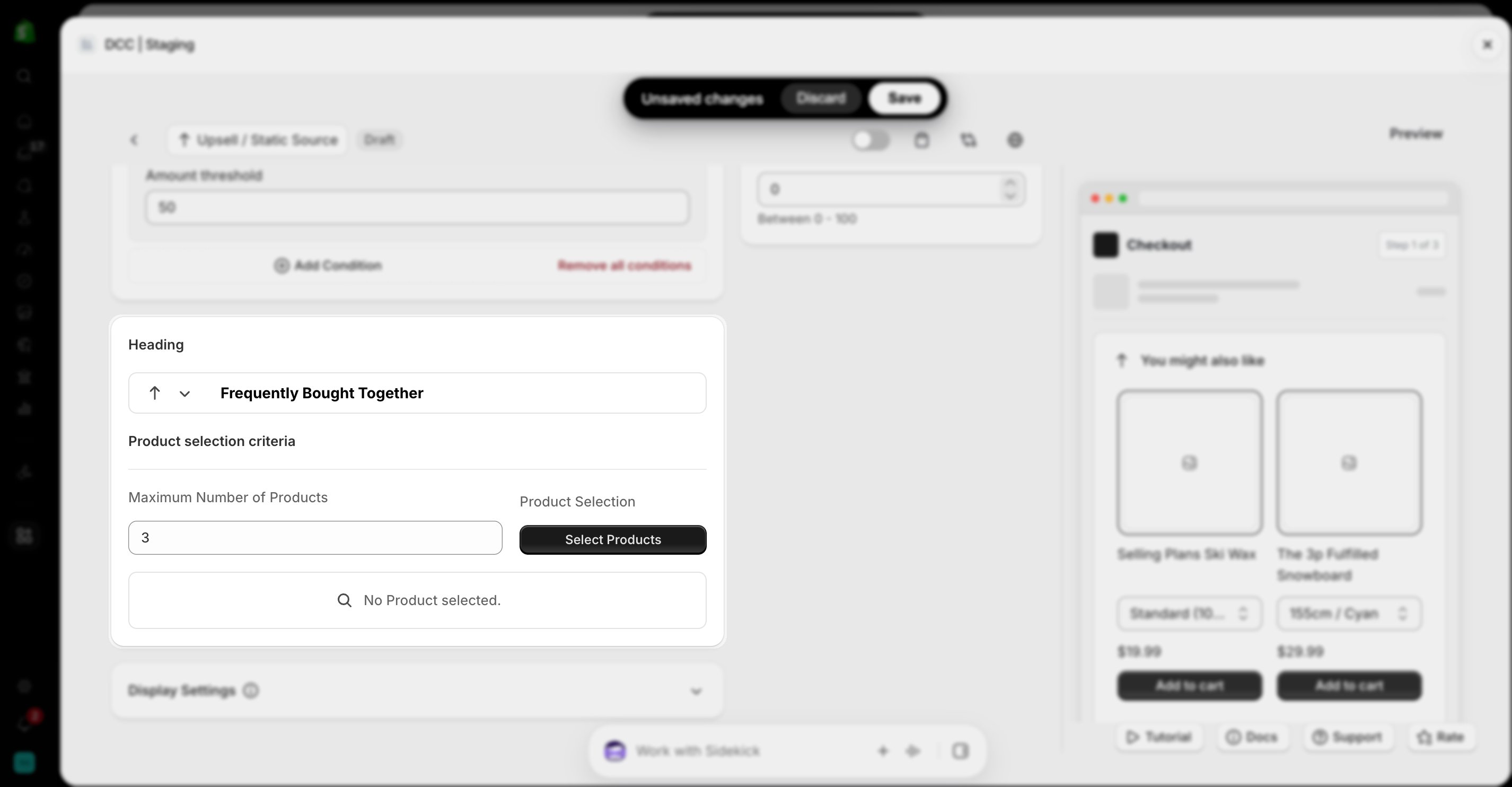
5
Customize the display
Configure the Display Settings to control how the upsell products appear during checkout.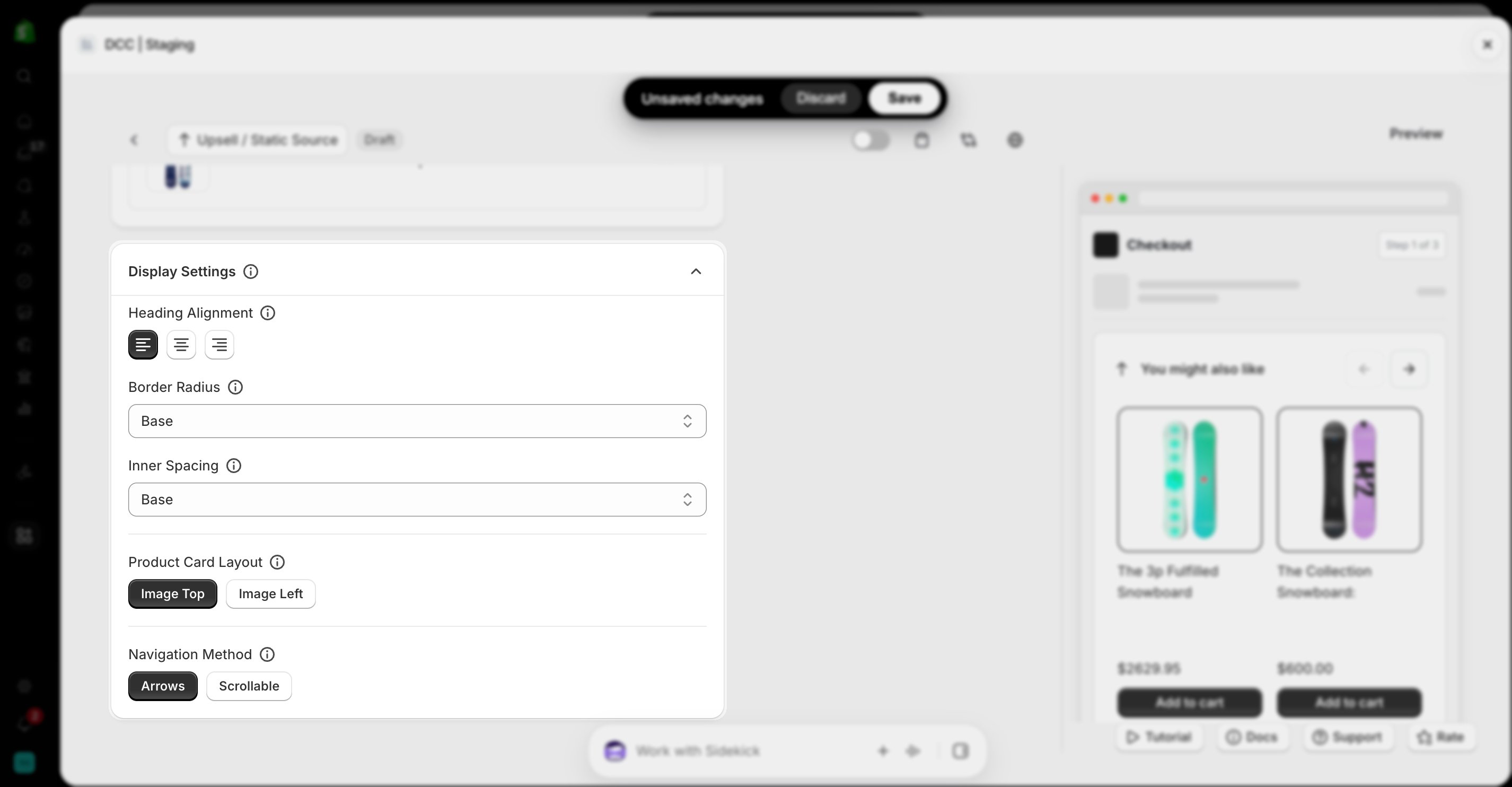
6
Activate the customization
Change the Status to Active using toggle button to activate the customization.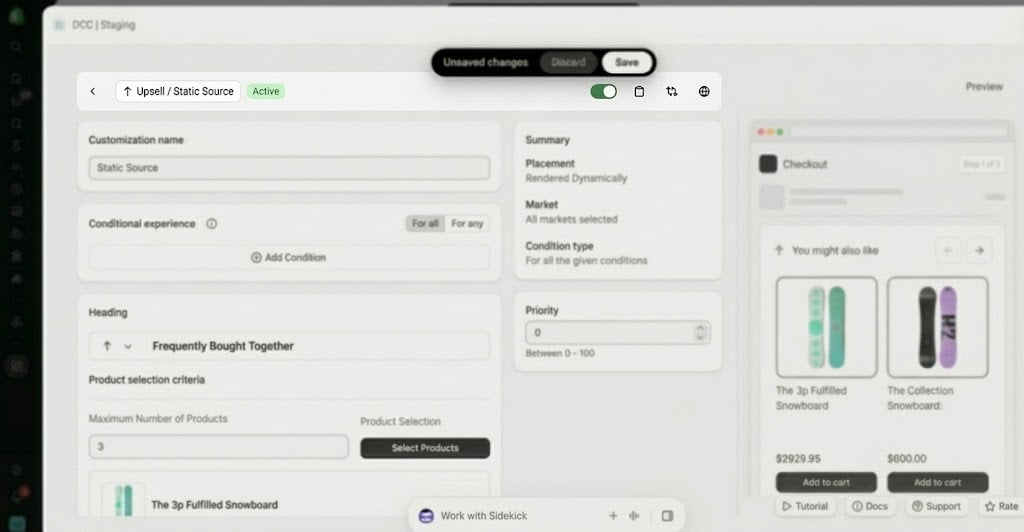
7
Set the priority
Configure the Priority (0–100) to determine the execution order when multiple customizations are eligible.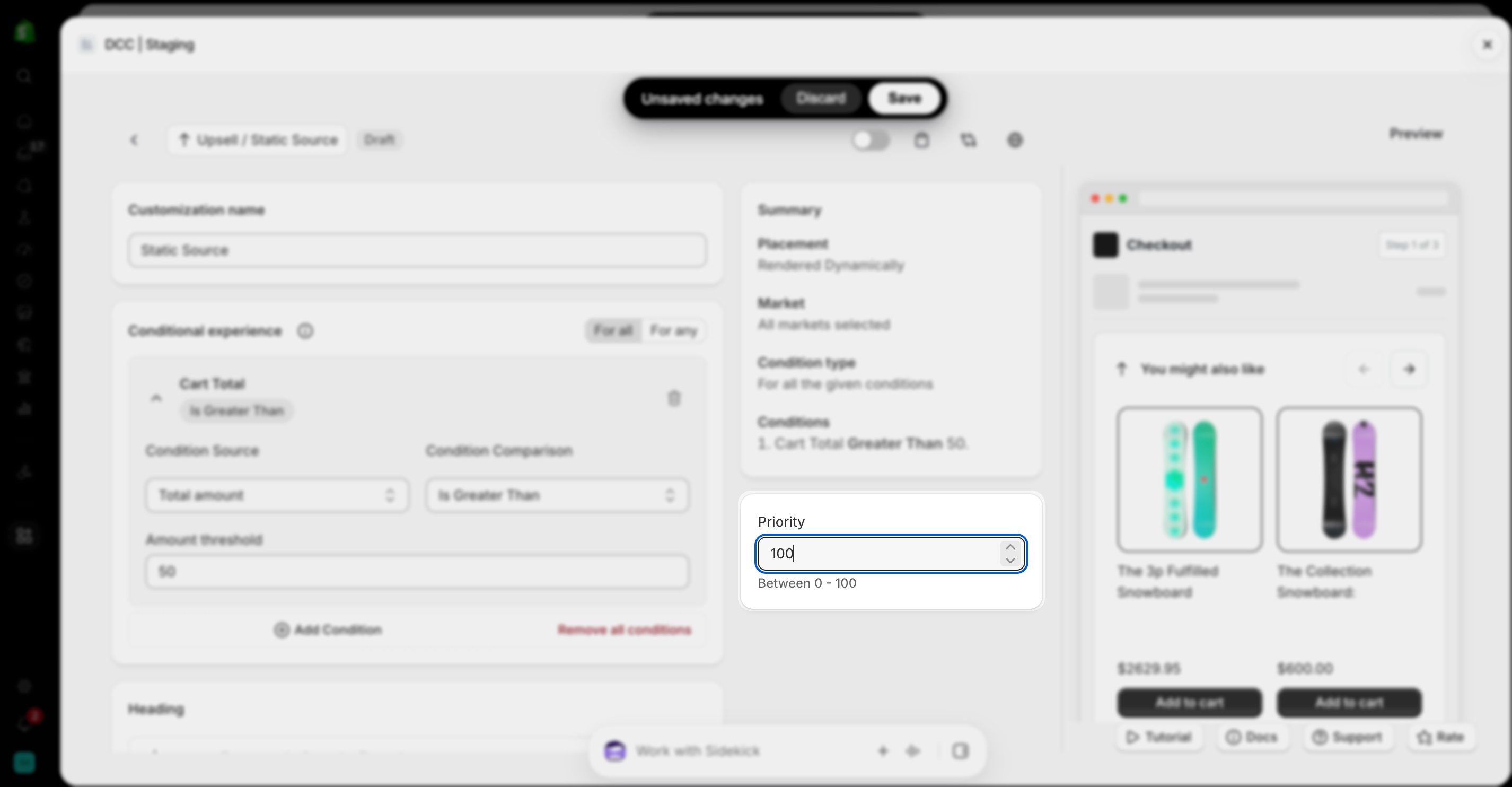
8
Copy the Placement ID
Copy the generated Placement ID from clipboard icon. You’ll use this in the Shopify Checkout Editor.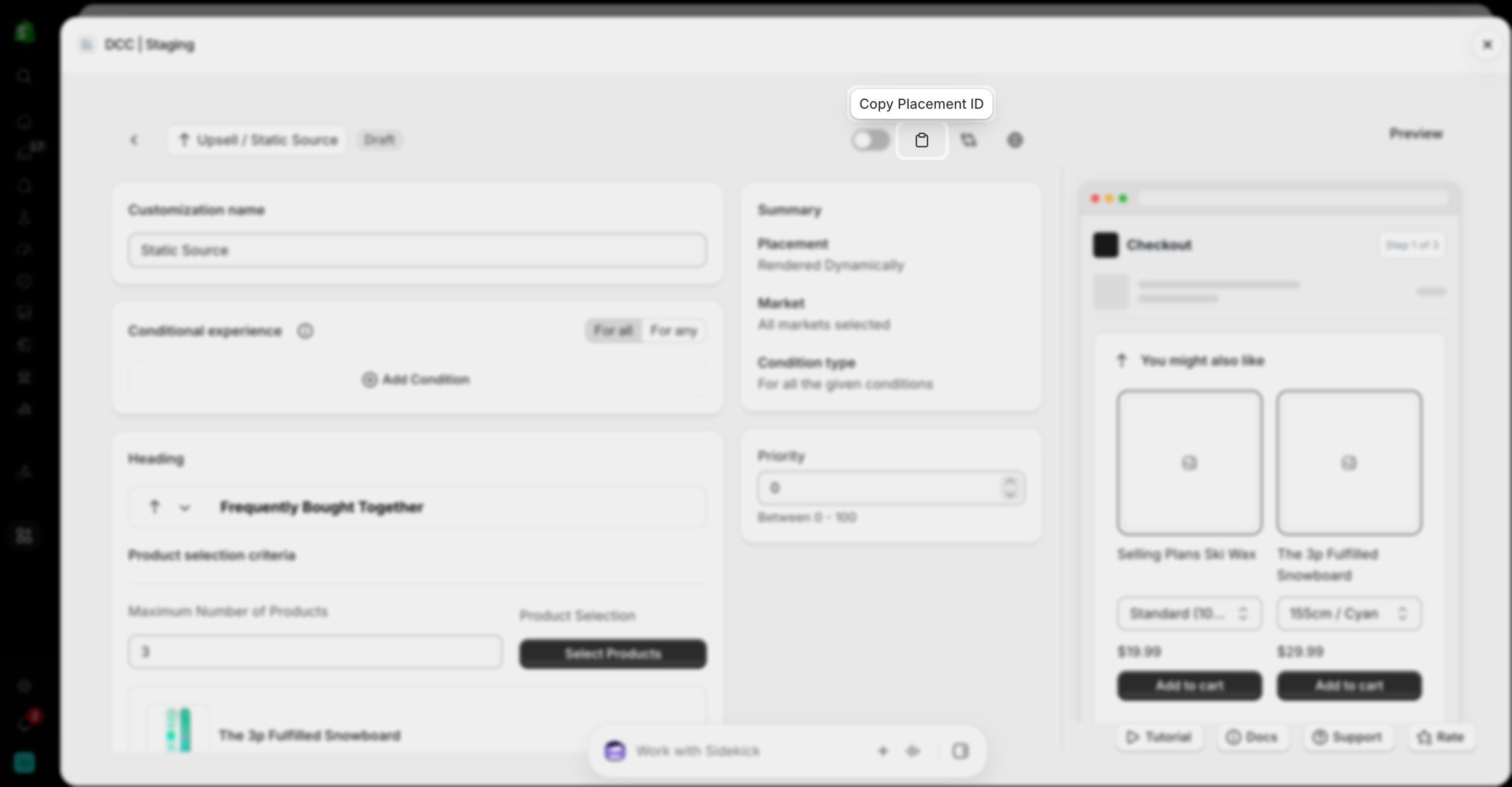
9
Preview
Preview shows , How this block looks like at CheckOut.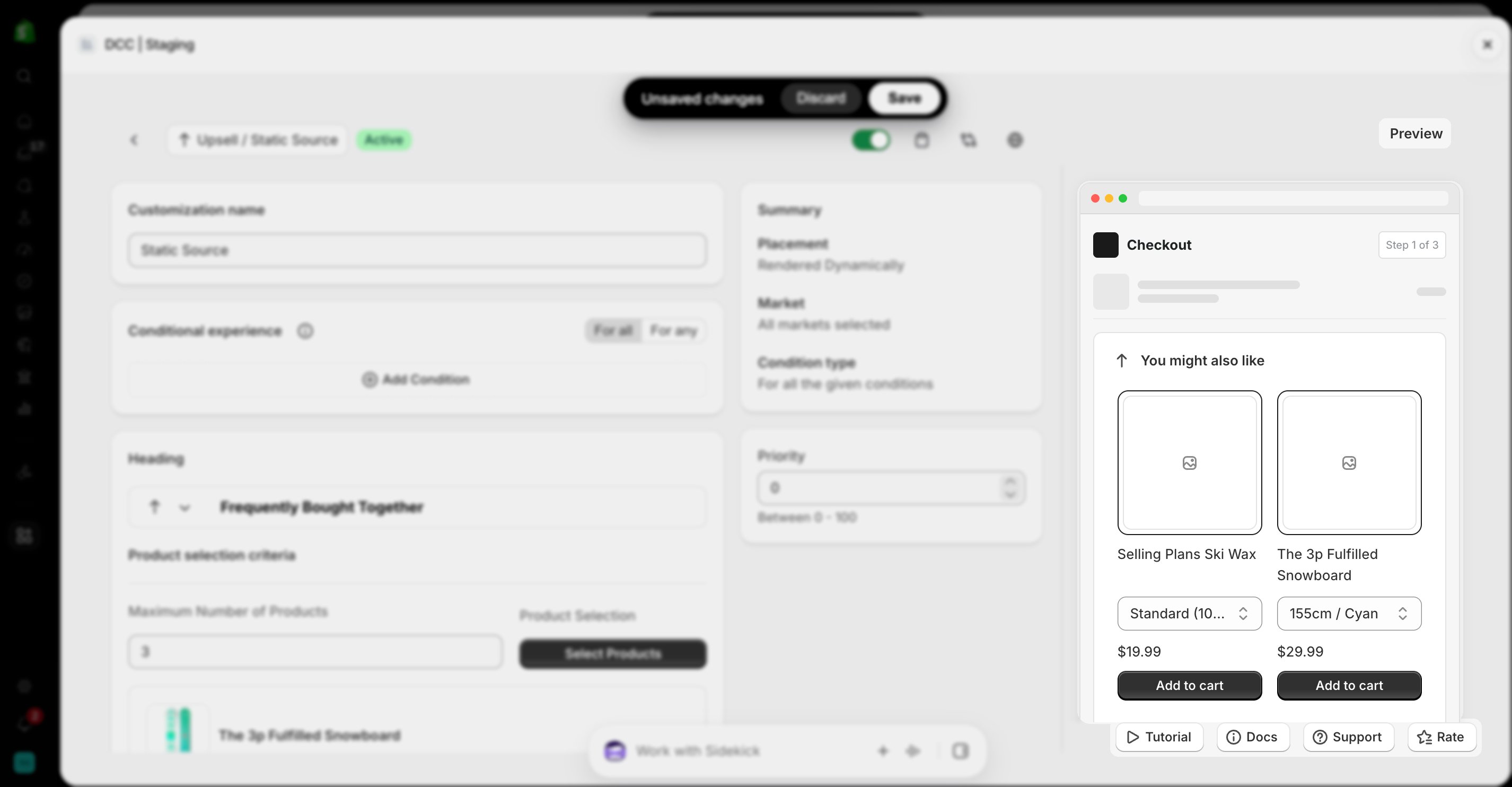
10
Save the customization
Click Save to store your configuration.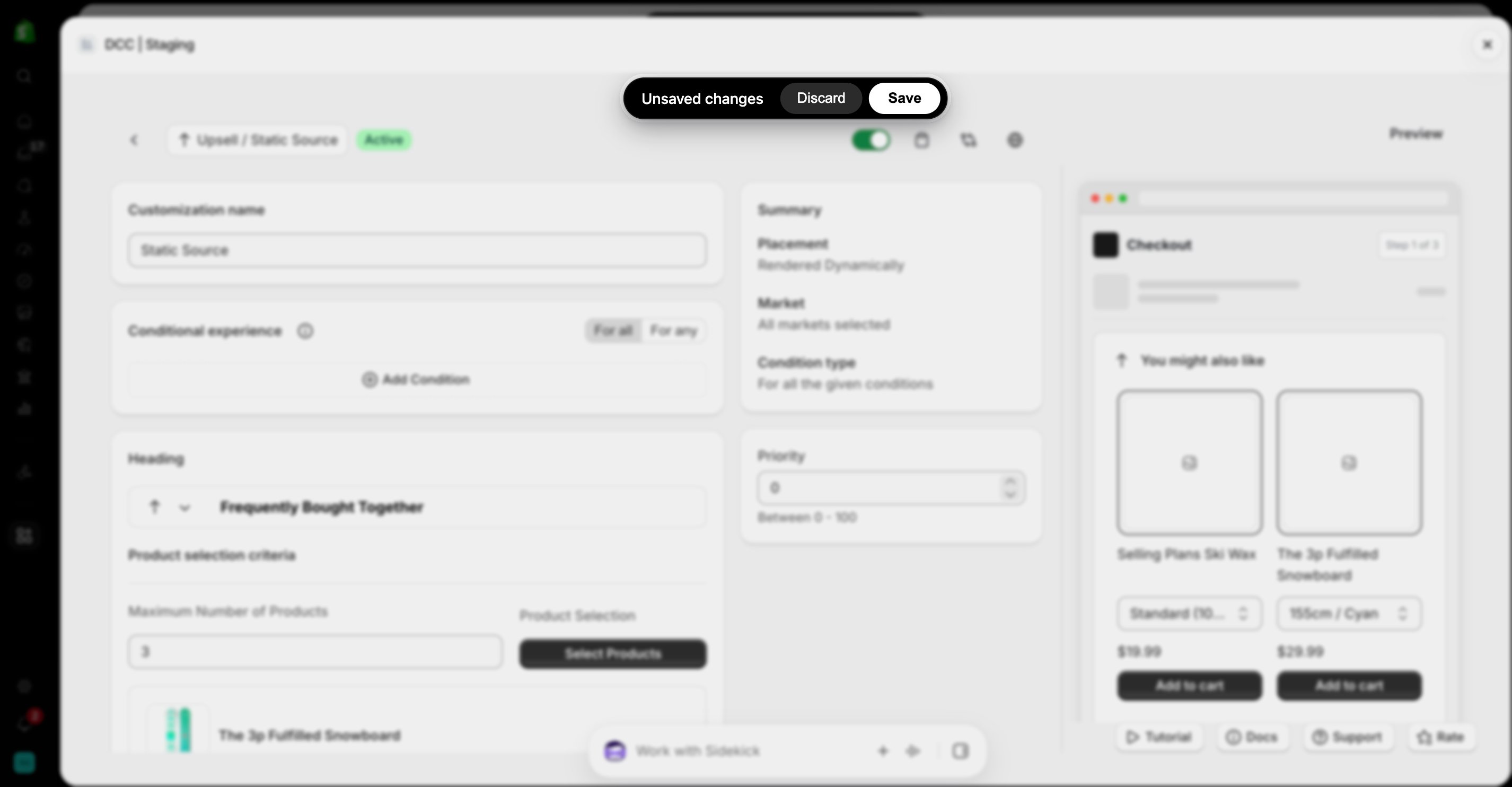
11
Open the Checkout Editor
Go to your Shopify Settings→ Checkout, select your checkout profile, and click Edit.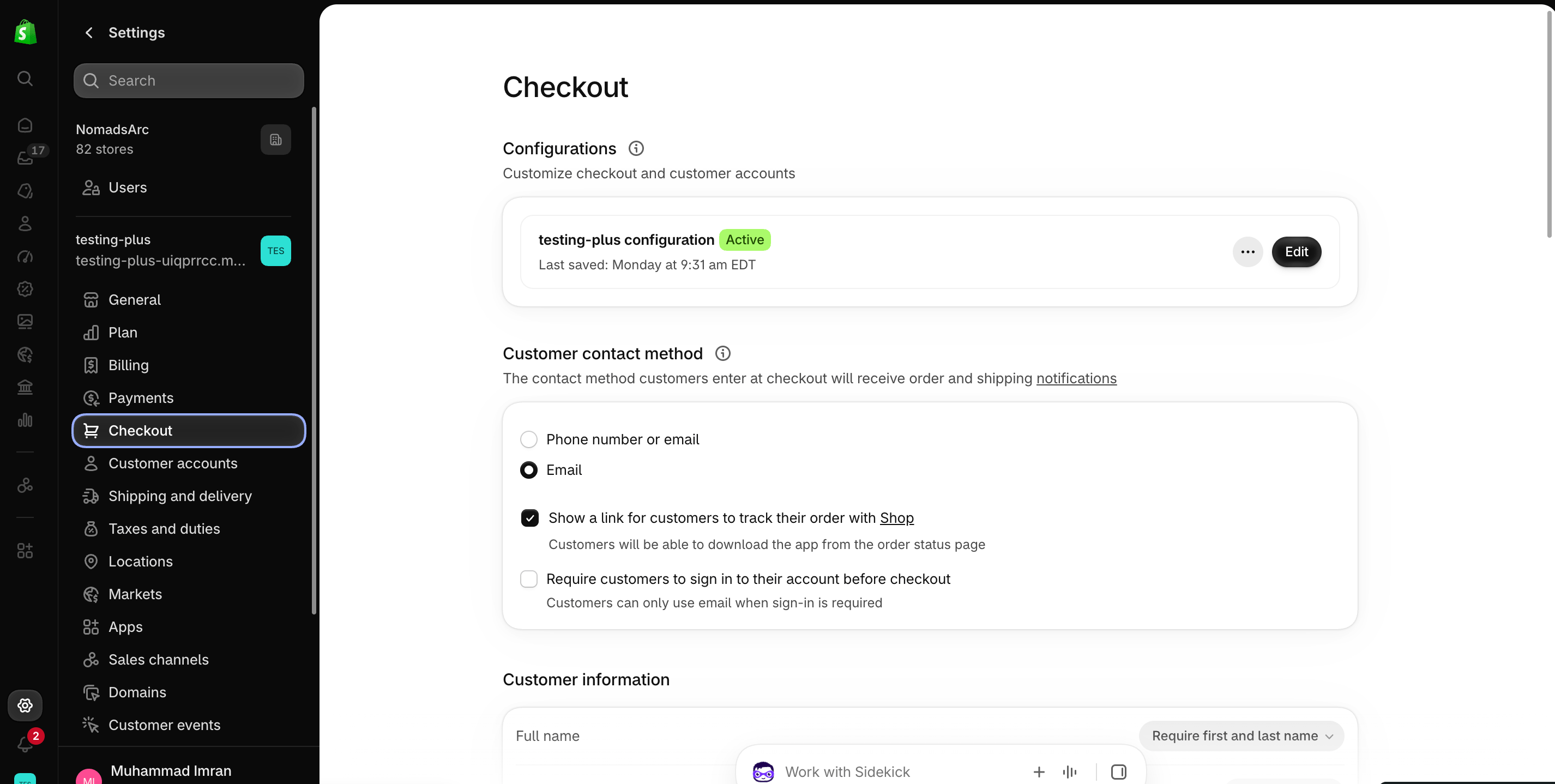
12
Add the app block
In the Checkout Editor, click Add app block.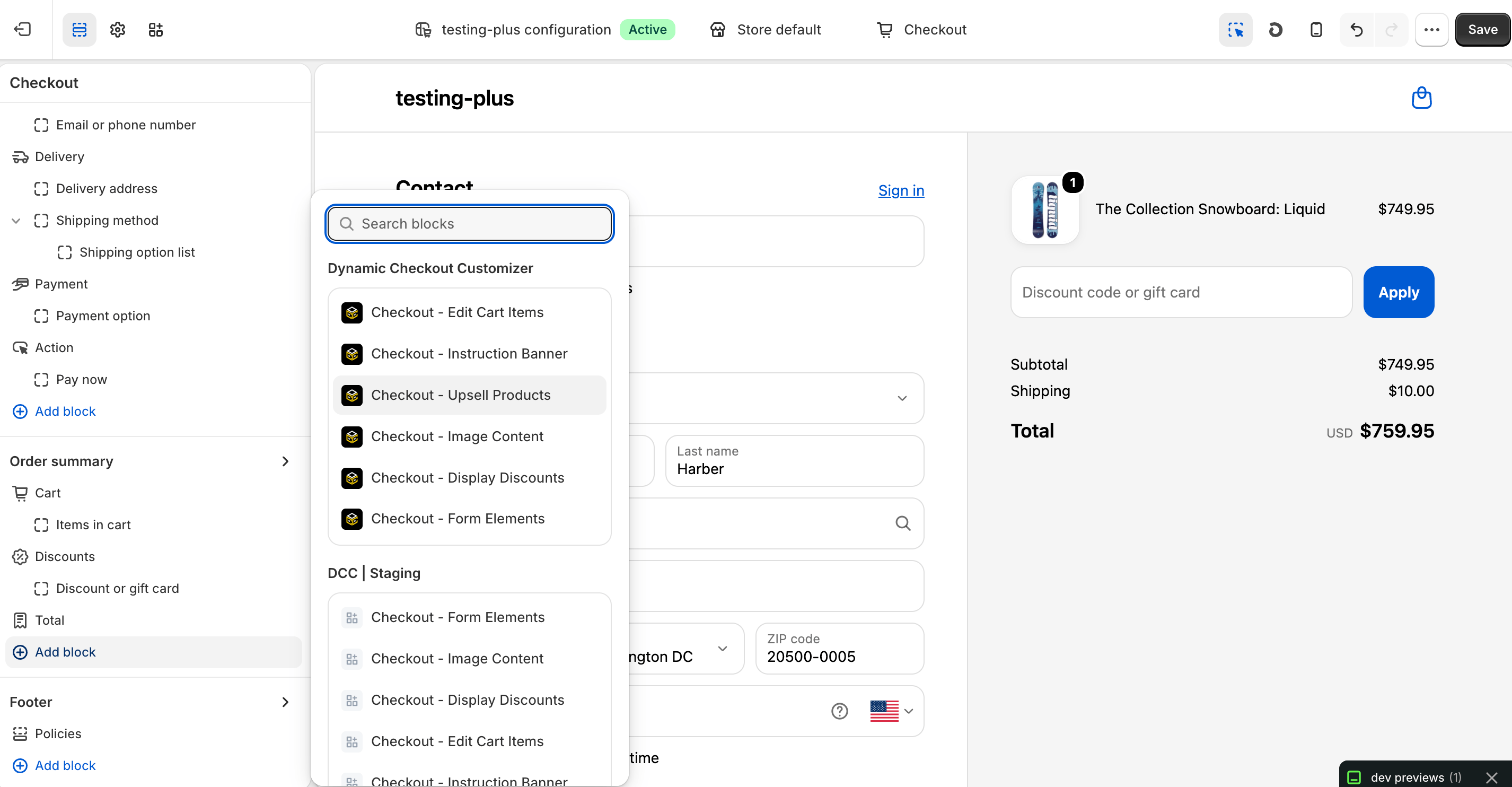
Make sure the app block is placed in the same checkout placement you selected in Dynamic Checkout Customizer.
13
Configure the app block
Select the Checkout – Upsell Products app block, and paste the copied Placement ID.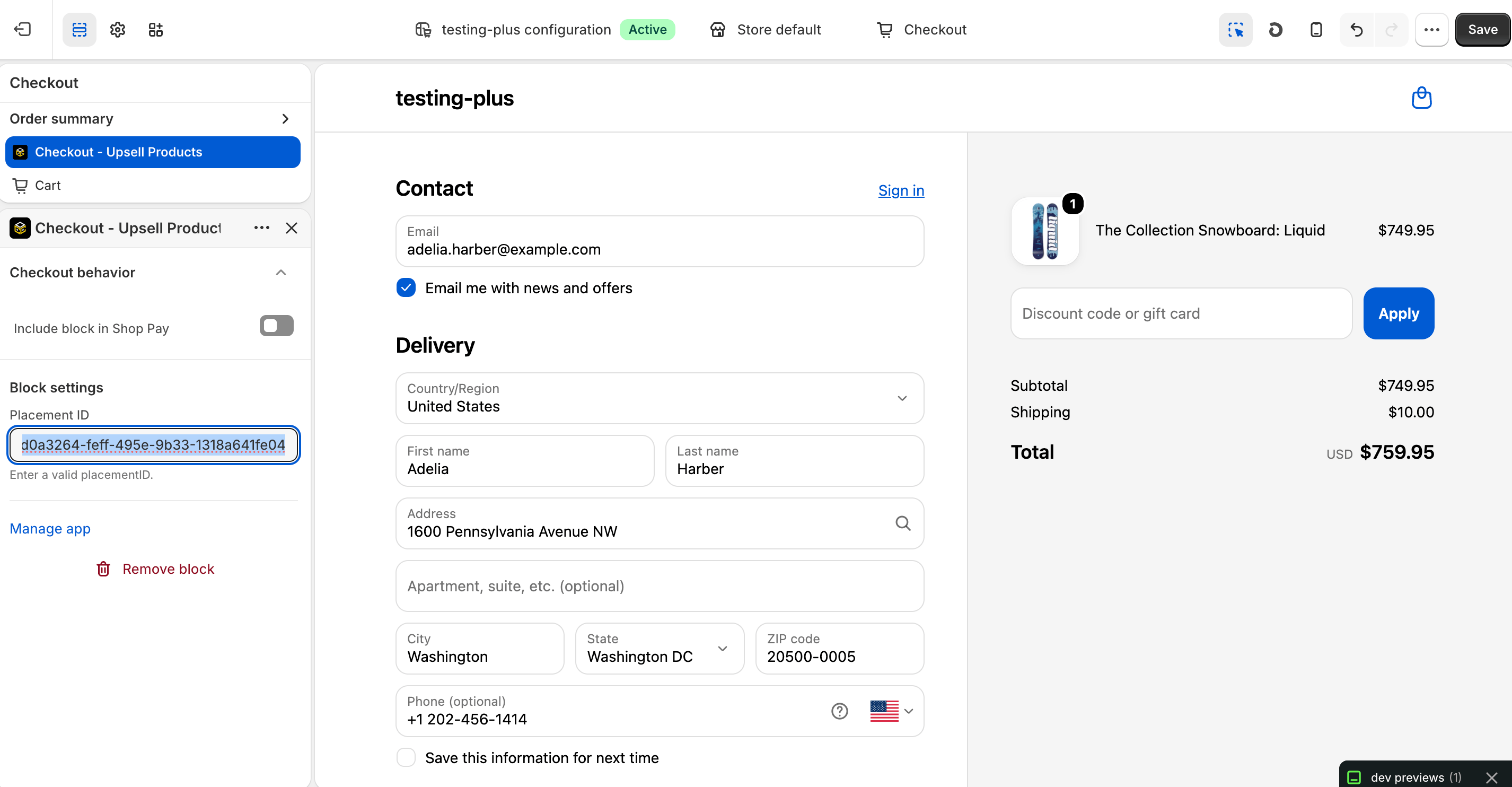
14
Publish your changes
Click Save in the Checkout Editor to publish the customization.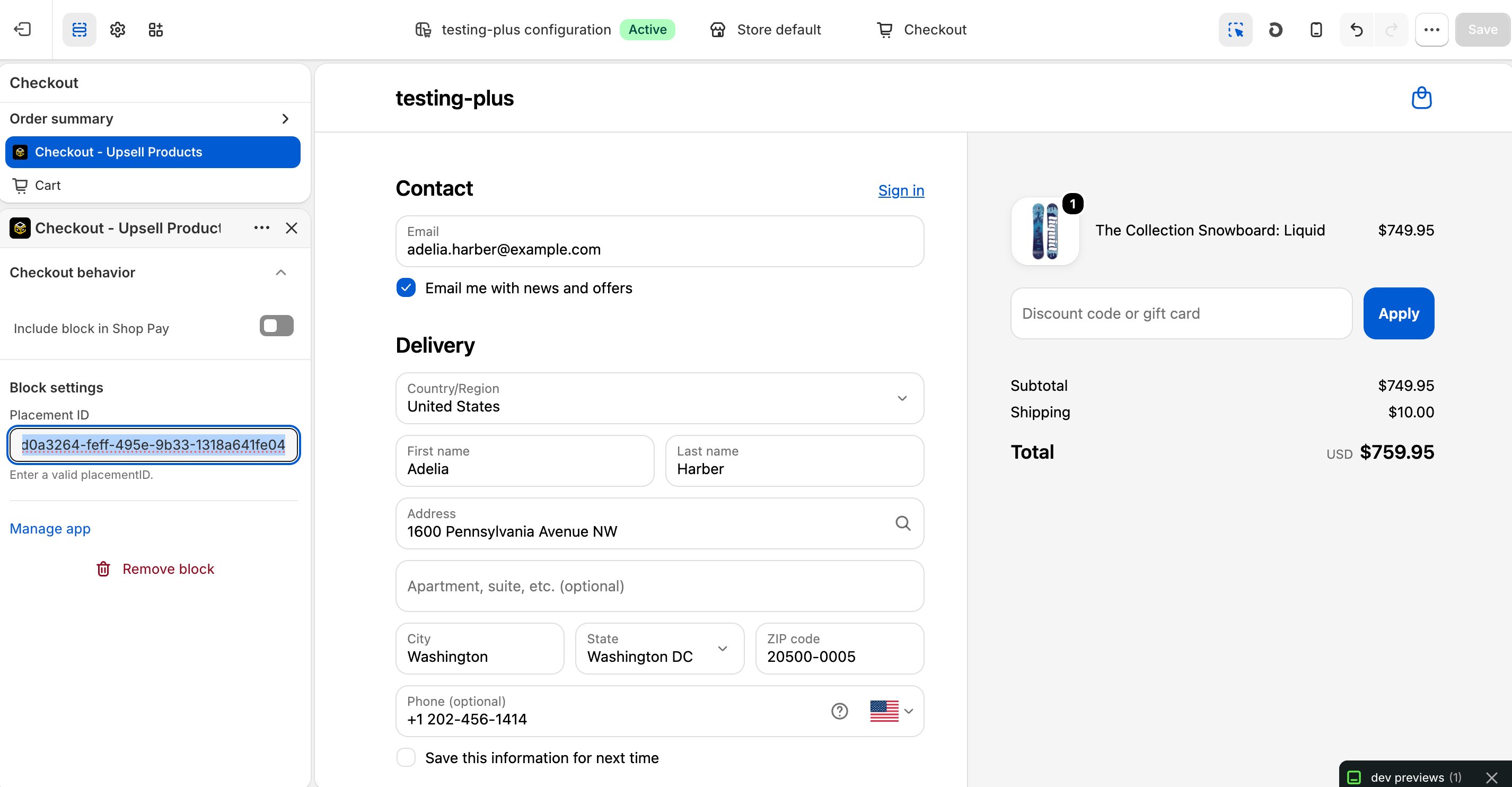
Why does it matter?FameOnCentral uses the Static Upsell customization to promote manually selected products during checkout, helping increase average order value (AOV) by encouraging customers to add complementary items before completing their purchase.