
The Amount off products discount type in Slice ‘n Save lets you apply a fixed amount or percentage discount to specific products in a customer’s cart. You can target products precisely using criteria like tags, vendor, or SKU, and control eligibility with conditions on the cart, customer, or line items.
Steps Guide
1
Create a new discount
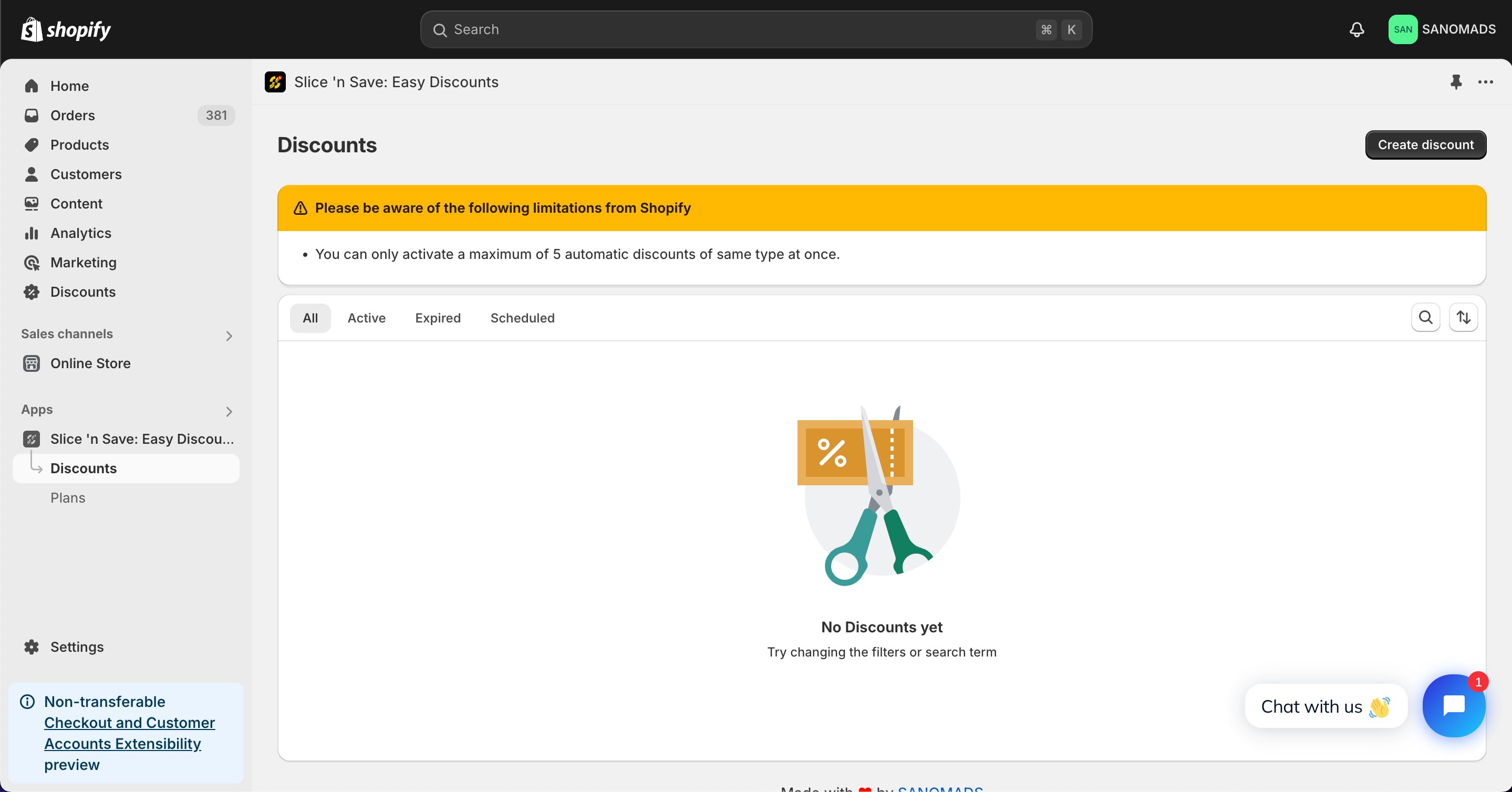
Open the Discounts section in the Slice ‘n Save app and click Create discount.
2
Select the discount type
Choose Amount off products from the list of discount types.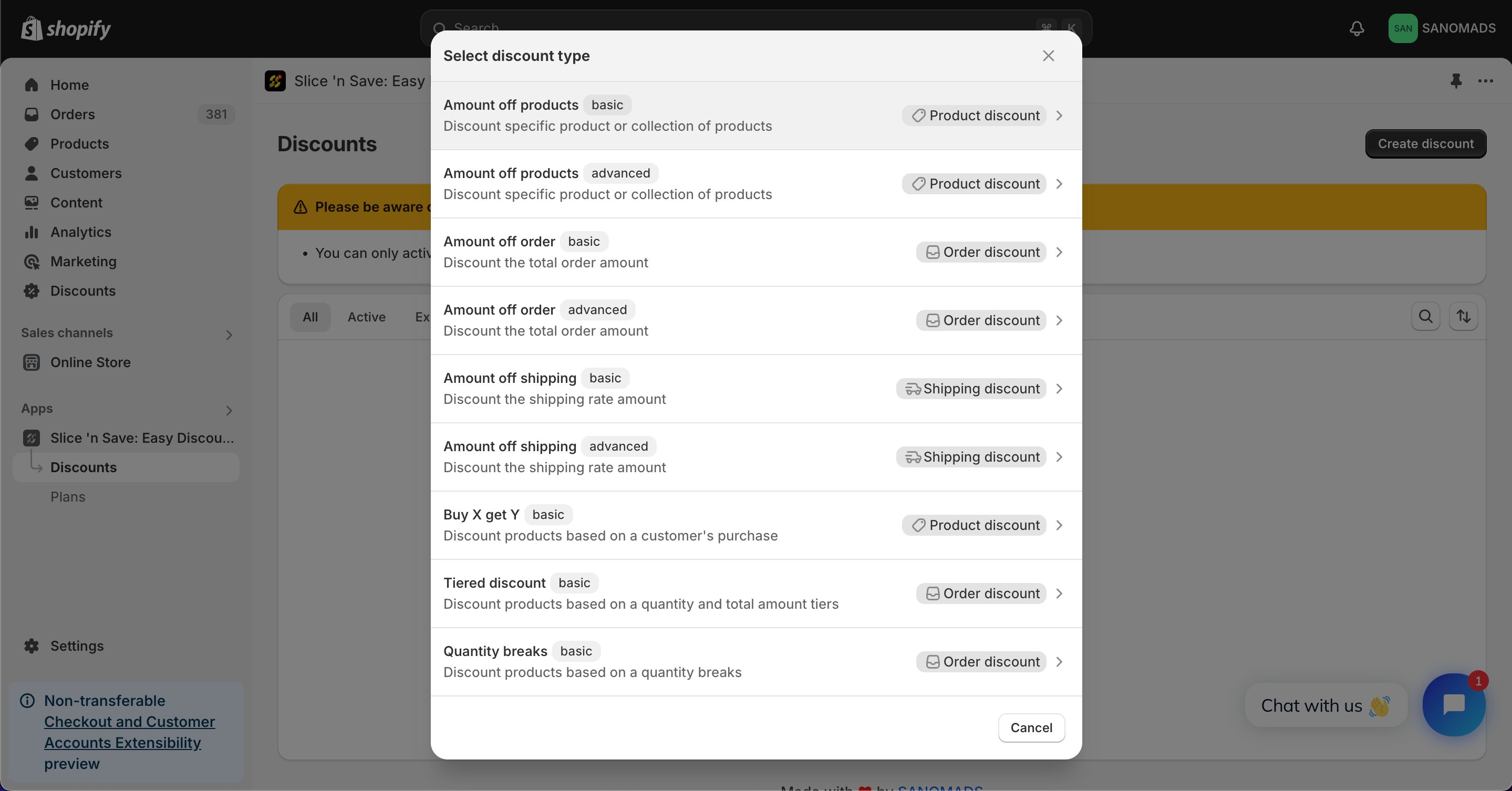
3
Set the method, title, and value
Select the discount method (percentage or fixed amount), enter a title for the discount, and set the discount value.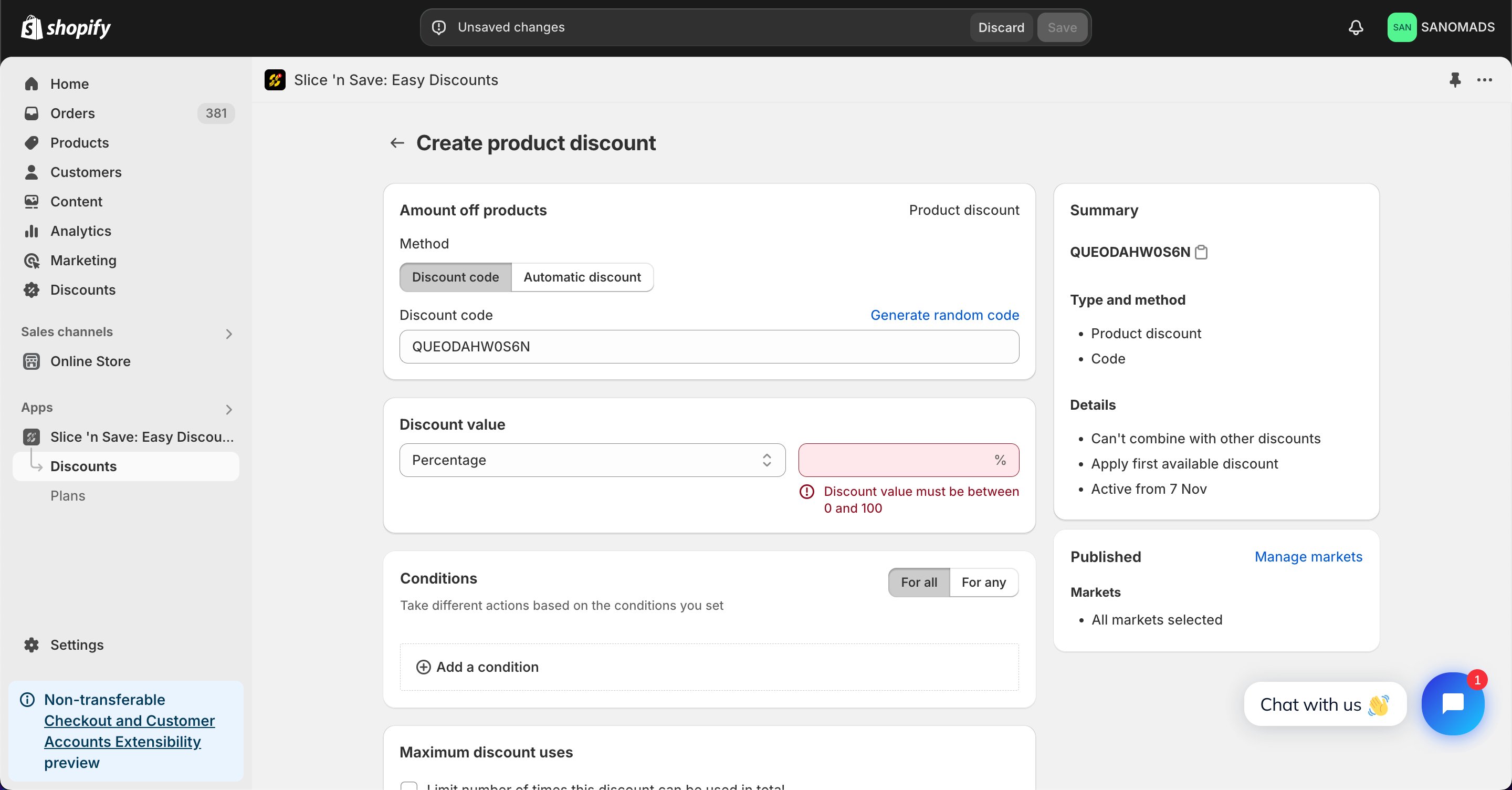
4
Add conditions
Add multiple conditions to handle the validation of the product discount on the cart and checkout page.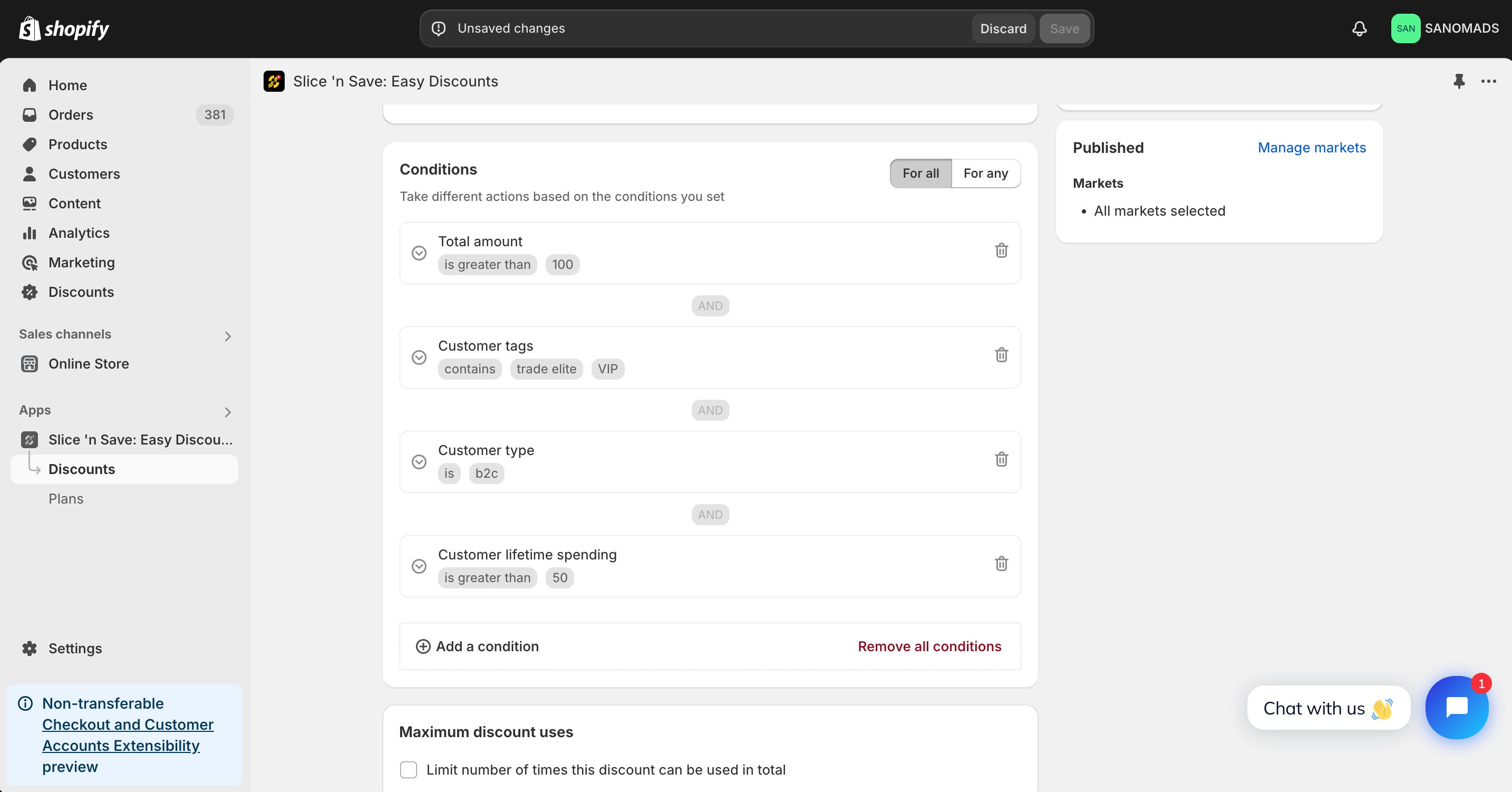
5
Add criteria
Add product-level criteria to filter which products the discount applies to. For example, apply the discount to products with a specific tag or product vendor.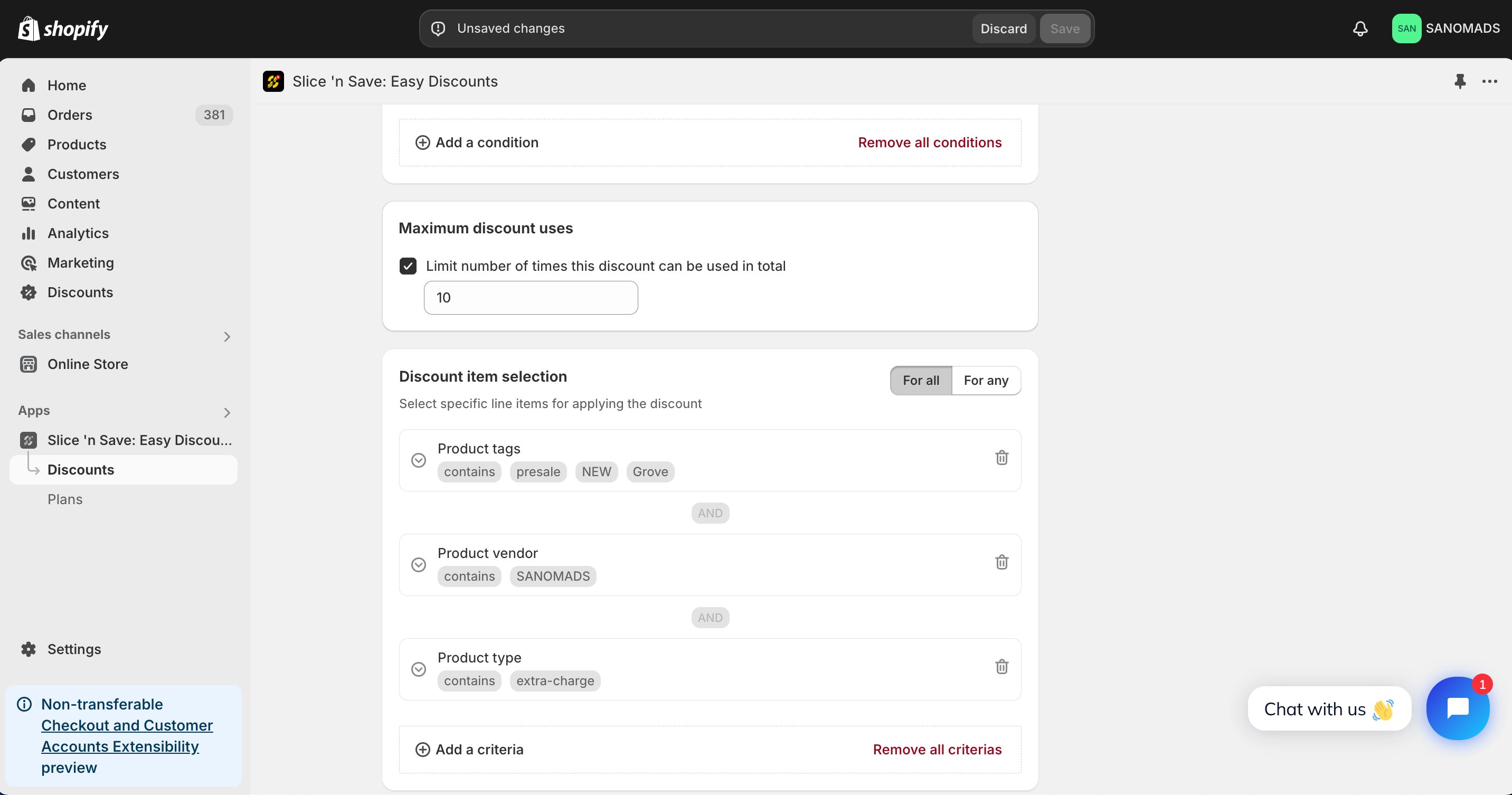
6
Set discount combinations
Discounts can be applied in combination with other discounts which are created using Slice ‘n Save app.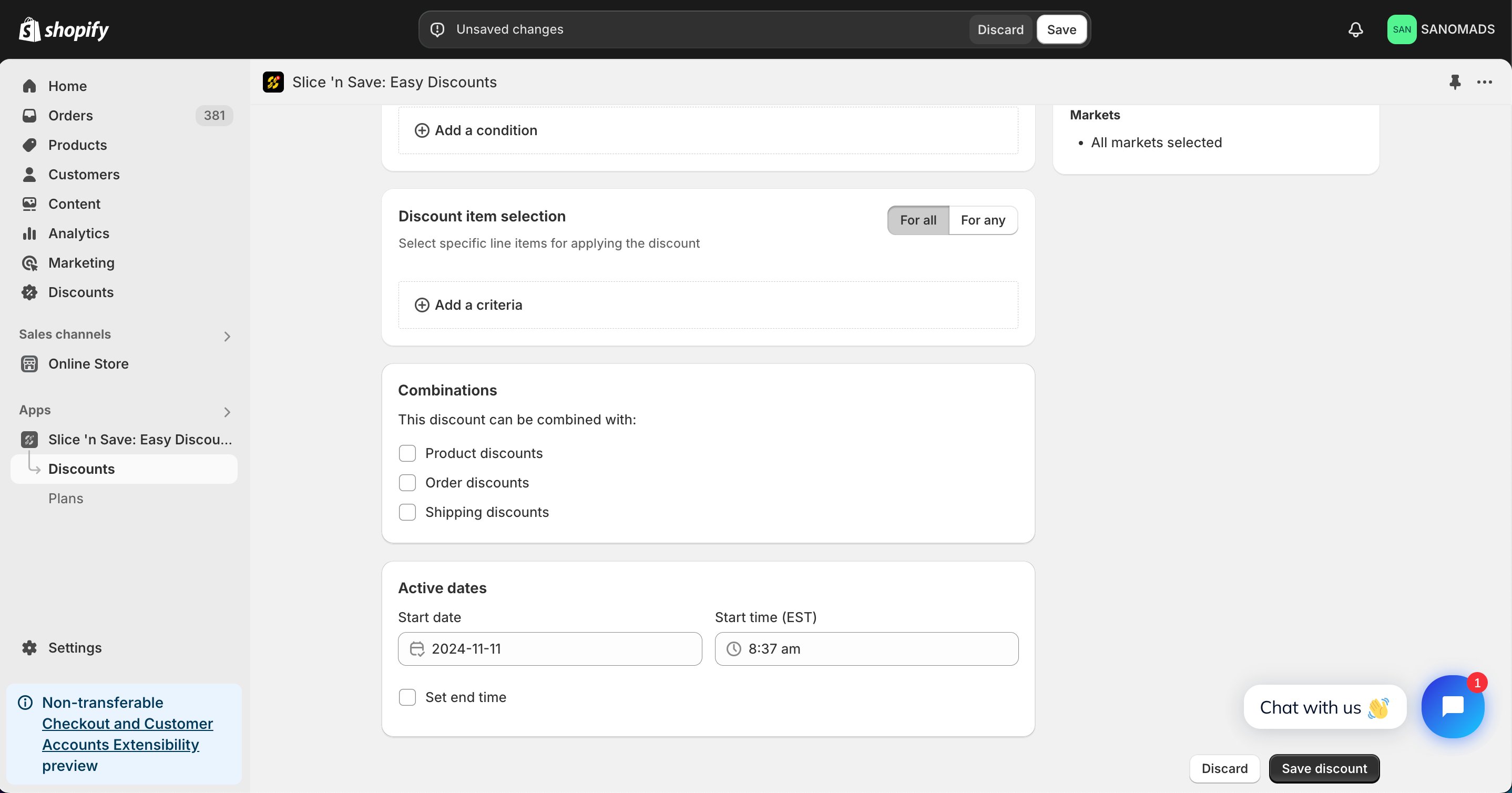
7
Schedule the discount
To activate the discount at a future date or time, set the active start and end dates in the Active dates section.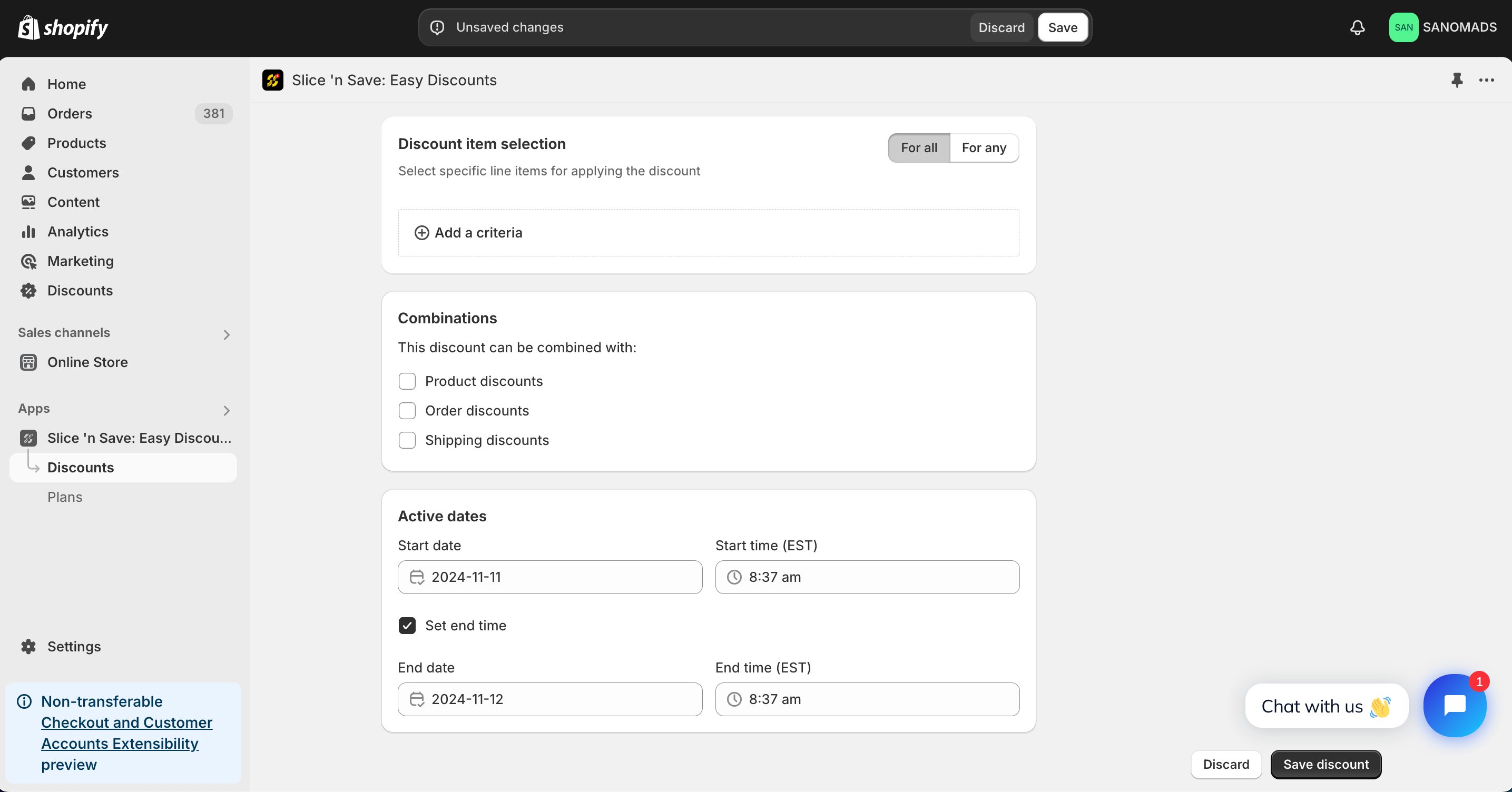
8
Manage markets
Adjust the markets from the manage markets section for discount eligibility.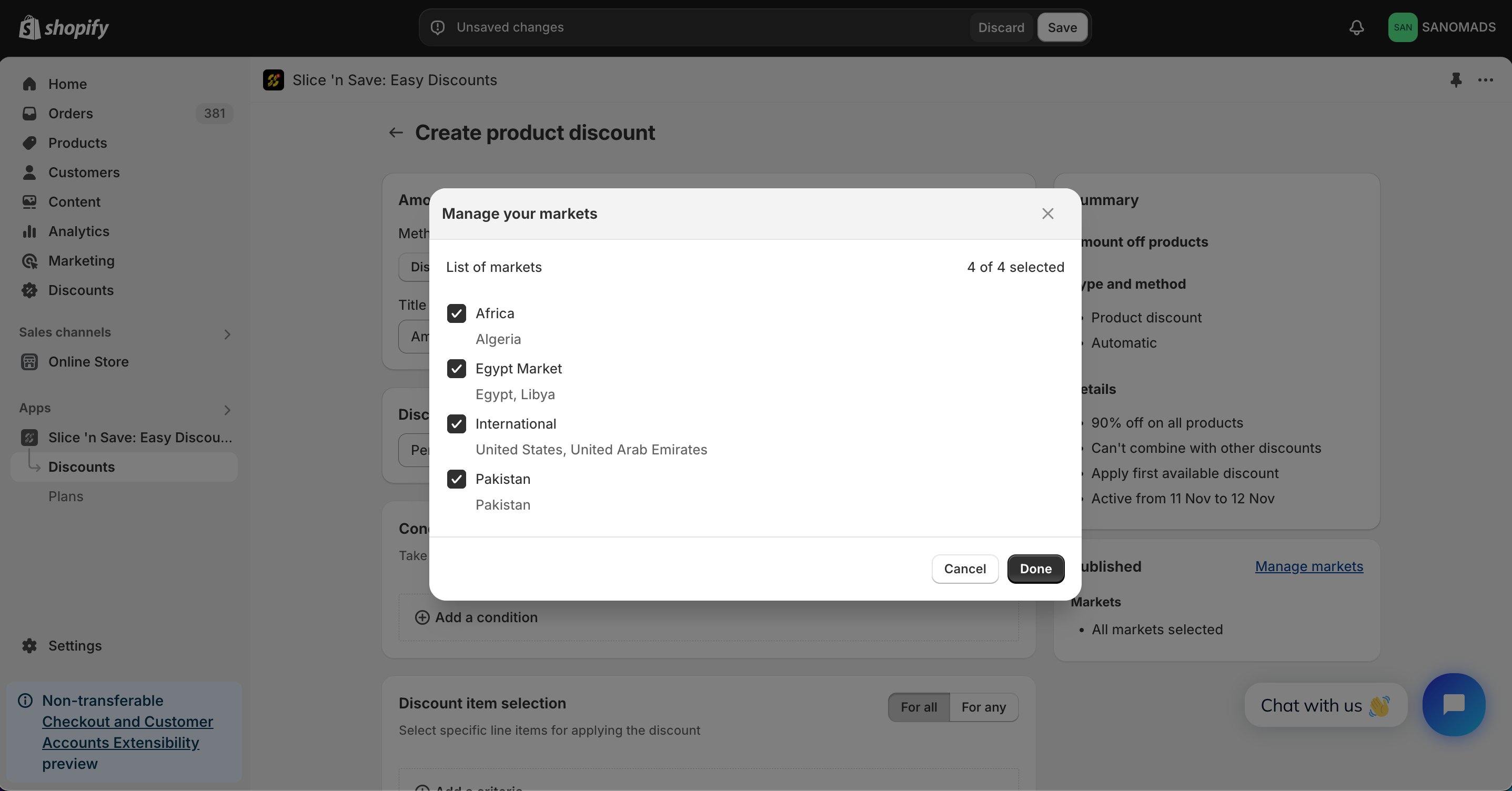
9
Save
Click Save to activate your discount.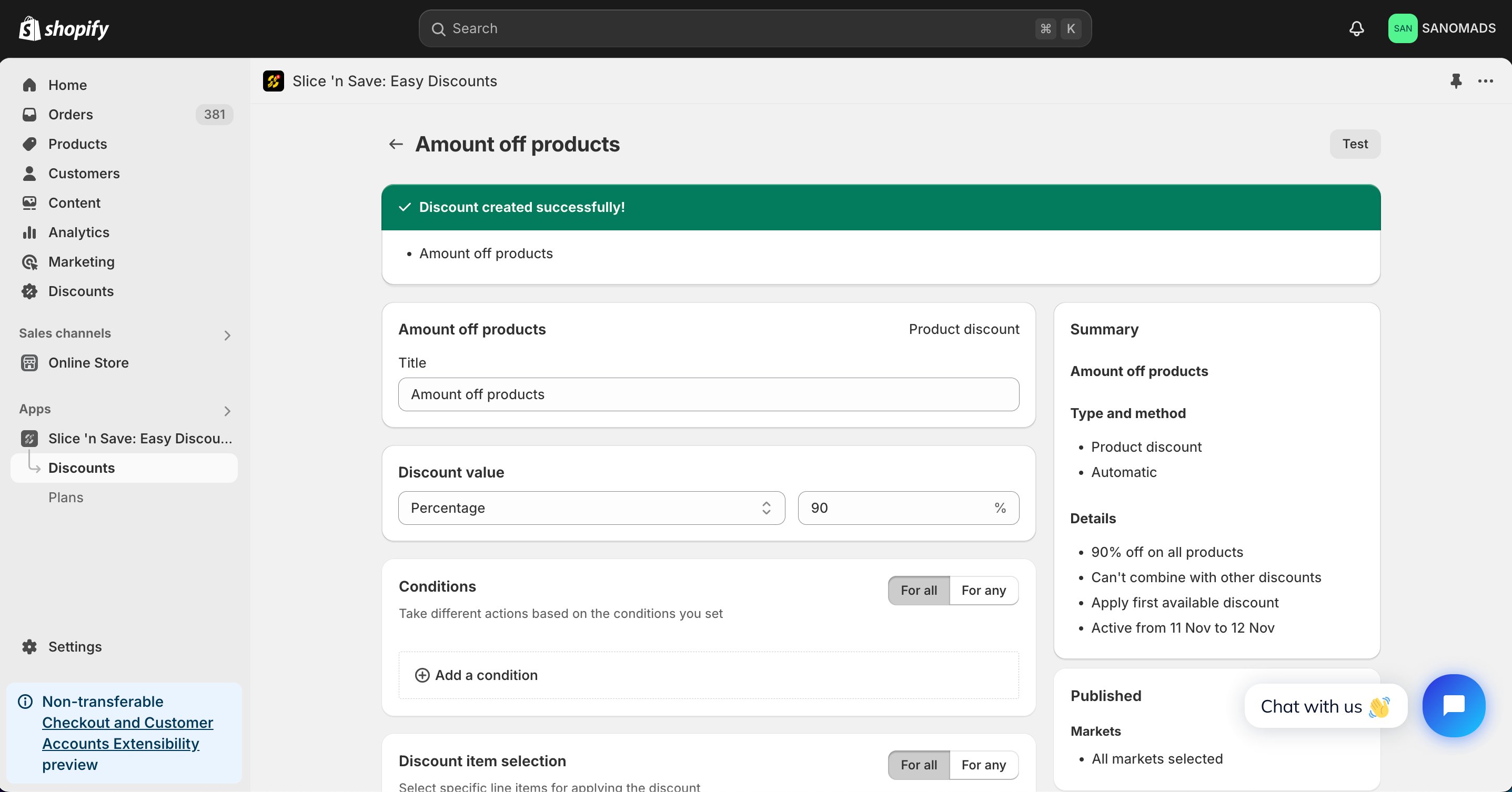
Tips & Gotchas
Conditions and criteria serve distinct roles in your discount configuration:
- Conditions validate whether the discount should apply to the cart at all (based on cart totals, customer attributes, etc.).
- Criteria filter which specific products in the cart receive the discount.