
Quantity breaks let you set different discount levels based on the quantity of a product in the cart, using minimum and maximum quantity breakpoints. Unlike tiered discounts (which apply one tier to the whole order), quantity breaks can apply different discounts to different quantity ranges simultaneously — ideal for clearance sales.
Steps Guide
1
Create a new discount
Open the Discounts section in the Slice ‘n Save app and click Create discount.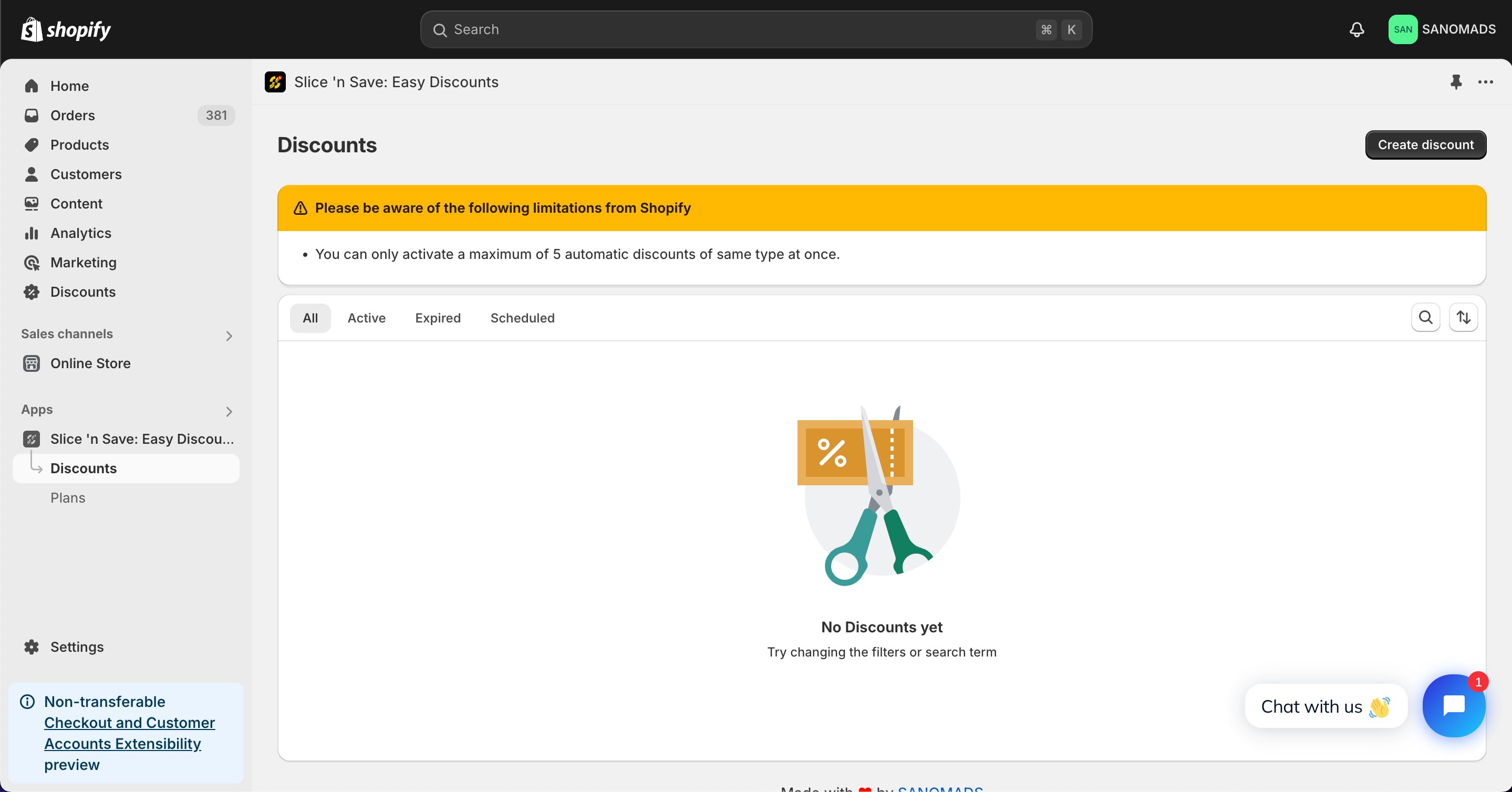
2
Select the discount type
Choose Quantity breaks from the list of discount types.
3
Set the method and title
Select the discount method and enter a title for the discount.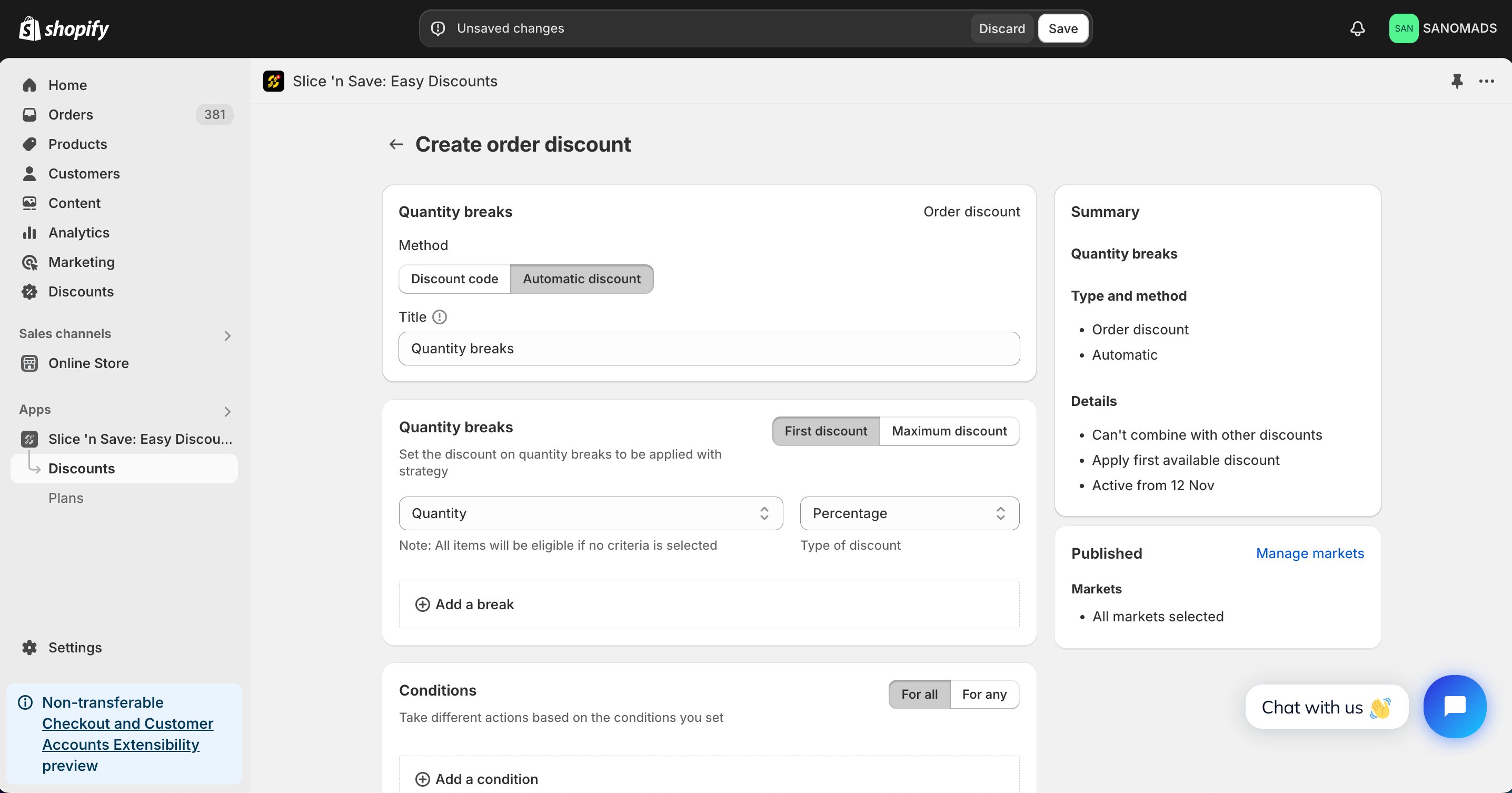
4
Add breakpoints
Add multiple breakpoints. For each breakpoint, set the minimum quantity, maximum quantity, and the discount value. For example: 1–3 items = 10% off, 4–10 items = 15% off, 11–20 items = 25% off.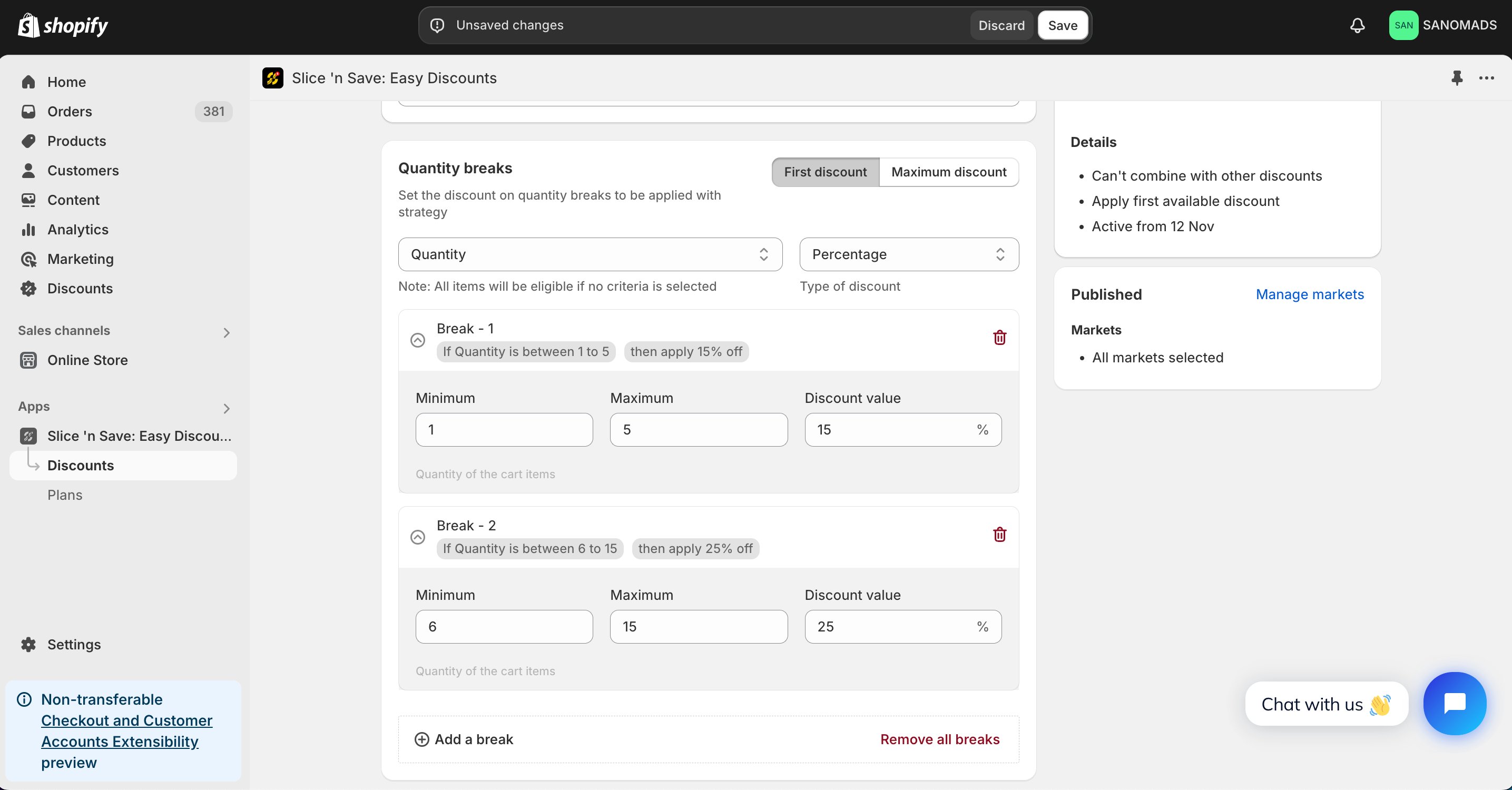
5
Add conditions
Add conditions to control when the discount is valid — for example, restrict it to products tagged “clearance sale”.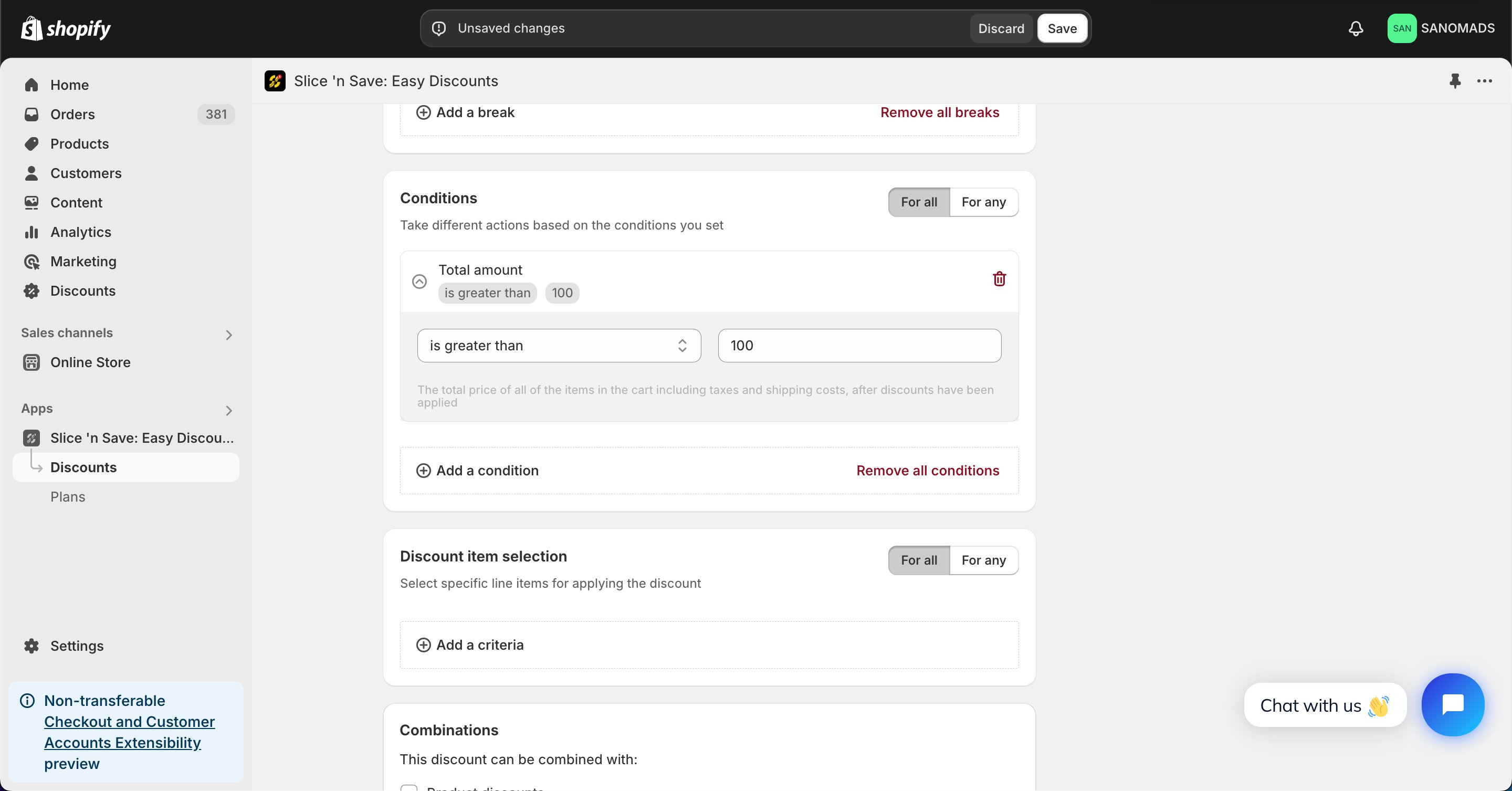
6
Add criteria
Add product-level criteria to filter which products the breakpoints apply to.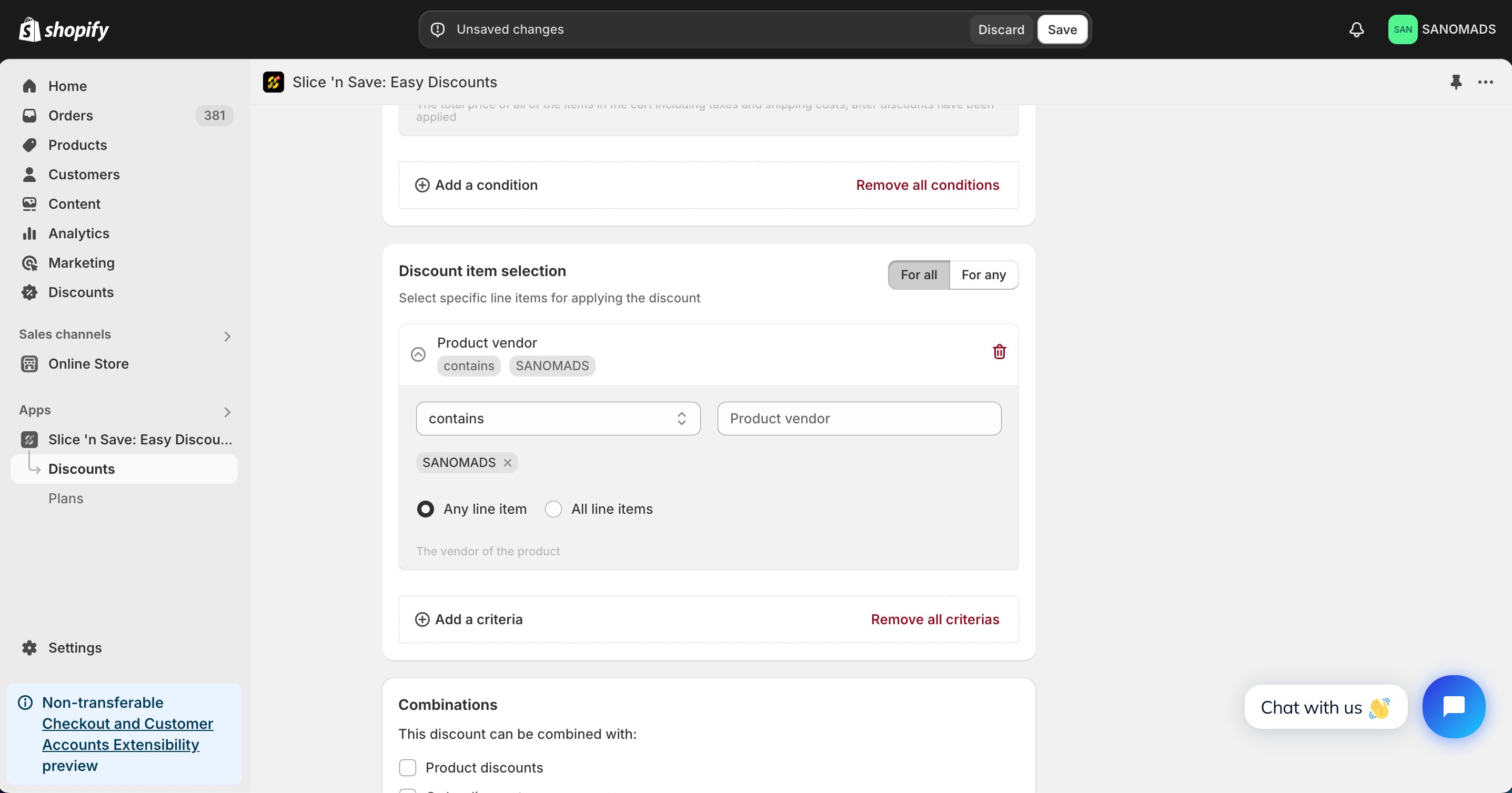
7
Set discount combinations
Choose whether this discount can combine with other Slice ‘n Save discounts.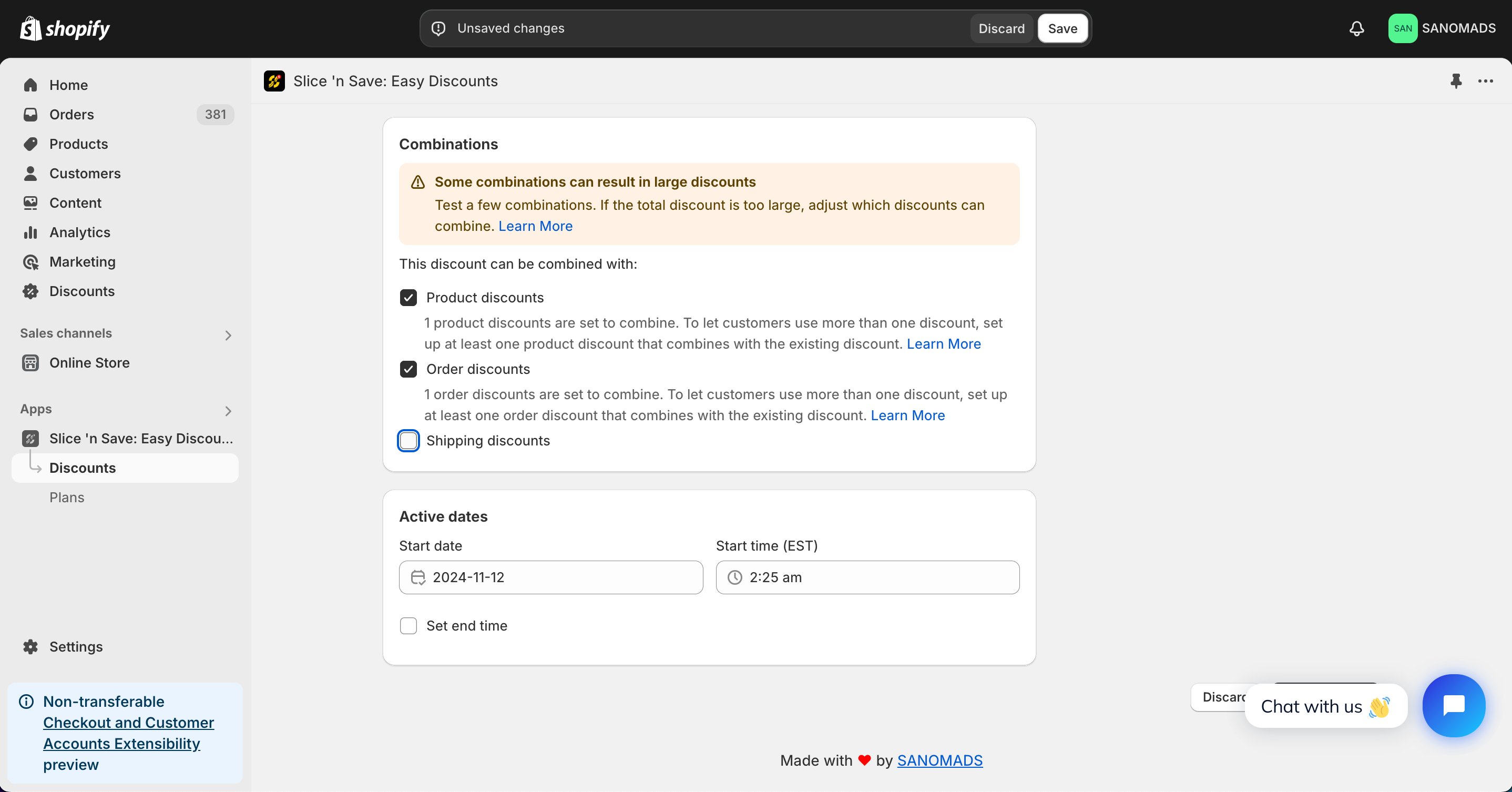
8
Schedule the discount
To activate at a future date or time, update the active dates.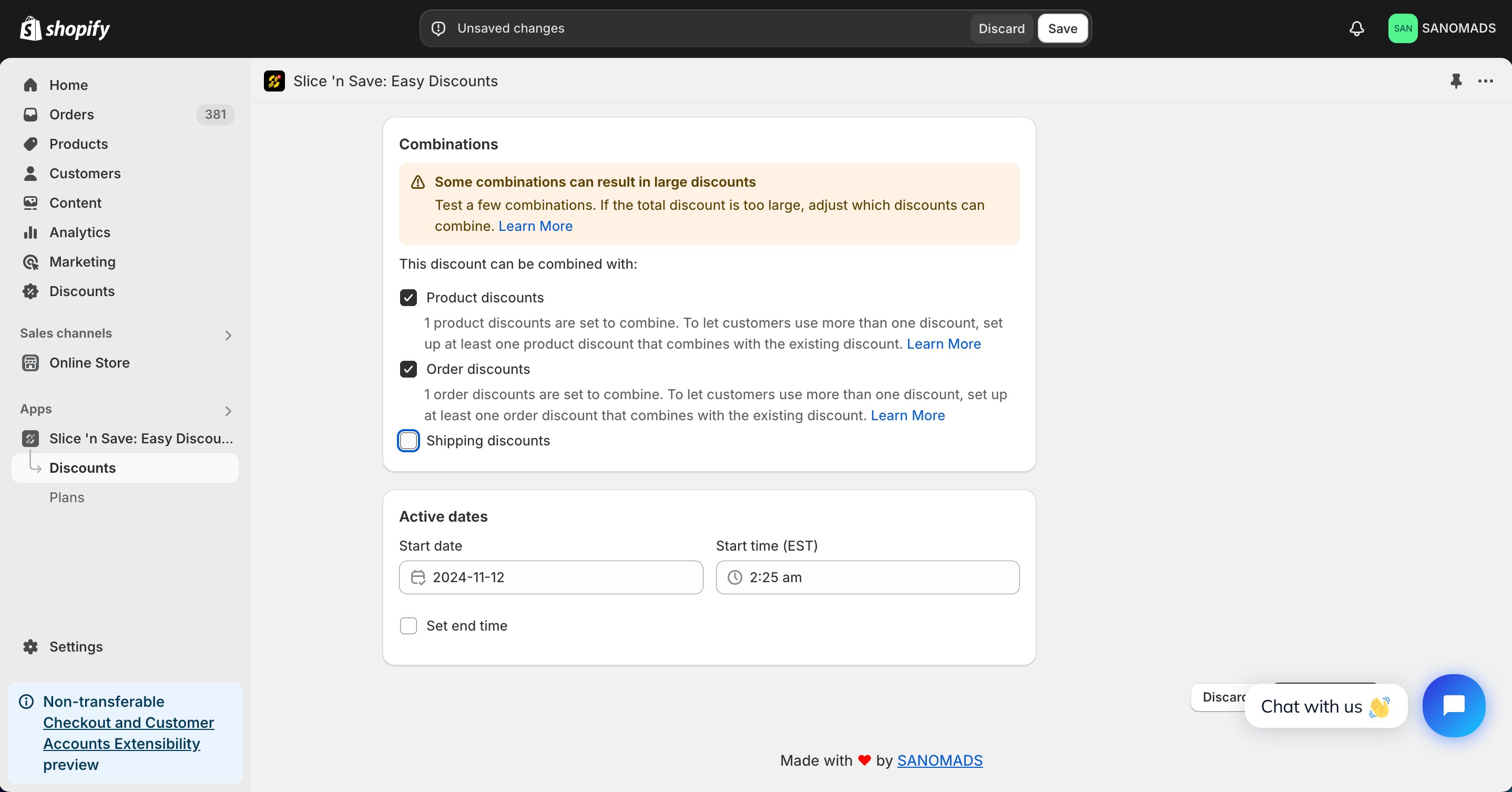
9
Manage markets
Adjust the markets from the manage markets section for discount eligibility.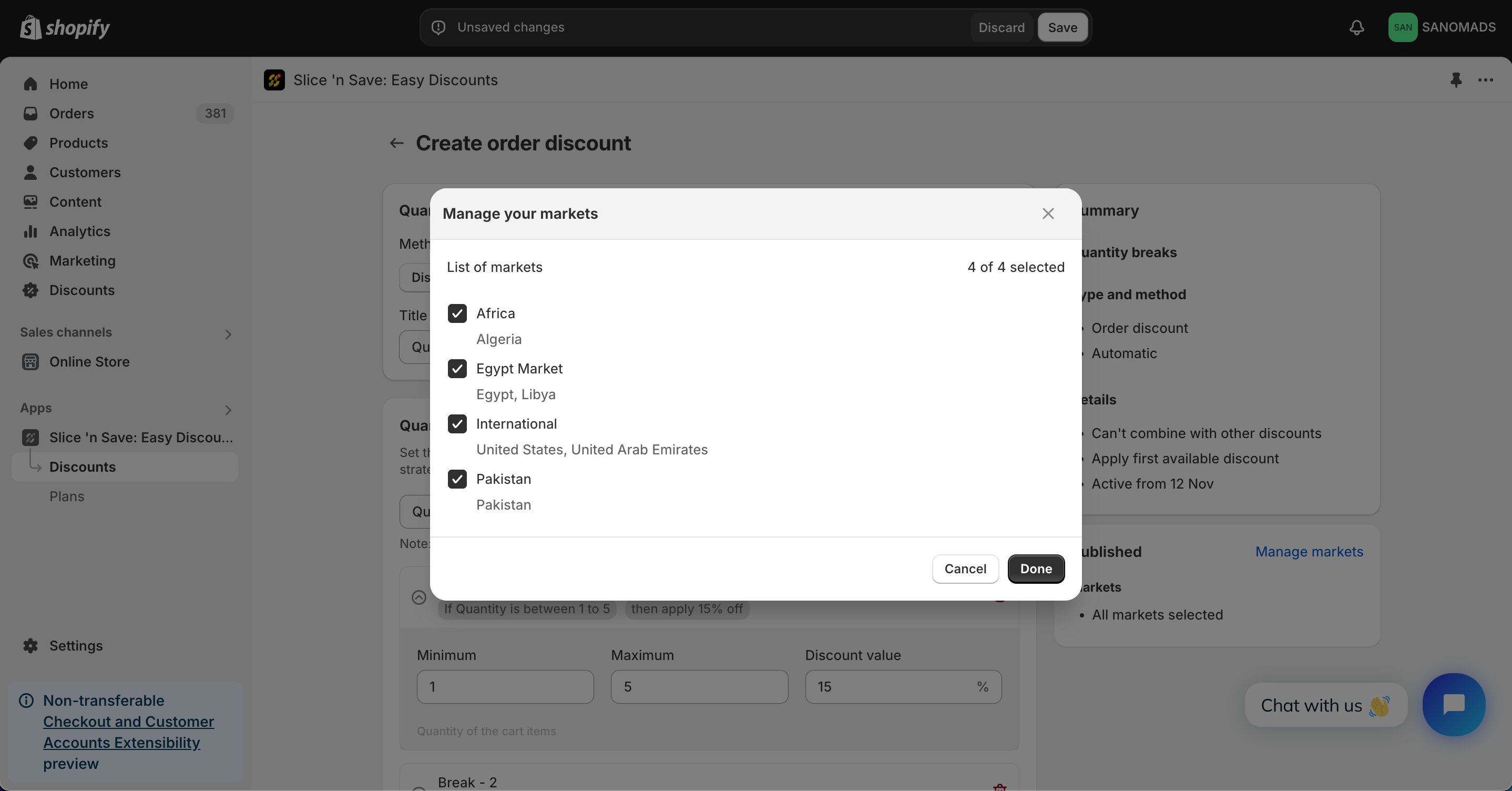
10
Save
Click Save to activate your discount.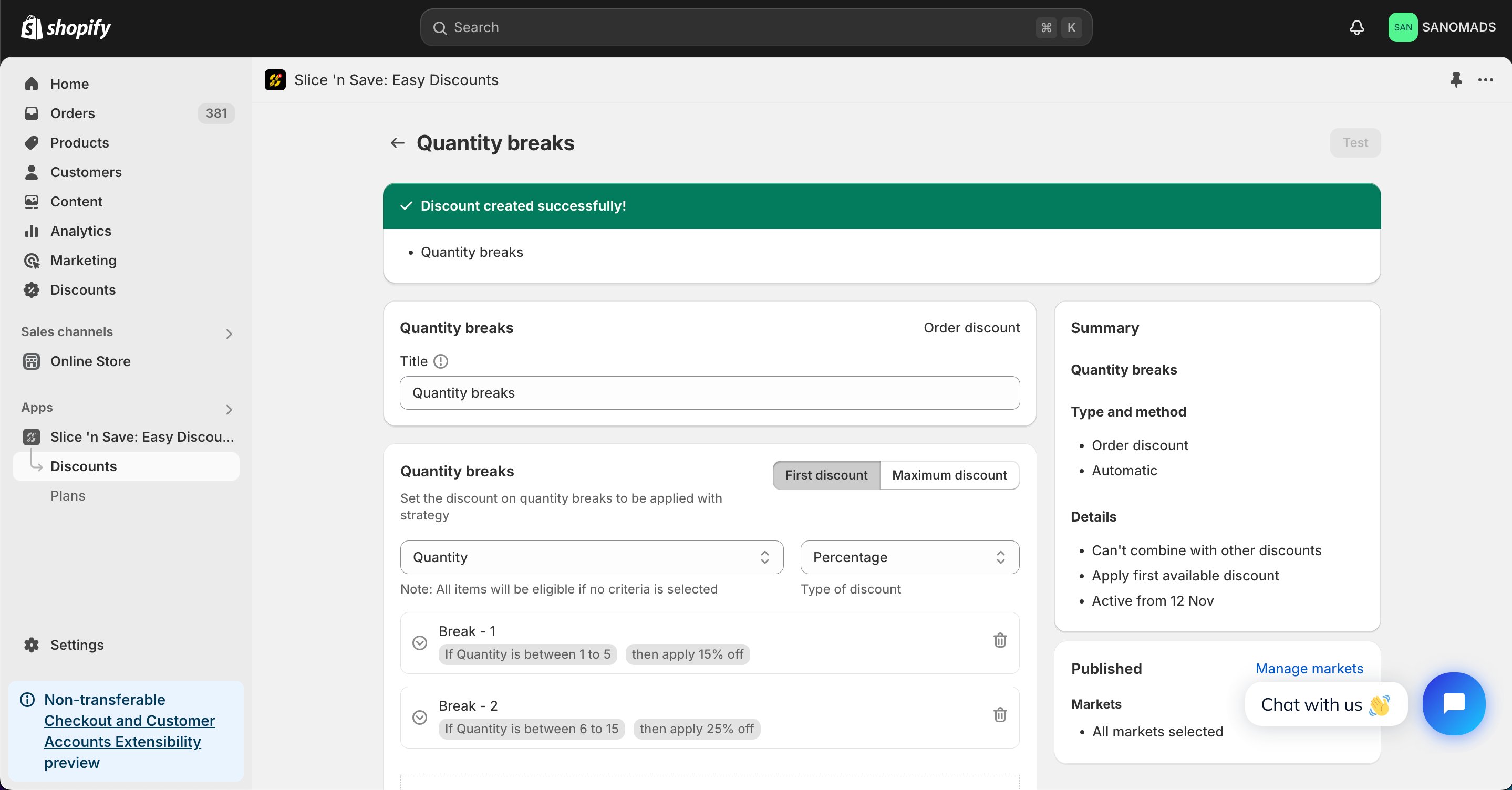
Tips & Gotchas
Quantity breaks and tiered discounts work differently:
- Quantity breaks: Each breakpoint has both a minimum AND maximum quantity range. The discount for that range applies to the matching quantity in the cart.
- Tiered discounts: Each tier has only a minimum threshold. The highest matching tier applies to the whole order.